

Overview
A play connects a trigger to actions that work on companies or people. Use the builder to arrange those actions, define branches, and publish the workflow. For a complete example, follow the create a play tutorial.Actions and triggers
A trigger defines when the play runs and which records it receives. Each connected action performs a task, such as researching a company or enrolling a person in a sequence.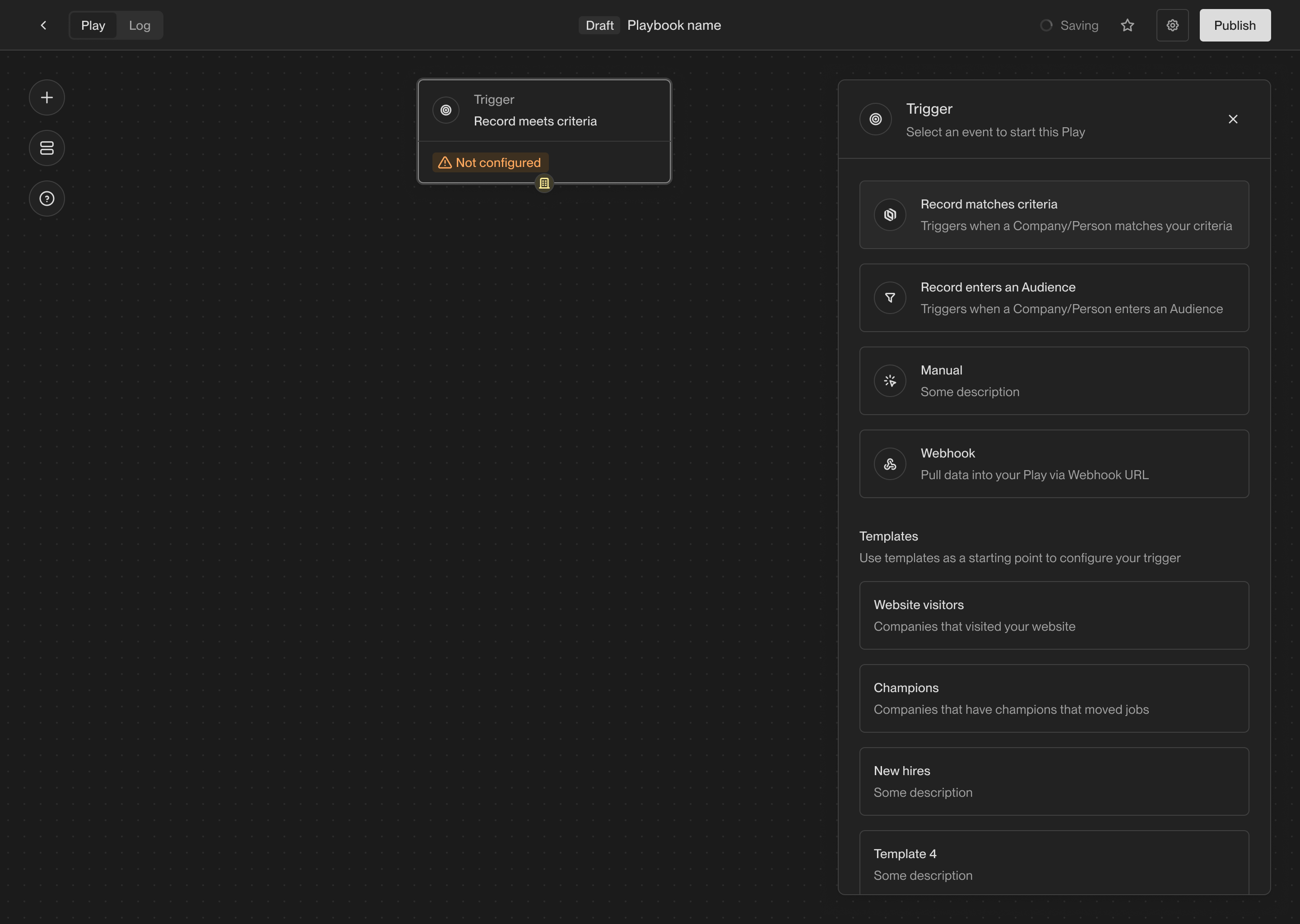
An empty play showing the trigger selection panel.
- Record enters an Audience: Run a play once on every company or person that “enters” an audience. Audiences can be reused across multiple plays.
- Record matches criteria: Run a play once on every company or person that matches a set of filters. This trigger is similar to the audience trigger, but it doesn’t require you to create a separate audience. Useful when you don’t need to create a reusable audience.
- Manual: Only run a play when it is manually triggered. For example, you can send individual companies or people to a play, or you can send an entire audience.
- Agent qualification: Use a research agent to answer qualifying questions about a company or person.
- Prospect for new People: Find new people at a company matching specific personas. You can specify a limit on the number of people to find.
- Sequence enrollment: Enroll a person in a sequence. You can route people to different mailboxes and sequences based on their persona.
- Write to Salesforce or HubSpot: Sync a company or person to Salesforce or HubSpot. This will create or update a record in your CRM.
Triggers
See the full list of triggers available in Unify and how to use them.
Actions
See the full list of actions available in Unify and how to use them.
Play settings
Configure settings for the play such as rerun behavior.
Inputs and outputs
Each action receives an input and produces an output. Actions in the play builder have small colored symbols that represent what type of input and output they expect. Here’s what each symbol represents:
Plays work by connecting each action’s output to a matching input on another
action. This is how data flows through the play and how each action knows what
to do.
Connect actions
To connect two actions, click on the output symbol of the first action and drag the connection to the input symbol of the second action.Connect two actions by dragging a connection line between them.
Drag a new action onto another action to quickly connect them.
Move an action near another action to automatically connect them.
Delete a connection by clicking on it and pressing the backspace key.
Save and publish
When you first create a play, it is automatically saved as a draft. You can leave and return later to finish building the play without losing your progress. Once you’re ready to start running the play, you can publish it. Published plays will run automatically based on the trigger you’ve selected. To publish a play, click Publish in the top right corner of the play builder.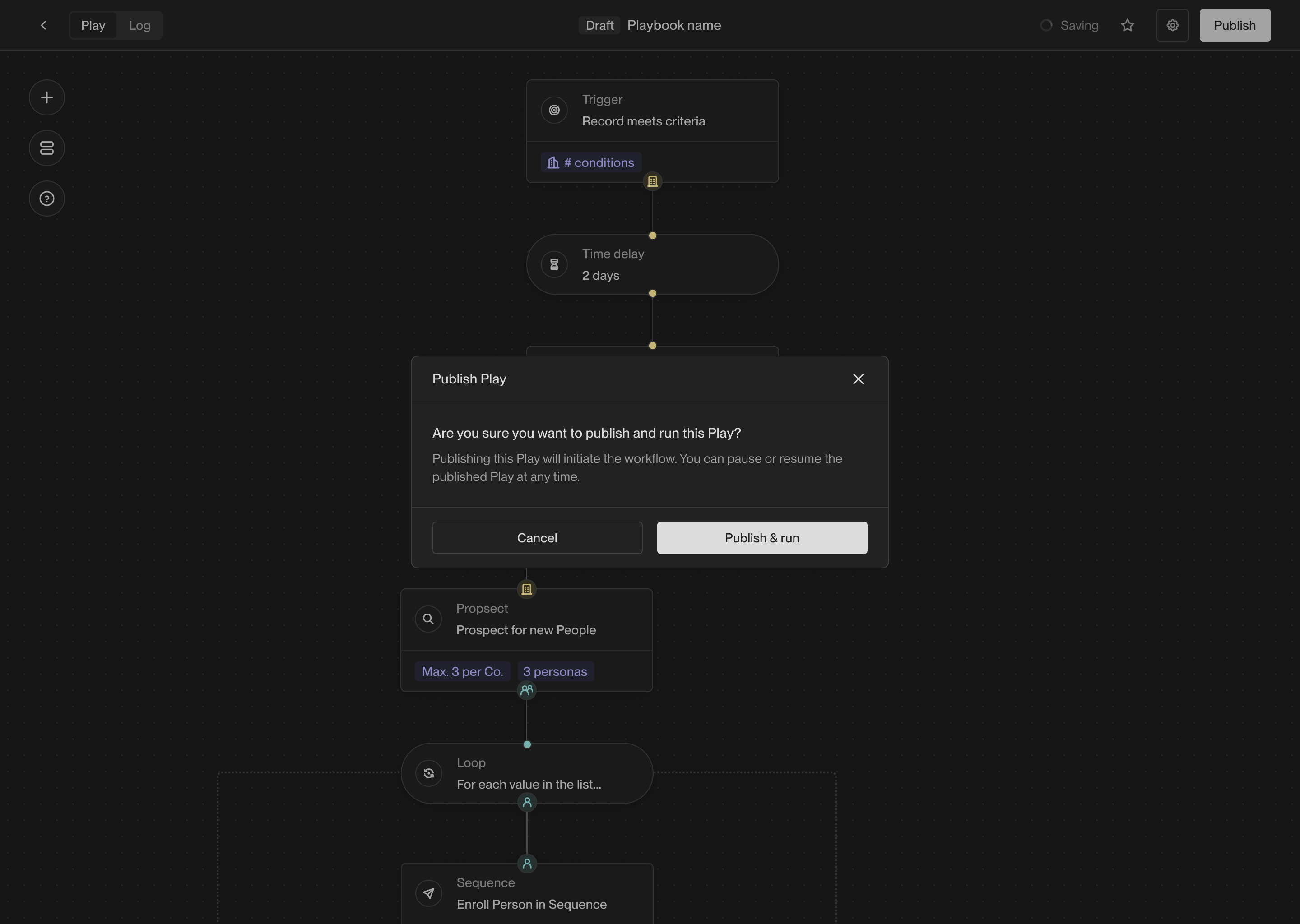
The confirmation shown when publishing a play.
View logs
Once a play starts running, you can view the logs to see which companies and people the play has run on. In the top left corner of the play builder, click on Logs to see the full history of play executions.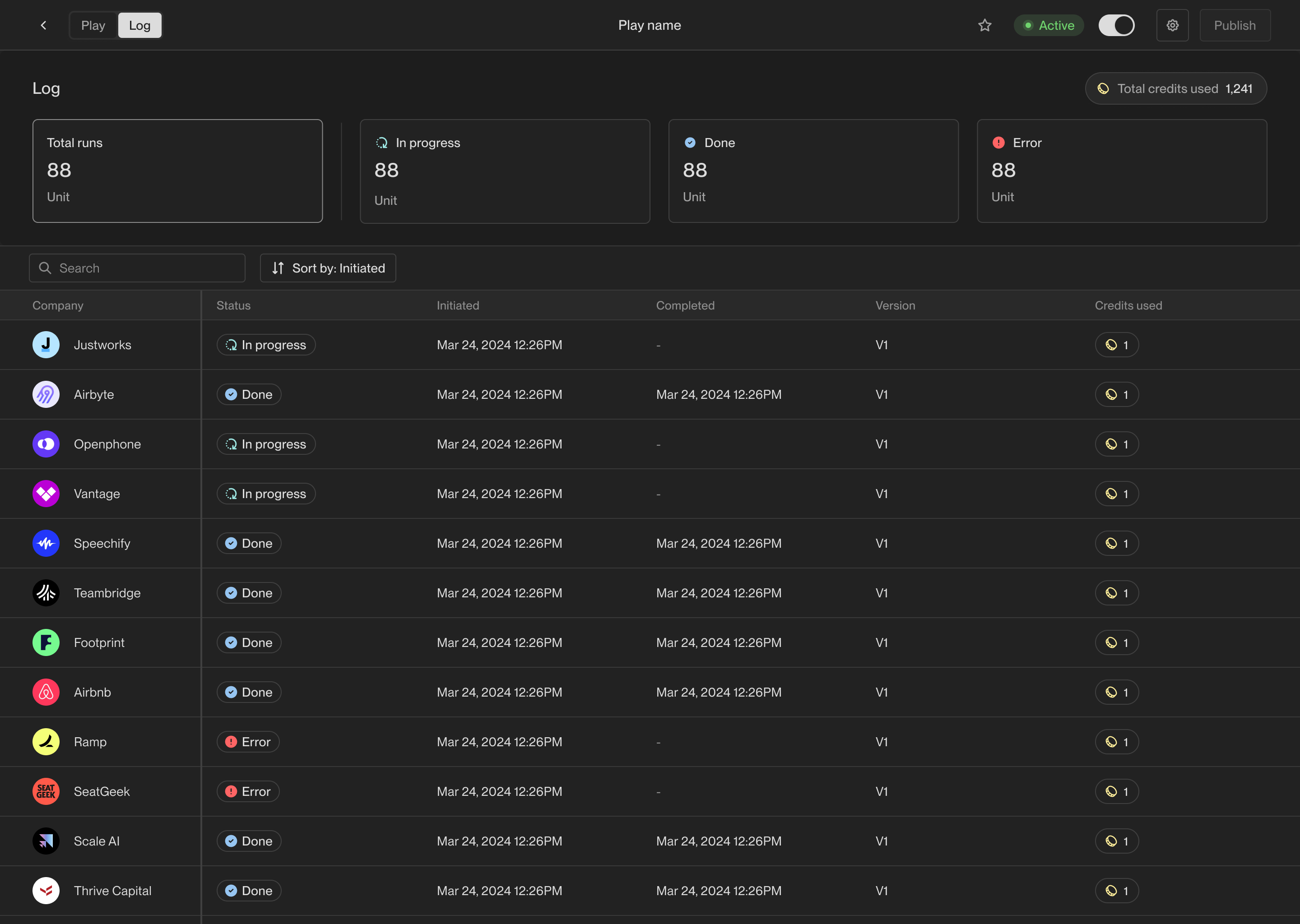
The logs view showing the history of play executions.
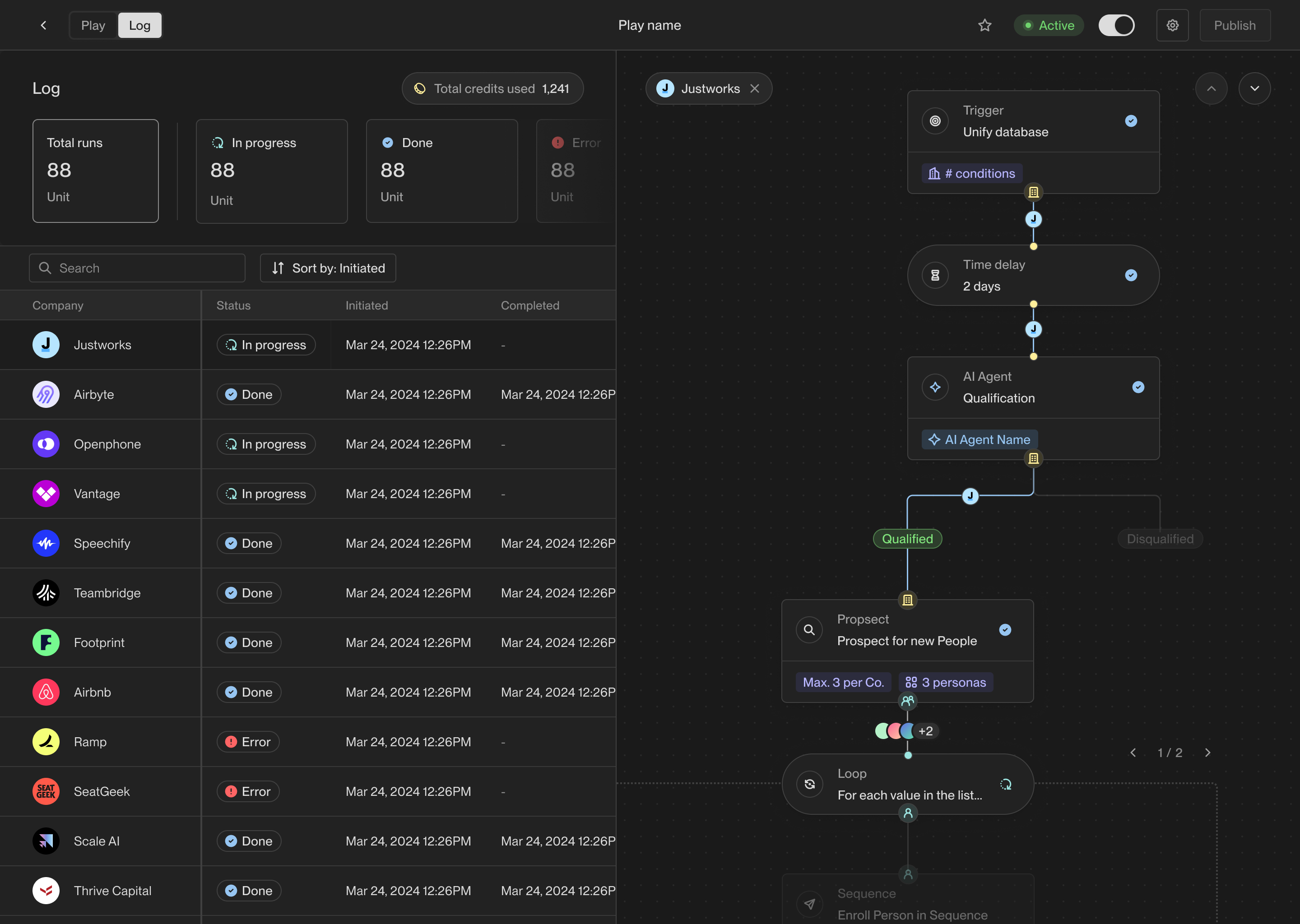
The details view showing the results of a single play run.
View metrics
You can view metrics for each play to see how it’s performing over time. In the top left corner of the play builder, click on Metrics to see overview metrics and charts for the play and its actions.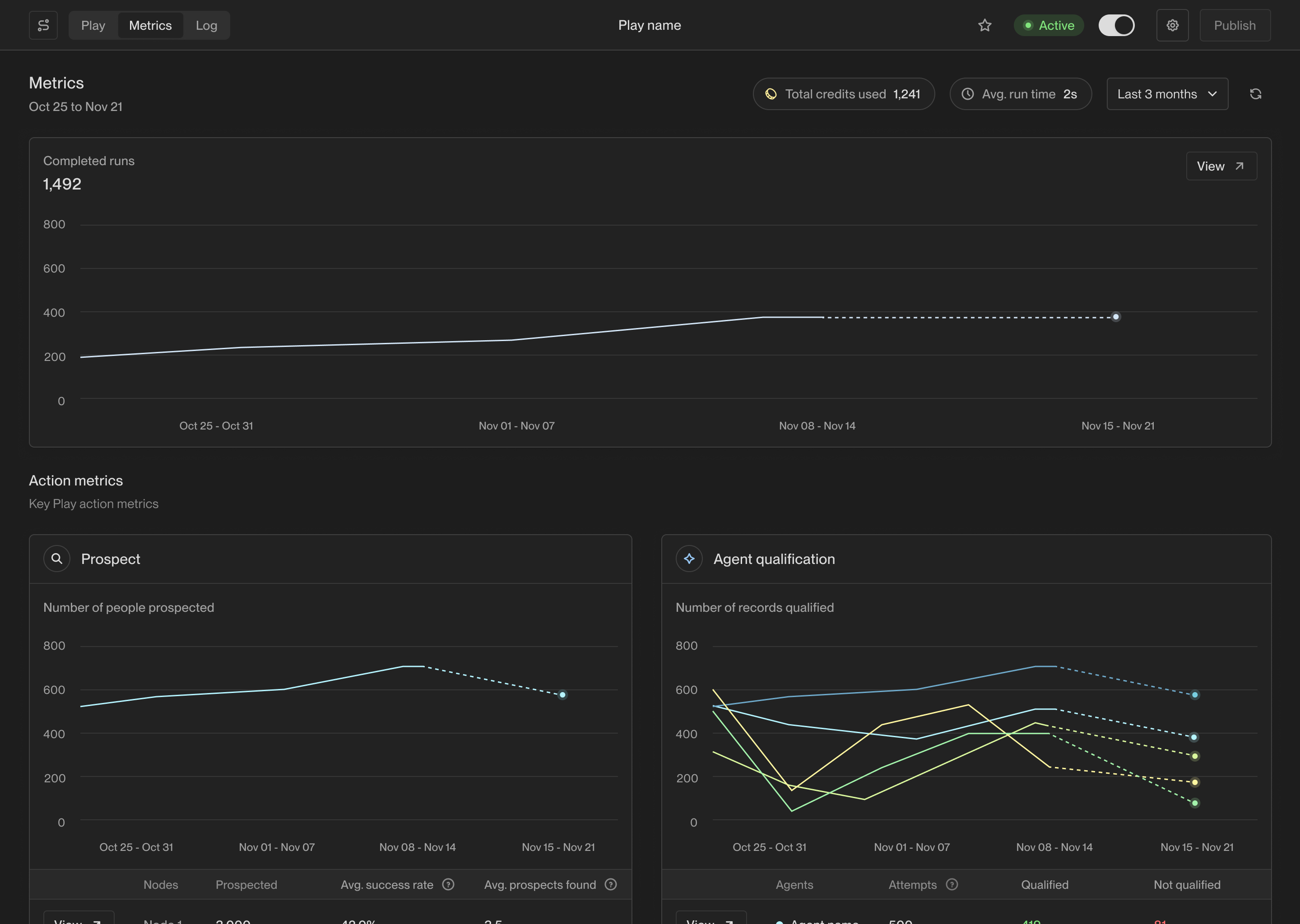
Overview metrics for the play.
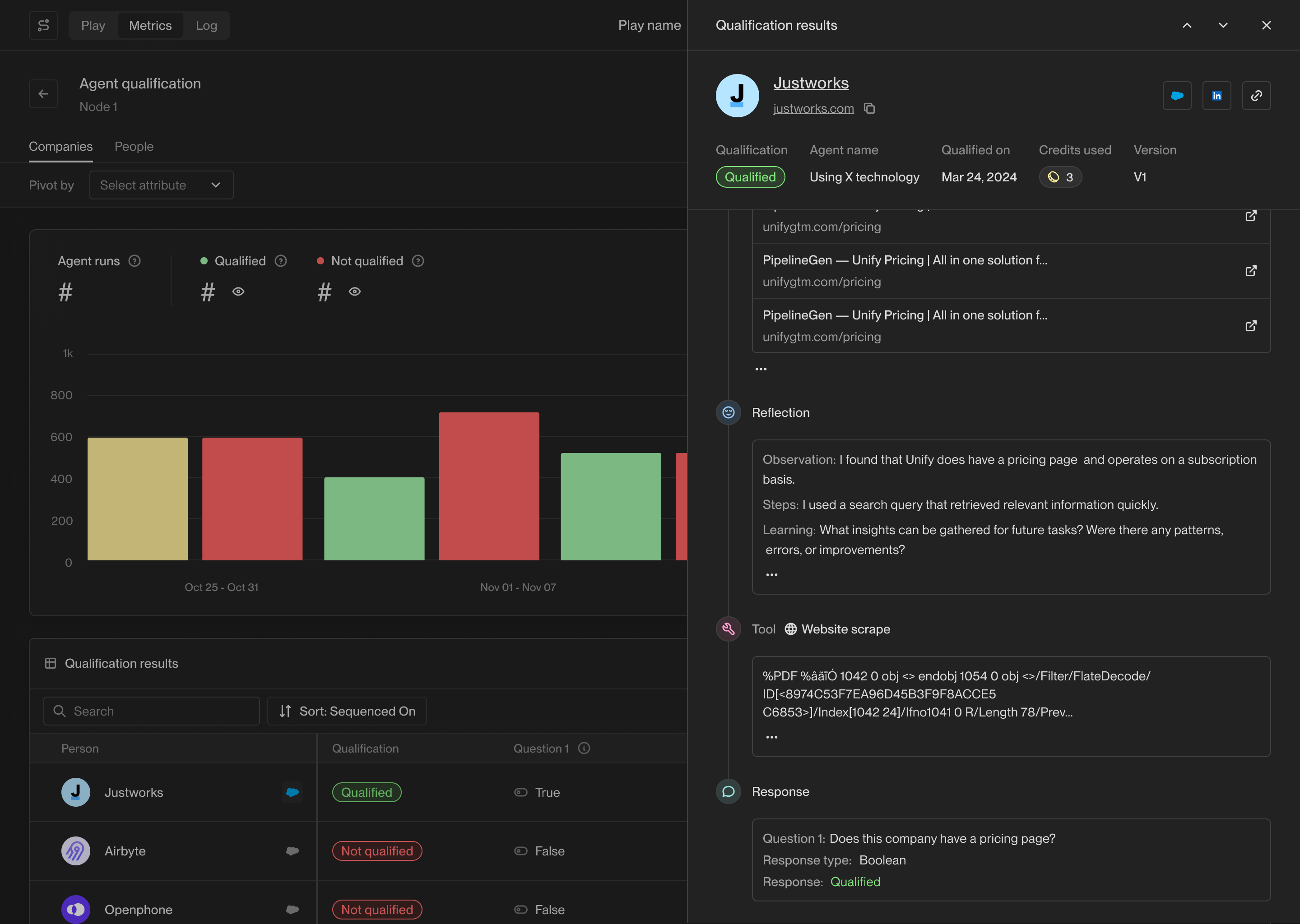
Detailed metrics about an AI agent qualification action.