> ## Documentation Index
> Fetch the complete documentation index at: https://docs.unifygtm.com/llms.txt
> Use this file to discover all available pages before exploring further.
# How to create an audience
> Create dynamic lists of companies and people to view and act on.
## What are Audiences?
In Unify, audiences are dynamic lists of companies and people that are generated
based on powerful filter criteria that you specify. Once defined, you can view and take
action on these companies and people in Unify.
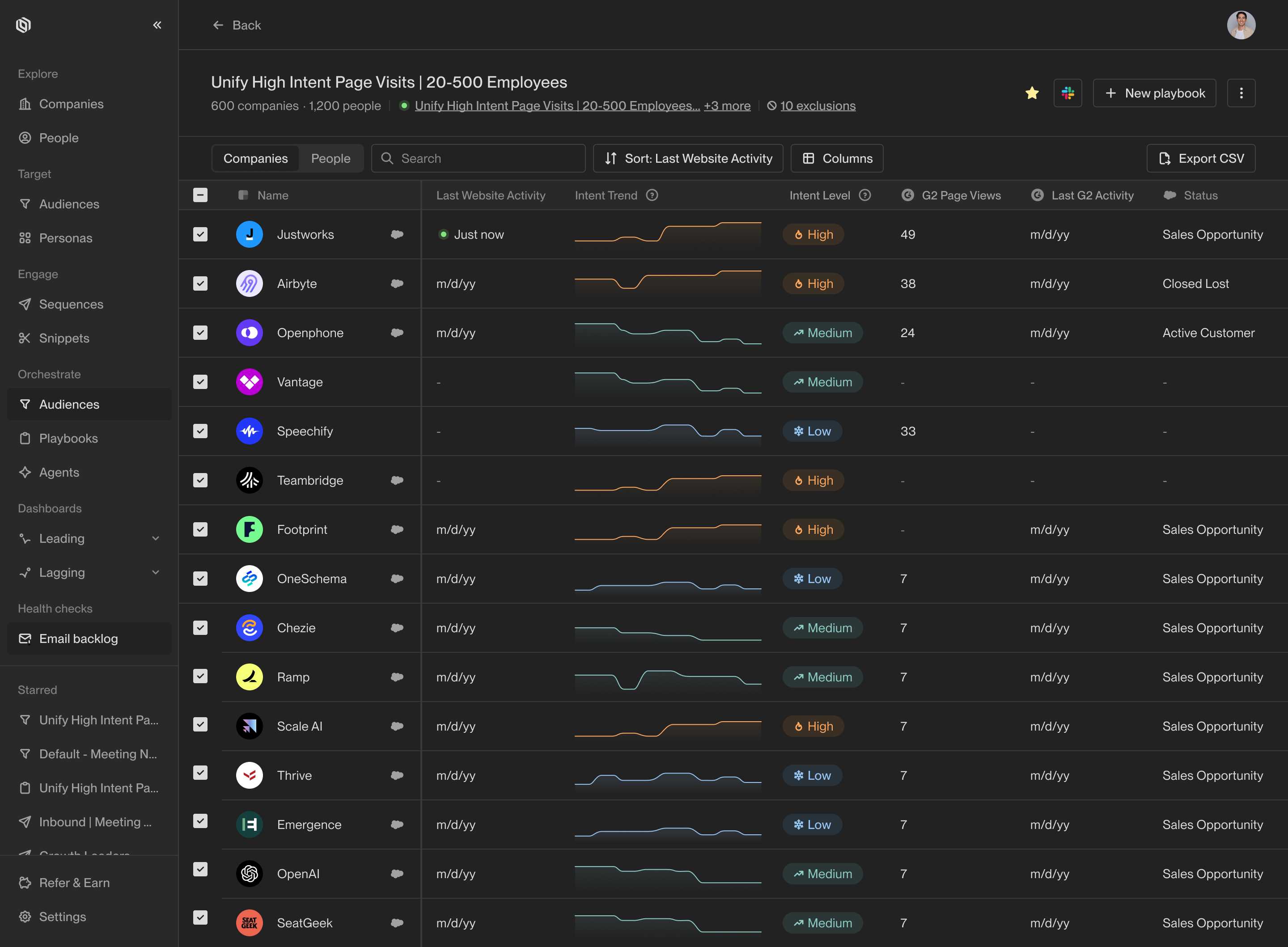 Here are just a few examples of the
types of audiences you can define:
* Companies that have clicked on your pricing page in the past week
* People who have opened an email you sent them in the past month at least twice
without replying yet
* Champions for your business that have joined a new company matching your ICP
Typically, either sales leaders, revenue operations, or sales operations will
create the audiences to be used by sellers for building plays and taking action.
## Build a new audience
Access audiences by clicking on [Audiences](https://app.unifygtm.com/dashboard/audiences)
in the sidebar. You can view and edit existing audiences or create a new one by
selecting **New audience**.
Audience support a wide variety of filters. One of the most commonly used
options is to filter by fields in your CRM. To get started, click **Add condition**
and search for the field you want to filter by.
Here are just a few examples of the
types of audiences you can define:
* Companies that have clicked on your pricing page in the past week
* People who have opened an email you sent them in the past month at least twice
without replying yet
* Champions for your business that have joined a new company matching your ICP
Typically, either sales leaders, revenue operations, or sales operations will
create the audiences to be used by sellers for building plays and taking action.
## Build a new audience
Access audiences by clicking on [Audiences](https://app.unifygtm.com/dashboard/audiences)
in the sidebar. You can view and edit existing audiences or create a new one by
selecting **New audience**.
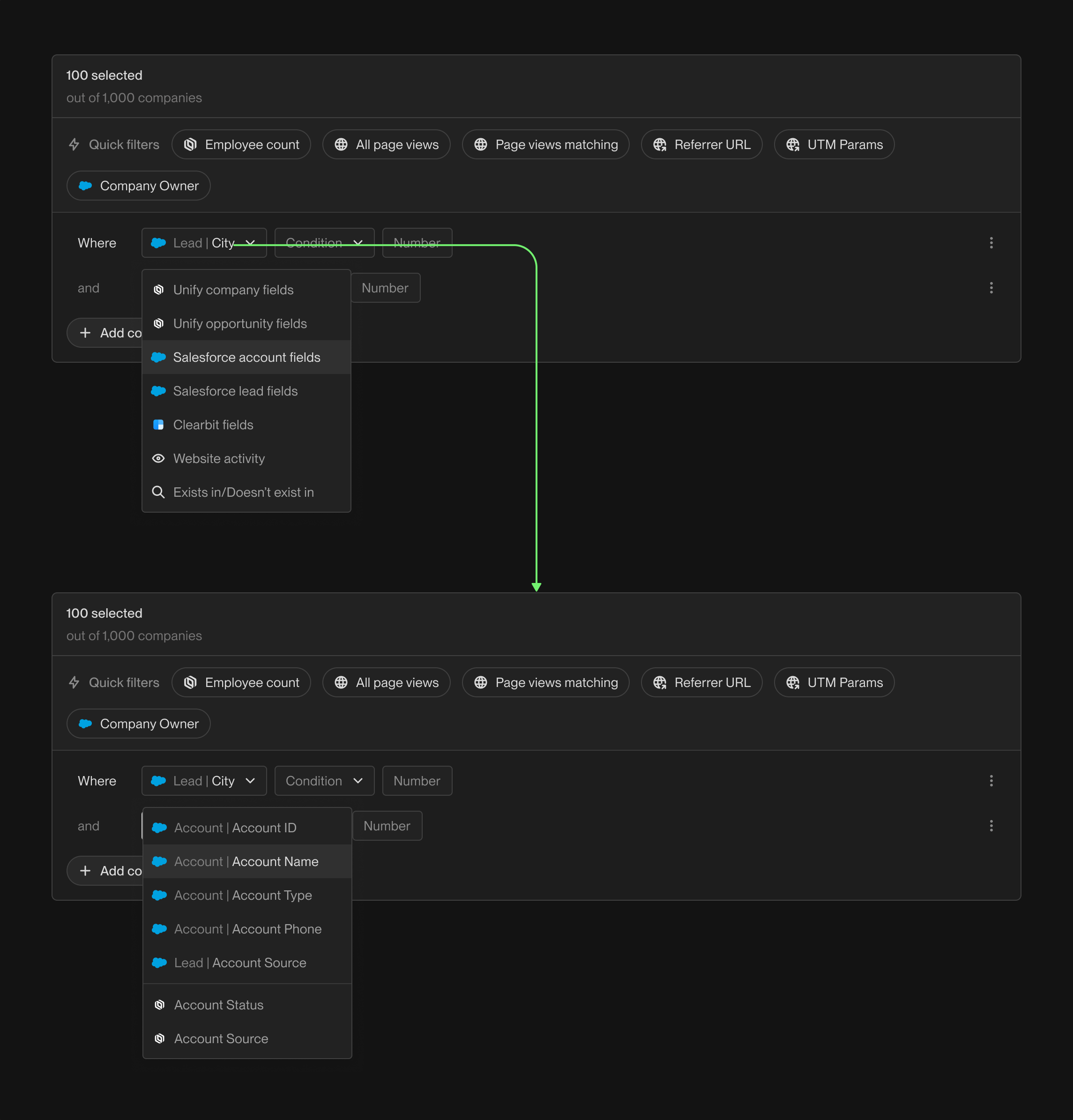
Audience support a wide variety of filters. One of the most commonly used
options is to filter by fields in your CRM. To get started, click **Add condition**
and search for the field you want to filter by.
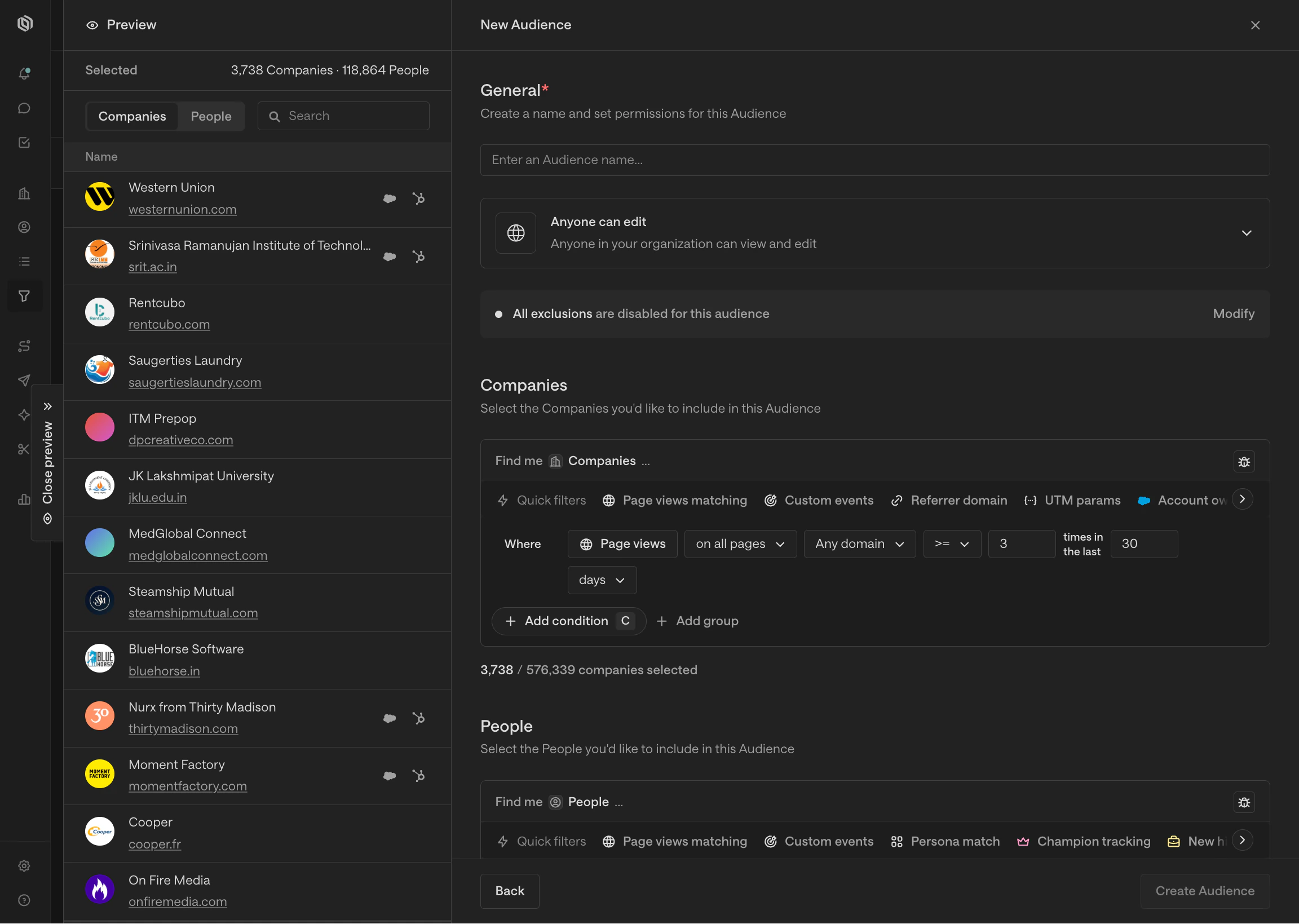
 Another popular filter is website activity. You can filter by page views,
sessions, and visitors to your website. This is a great way to identify which
companies are showing interest in your business.
Another popular filter is website activity. You can filter by page views,
sessions, and visitors to your website. This is a great way to identify which
companies are showing interest in your business.
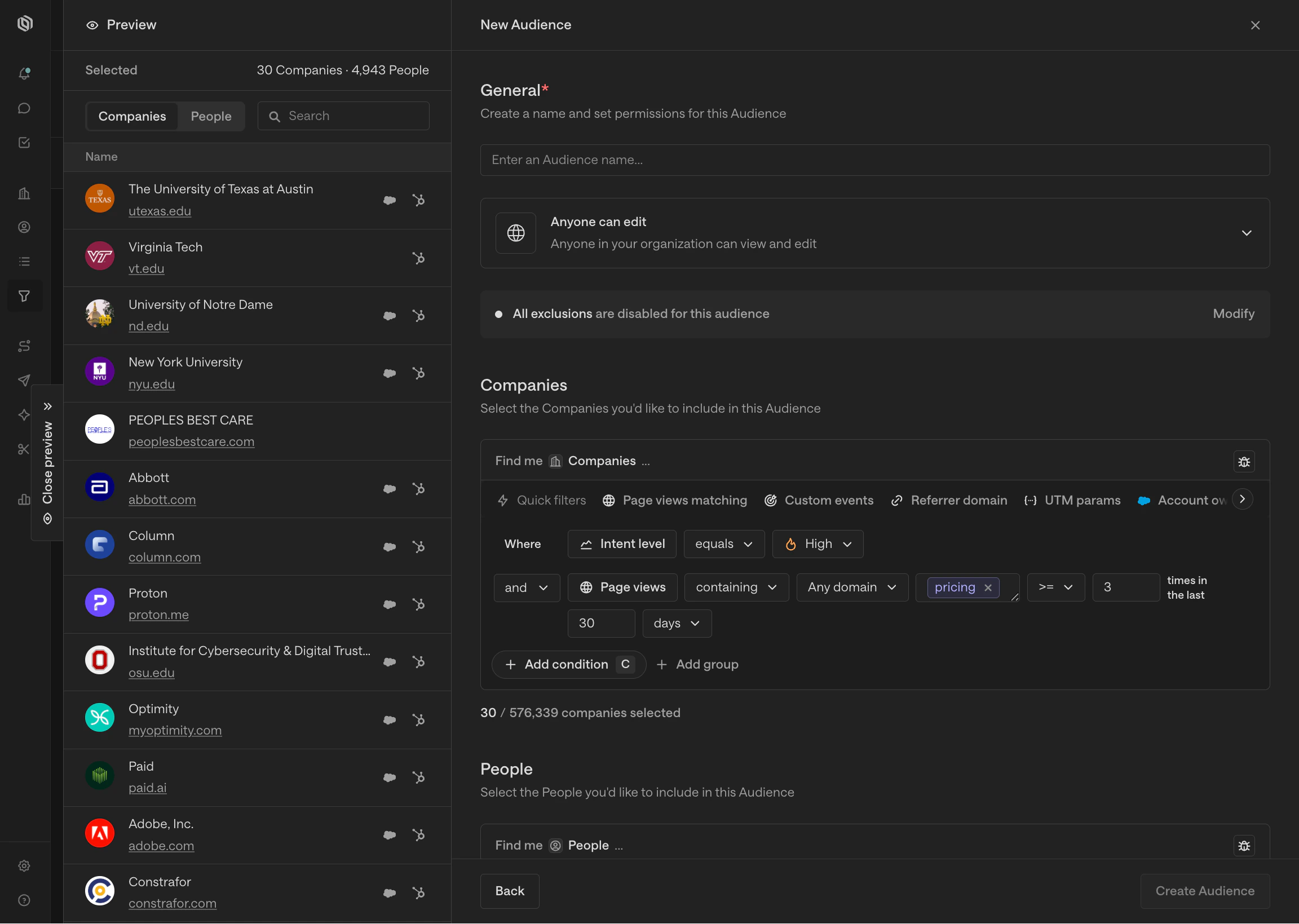
 You can combine multiple filter criteria with **And** and **Or** groups to
build more complex audiences. For example, you might want to capture companies
that have visited your pricing page or that have filled out an inbound form.
You can combine multiple filter criteria with **And** and **Or** groups to
build more complex audiences. For example, you might want to capture companies
that have visited your pricing page or that have filled out an inbound form.
 The best way to learn about the available filter options is to explore! As
you add and remove filters, the audience preview will update in real-time to
show the companies and people that match your criteria.
## Exclusions
Exclusions are a mechanism to prevent Unify from taking action on specific
companies or people. Common use cases for exclusions include preventing current
customers or competitors from appearing in your audiences or Plays.
Once you've defined exclusions, they will be automatically applied to all
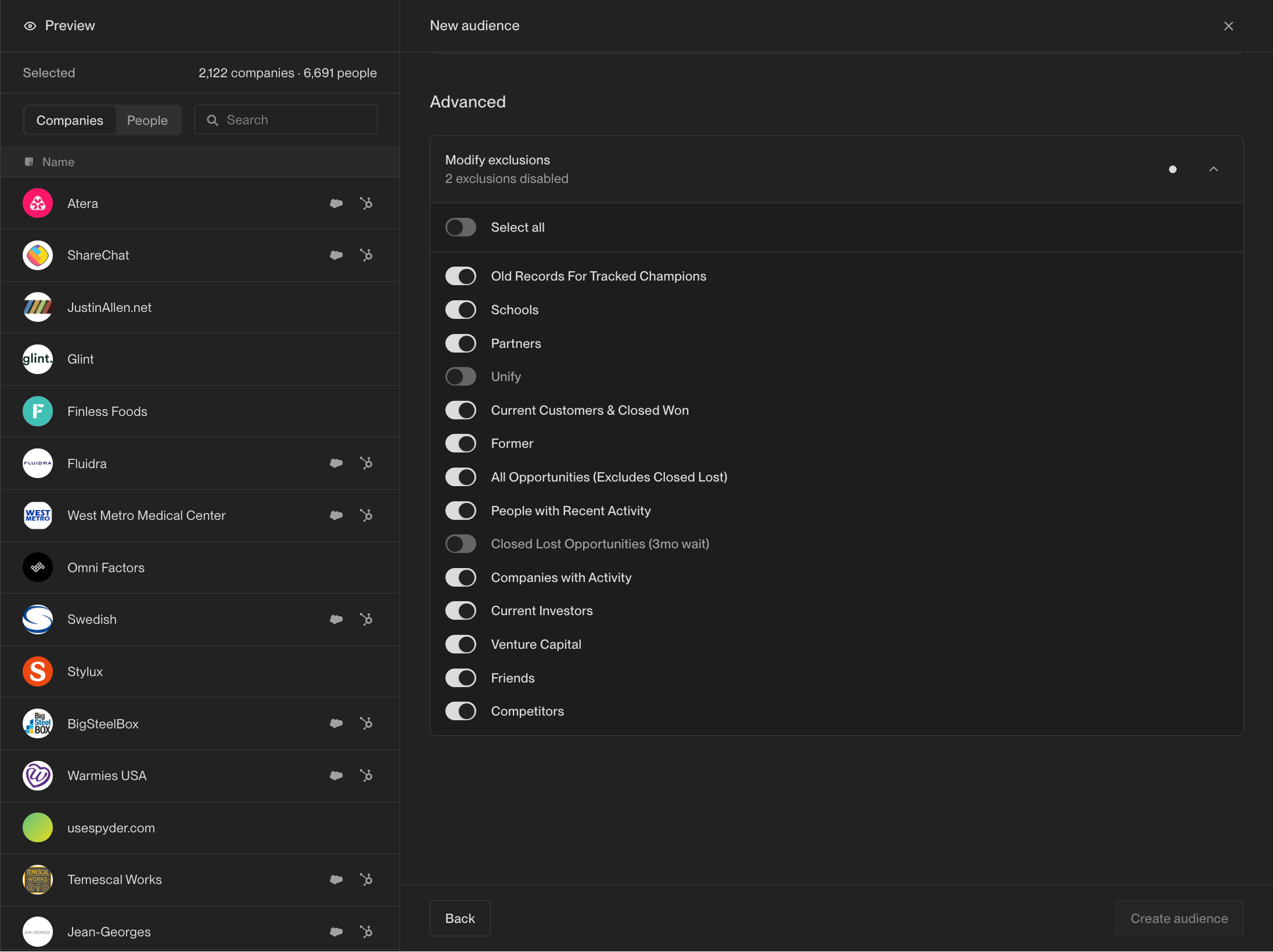
audiences by default. Sometimes, you may want to disable an exclusion for a
specific audience. This can be done from the audience configuration page under
the **Advanced** section.
The best way to learn about the available filter options is to explore! As
you add and remove filters, the audience preview will update in real-time to
show the companies and people that match your criteria.
## Exclusions
Exclusions are a mechanism to prevent Unify from taking action on specific
companies or people. Common use cases for exclusions include preventing current
customers or competitors from appearing in your audiences or Plays.
Once you've defined exclusions, they will be automatically applied to all
audiences by default. Sometimes, you may want to disable an exclusion for a
specific audience. This can be done from the audience configuration page under
the **Advanced** section.
 For more information on creating exclusions, see [How to create an Exclusion](/tutorials/how-to-create-an-exclusion).
## What's next?
Audiences can be used for a variety of purposes, including building plays and
subscribing to Slack alerts. For more information, check out these tutorials:
Create a Play that runs on companies or people in an audience.
Receive Slack alerts when a new company or person enters an audience.
For more information on creating exclusions, see [How to create an Exclusion](/tutorials/how-to-create-an-exclusion).
## What's next?
Audiences can be used for a variety of purposes, including building plays and
subscribing to Slack alerts. For more information, check out these tutorials:
Create a Play that runs on companies or people in an audience.
Receive Slack alerts when a new company or person enters an audience.