> ## Documentation Index
> Fetch the complete documentation index at: https://docs.unifygtm.com/llms.txt
> Use this file to discover all available pages before exploring further.
# How to create a Play
> Learn the fundamentals and build a Unify Play from start to finish.
export const PlayBuilderCompanyHandleDark = () => ;
export const PlayBuilderCompanyHandleLight = () => ;
export const PlayBuilderPersonListHandleDark = () => ;
export const PlayBuilderPersonListHandleLight = () => ;
export const PlayBuilderPersonHandleDark = () => ;
export const PlayBuilderPersonHandleLight = () => ;
## Overview
Plays are automated workflows that let you build and execute repeatable
strategies. In this guide, you'll learn the basics of how Plays work and create
one from scratch.
### What are Plays?
Building scalable and effective sales, marketing, and GTM strategies requires
successfully coordinating two key components:
* **Data**: Countless data sources go into building scalable automations. This
data is traditionally scattered across tools and databases, but Unify
centralizes it in one place.
* **Actions**: Researching companies, identifying decision-makers, executing
multi-channel outreach, and more. Taking the right action at the right time
is crucial to success.
Unify is a purpose-built system of action that solves this problem. Plays let
you define a series of actions that will be taken on companies or people at
exactly the right moment.
### Tutorial preview
One of the most popular use cases for Plays is to find prospects at companies
that are visiting your website and enroll them in outbound sequences. This is a
great example of a *warm outbound* campaign that targets key decision-makers
at companies showing buying intent.
In this guide, you'll create a Unify Play that runs on companies visiting your
website and performs the following actions:
1. **Prospect**: Find new people at the company that match your buyer personas.
2. **Sequence**: Enroll the new prospects in a sequence to send them emails.
3. **Sync to CRM**: Sync newly found people to Salesforce or HubSpot.
This standard Play is a great starting point to understand how Plays work and
kickstart your outbound strategy.
## Walkthrough
### Step 1: Create a new Play
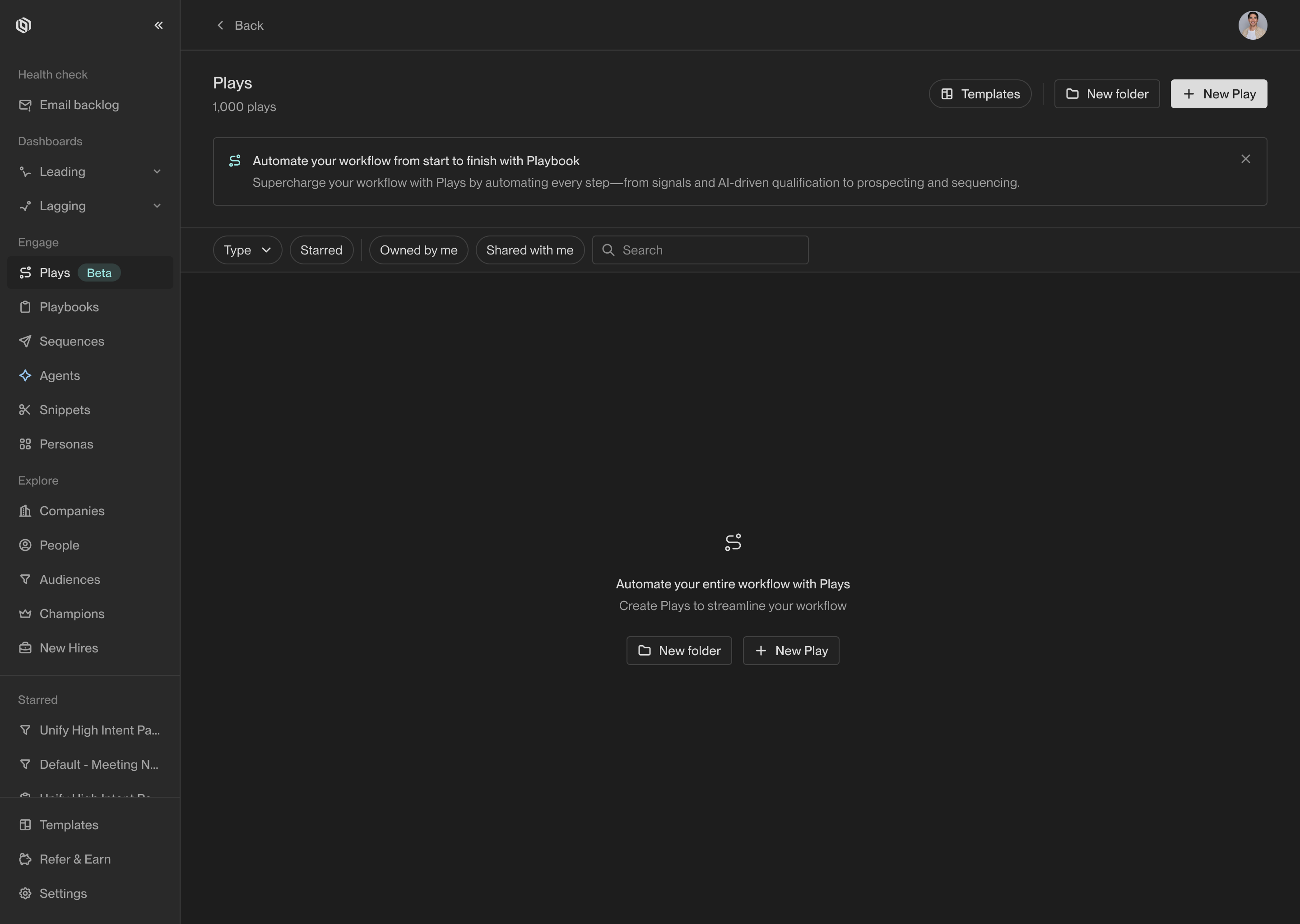
Look for the [Plays](https://app.unifygtm.com/dashboard/plays) tab in the
sidebar and click on it. This is where you will create and manage all your
team's Plays. To create a new Play, click the **New Play** button.
### Step 2: Choose a trigger
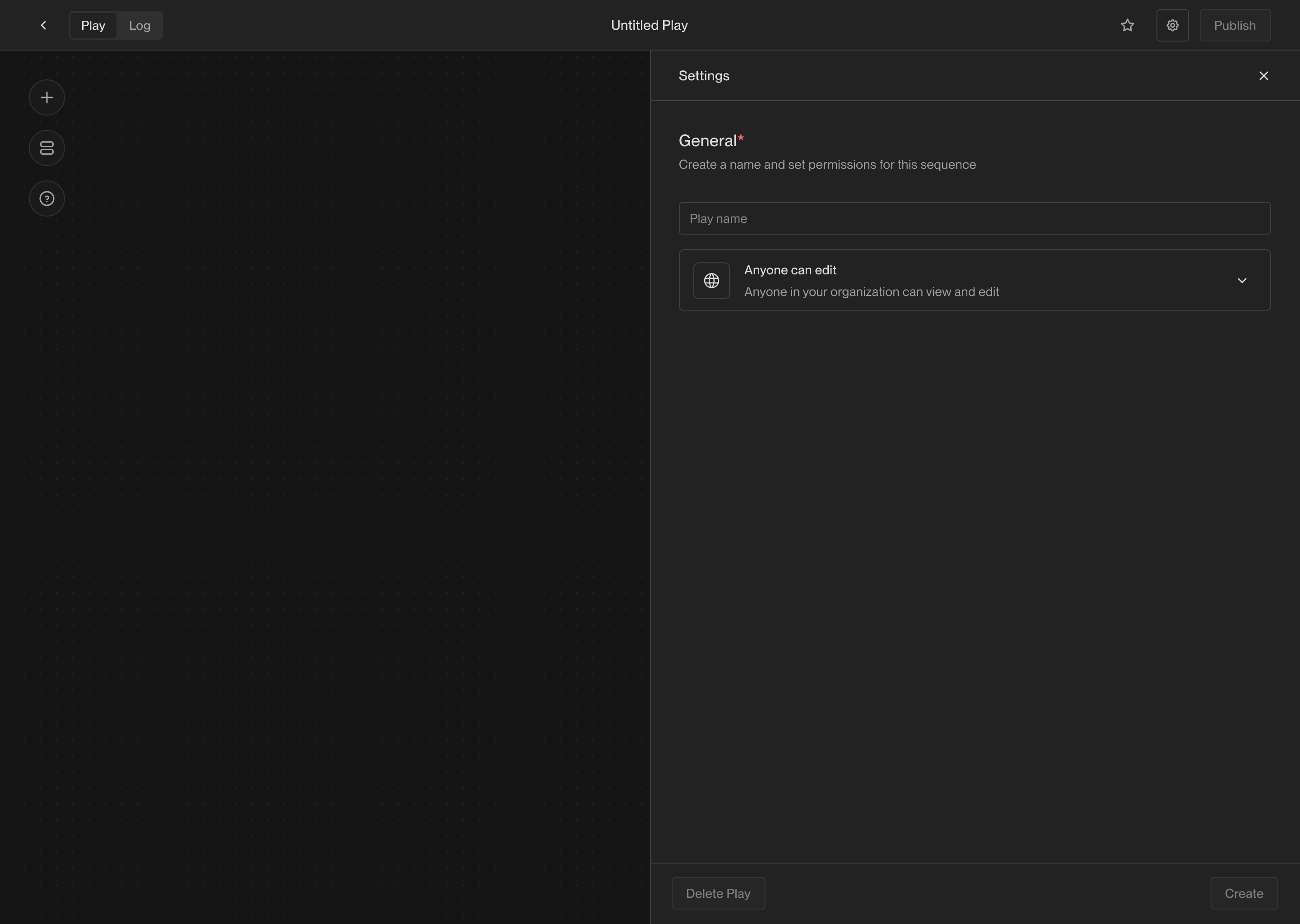
Once you've created a new Play, you will see the Play Builder. The first step
when building any Play is to choose a *trigger*. The trigger lets you specify
exactly when the Play should run and which companies or people it should run on.
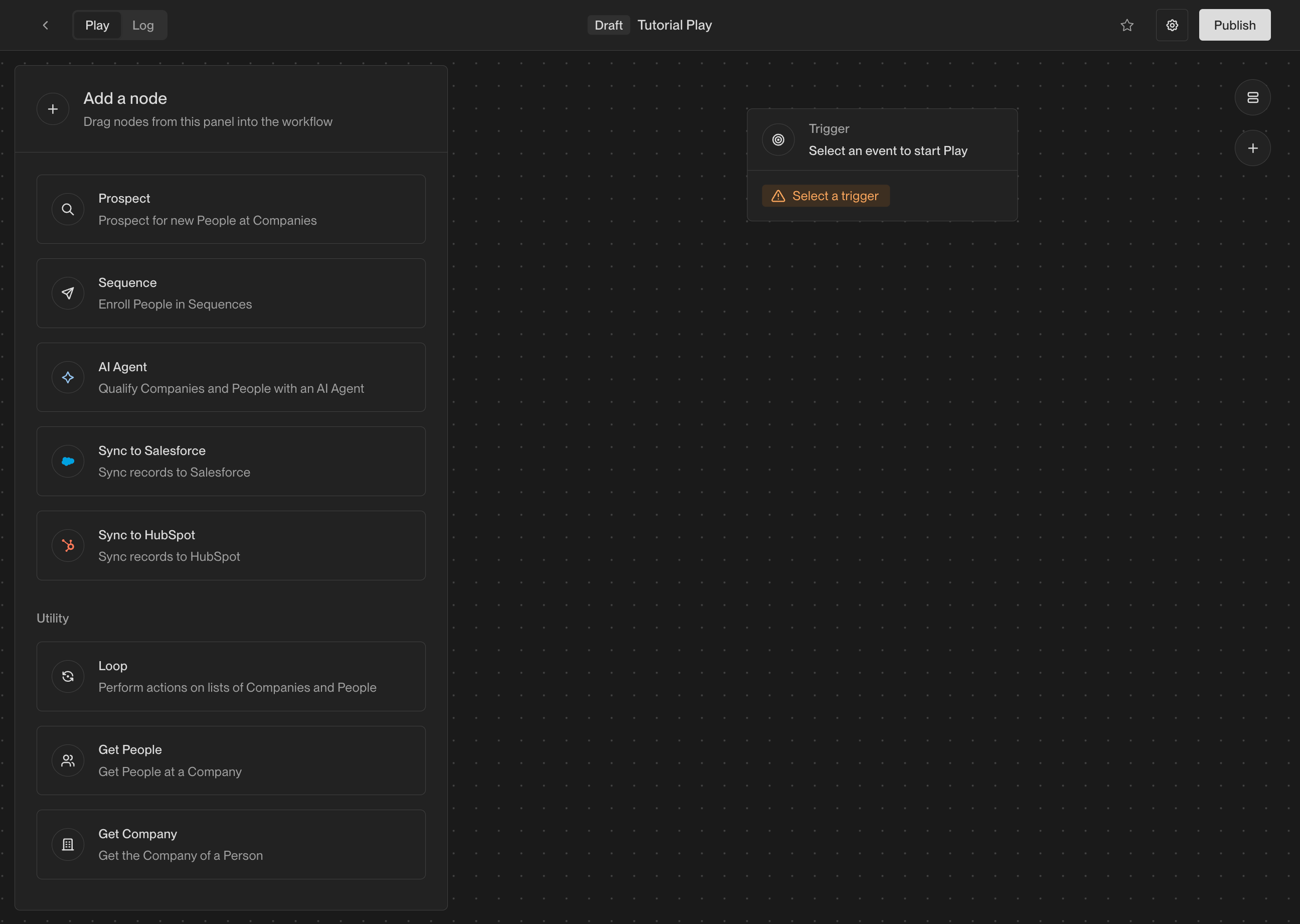
In the center of the builder, you will see an action that says **Select a trigger**.
Click on it to show the trigger configuration panel. For this Play, choose the
**Website visitors** template.
Here you have the option to further filter and refine the companies that this
Play will run on. For example, if you only want to run this Play on companies
with more than 100 employees, you can add a filter on **Employee Count**.
You can learn more about the available filters and how to use them in the tutorial
[How to create an Audience](/tutorials/how-to-create-an-audience). You can always
return later to add or modify filters. Click **Done** to finish configuring the
trigger.
### Step 3: Add actions
Now that the trigger has been selected, it's time to start adding actions. There
are many actions to choose from, and you can configure them in countless ways.
For this Play, we're going to start simple and add three actions.
#### Prospect for people
Start by adding a prospecting action. This action will take the company coming
from the trigger and search for relevant prospects. Drag the **Prospect for People**
action from the action list and drop it into the builder.
If you drag and drop a new action on top of an existing action, it will
automatically be connected to it.
Once added, you will see the prospecting options shown in the configuration
panel on the left. Here are the most important selections to make:
* **Max. prospects per company**: This is how many prospects you want to find at
each company. We recommend starting with 2-4 prospects per company.
* **Personas**: These are the personas to search for. You can select from
existing personas or create new ones. Unify will find people matching these
personas in order, so list them in order of preference.
If you haven't defined any personas yet, you can learn how to do so in the
tutorial [How to create Personas](/tutorials/how-to-use-personas).
#### Loop
Next, add a **Loop** action. The prospecting action will return a list of people
found at the company, and the loop will run subsequent actions once for each
person in the list.
Each action receives an input and produces an output. Actions in the Play
Builder have small colored symbols that represent what type of input and output
they expect.
Here's what each symbol represents:
| Symbol | | Value |
| :-------------------------------------------------------------------------: | - | :------------------------------------ |
| {}{} | | A single person record. |
| {}{} | | A list of one or more person records. |
| {}{} | | A single company record. |
Plays work by connecting each action's output to a matching input on another
action. This is how data flows through the Play and how each action knows what
to do.
Most actions run on one record at a time. The **Loop** action is how you take a
list of records and run actions on them one by one.
#### Sequence enrollment
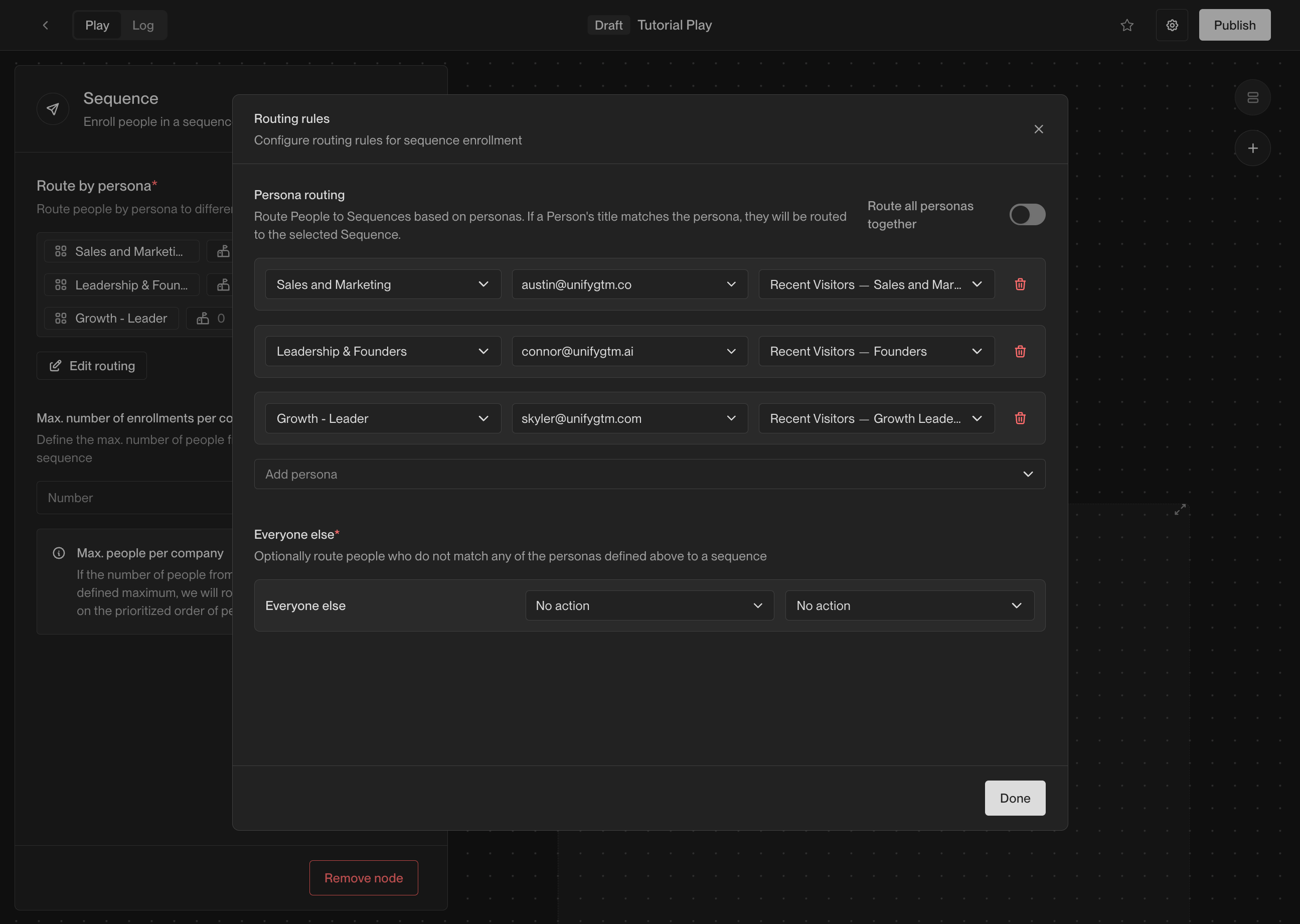
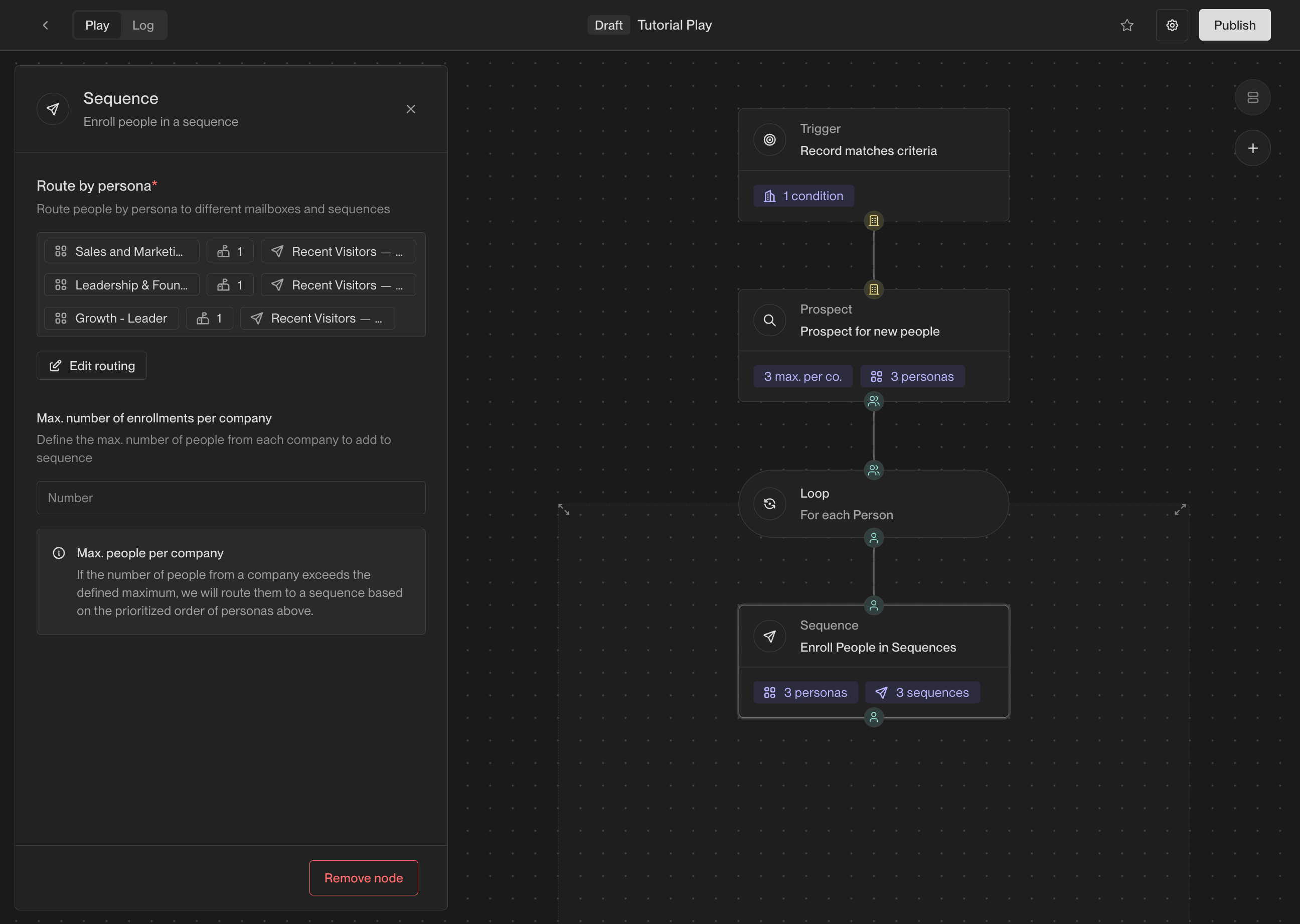
Now place a **Sequence** action inside the loop. This will enroll each person
into a Unify Sequence.
Once you've dropped the action into the loop, you can drag it near the loop
action to automatically connect them. You can also manually draw connections
between the colored icons that represent action inputs and outputs.
Once added, you can configure the sequence enrollment action by routing personas
to the desired sequences and mailboxes. To speed up the process, click the
**Add prospect personas** button to automatically reuse all the personas you
selected in the prospecting action.
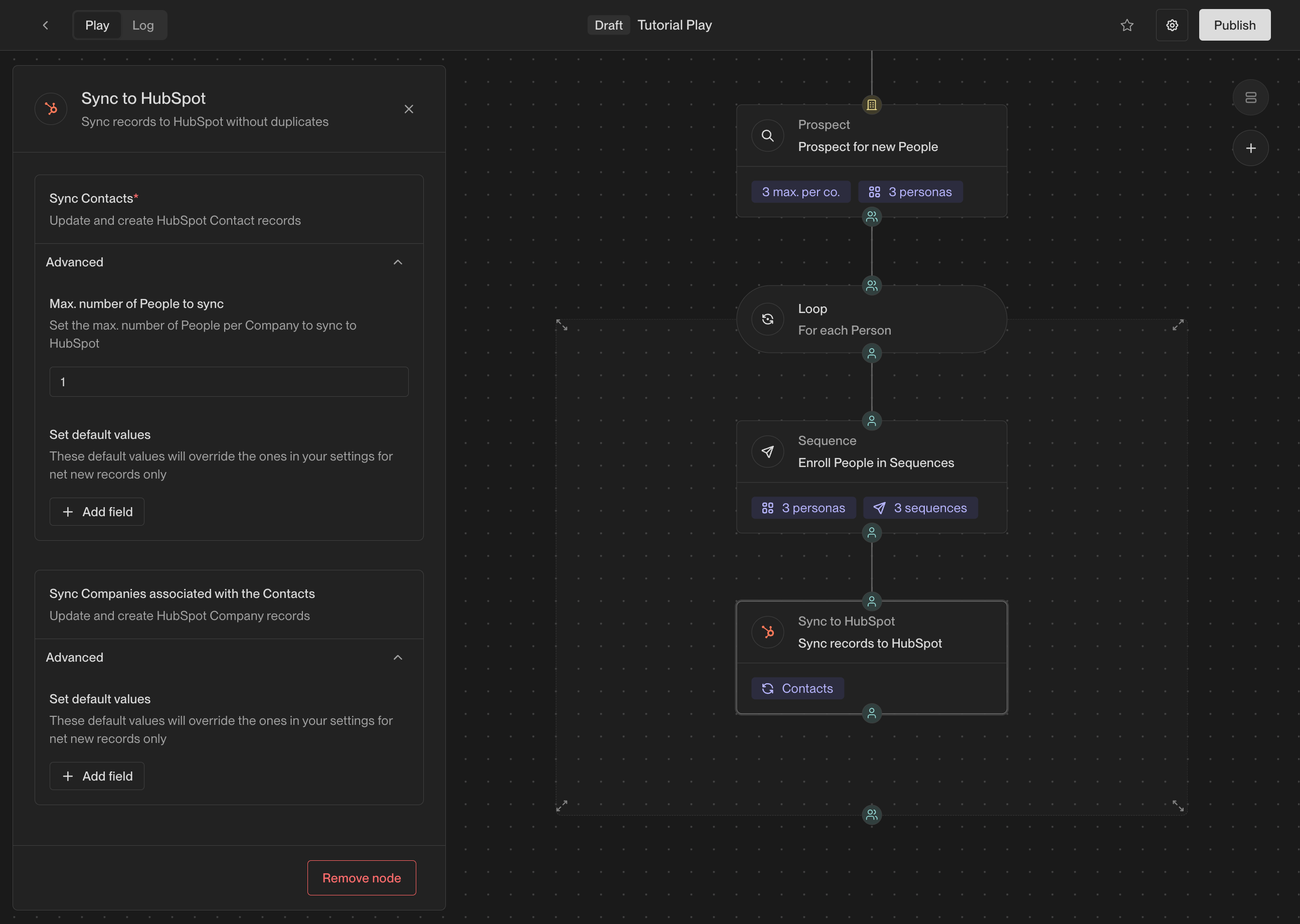
#### Sync to CRM
Finally, add an action to sync each new person to your CRM. Depending on which
CRM you've connected in Unify, you will see either a **Sync to Salesforce** or
**Sync to HubSpot** action.
### Step 4: Publish and view logs
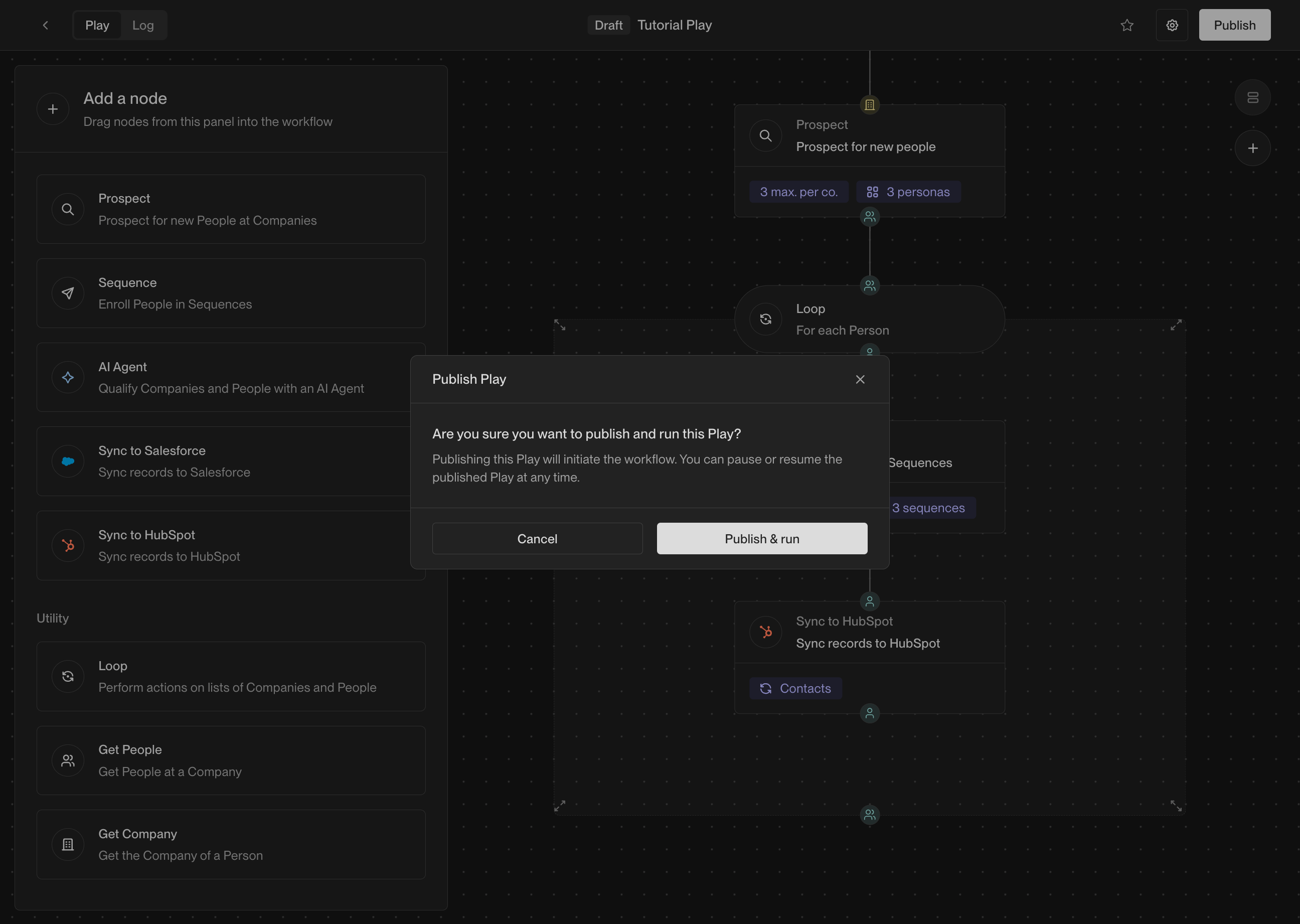
Once your Play is ready, click the **Publish** button in the top right corner of
the Play Builder. This will activate the Play and start running it on companies
that match the trigger criteria you defined earlier.
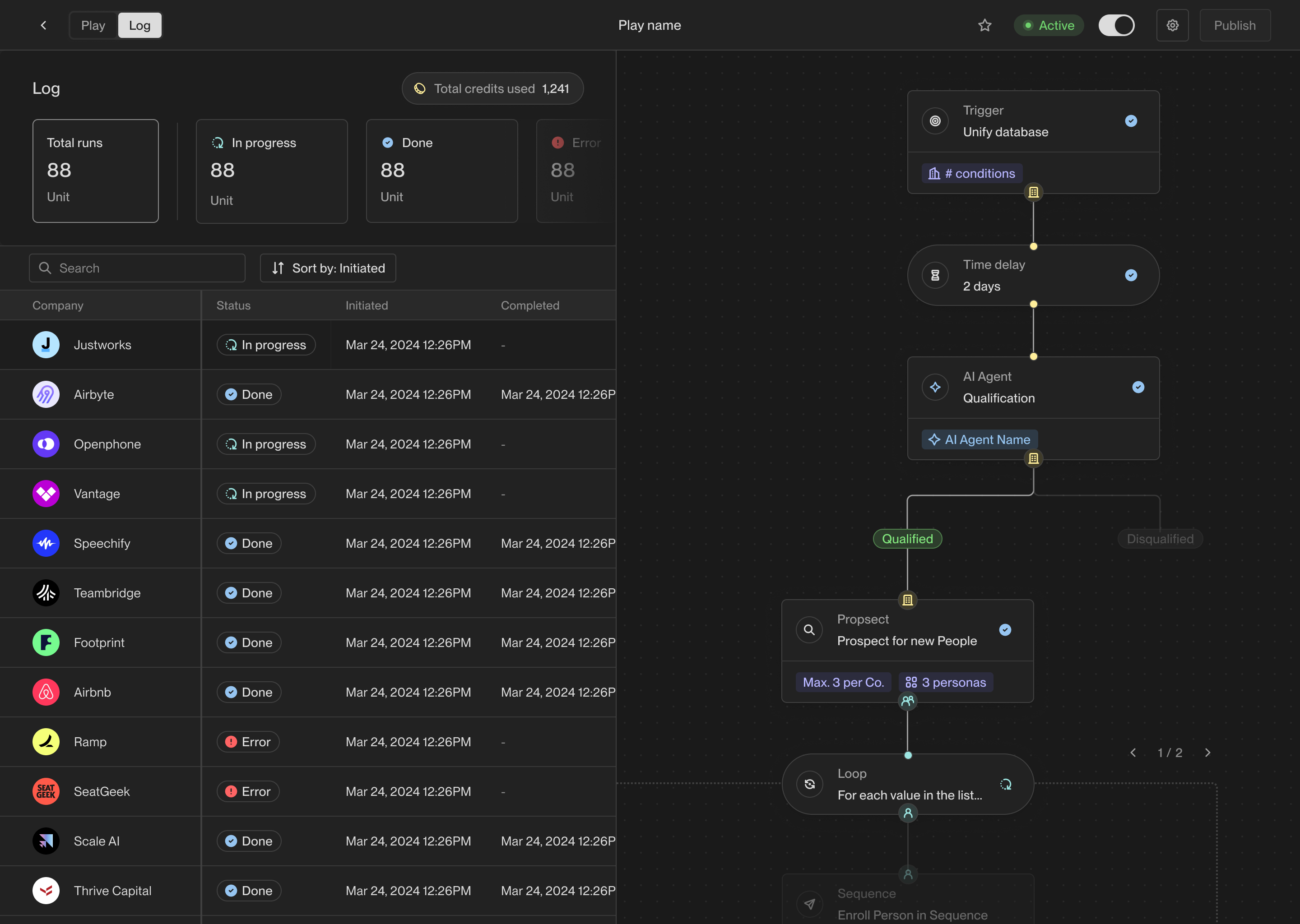
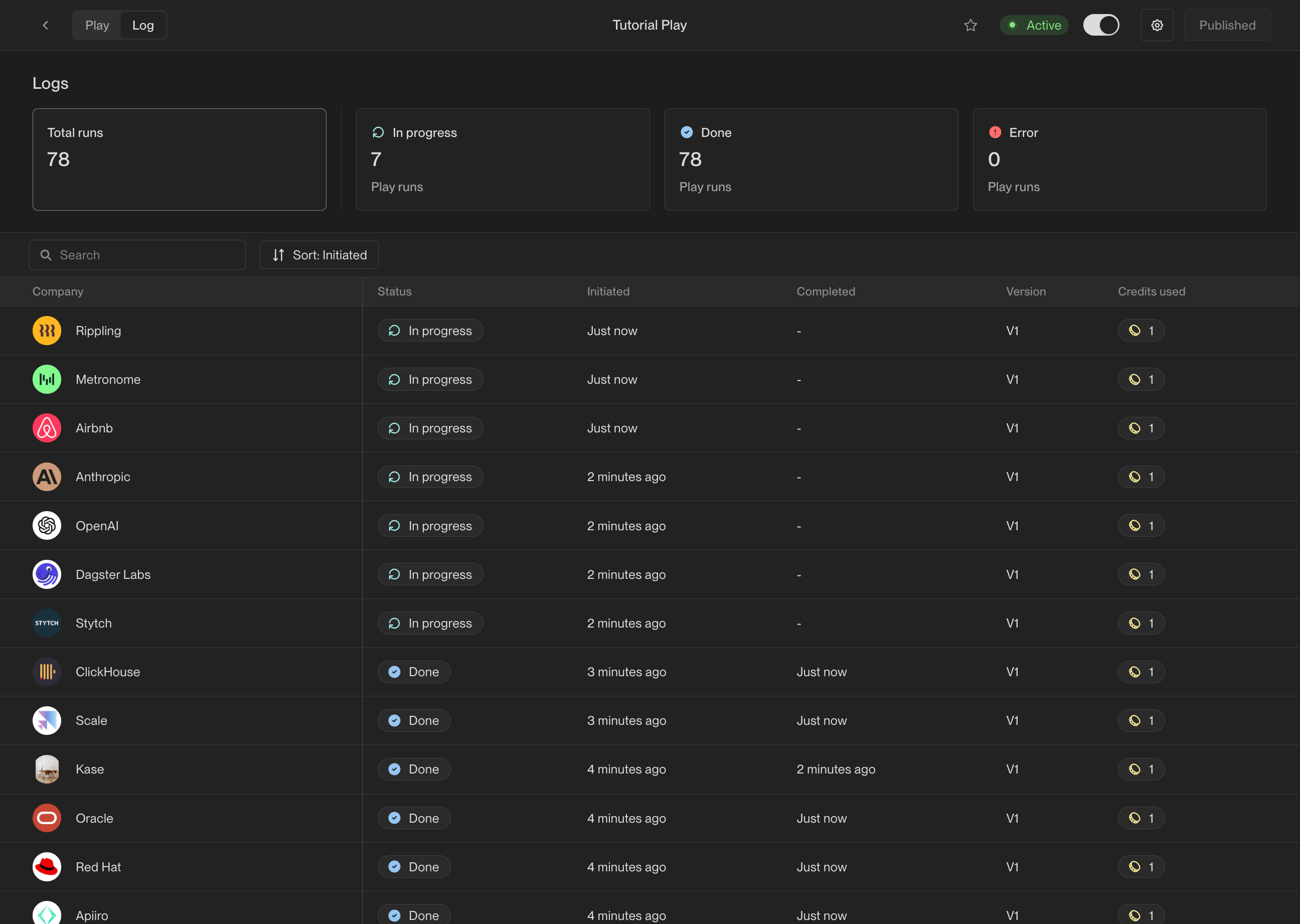
As the Play starts to run on companies, you will see them appear in the logs.
Click on the **Logs** tab at the top of the Play Builder to view the logs.
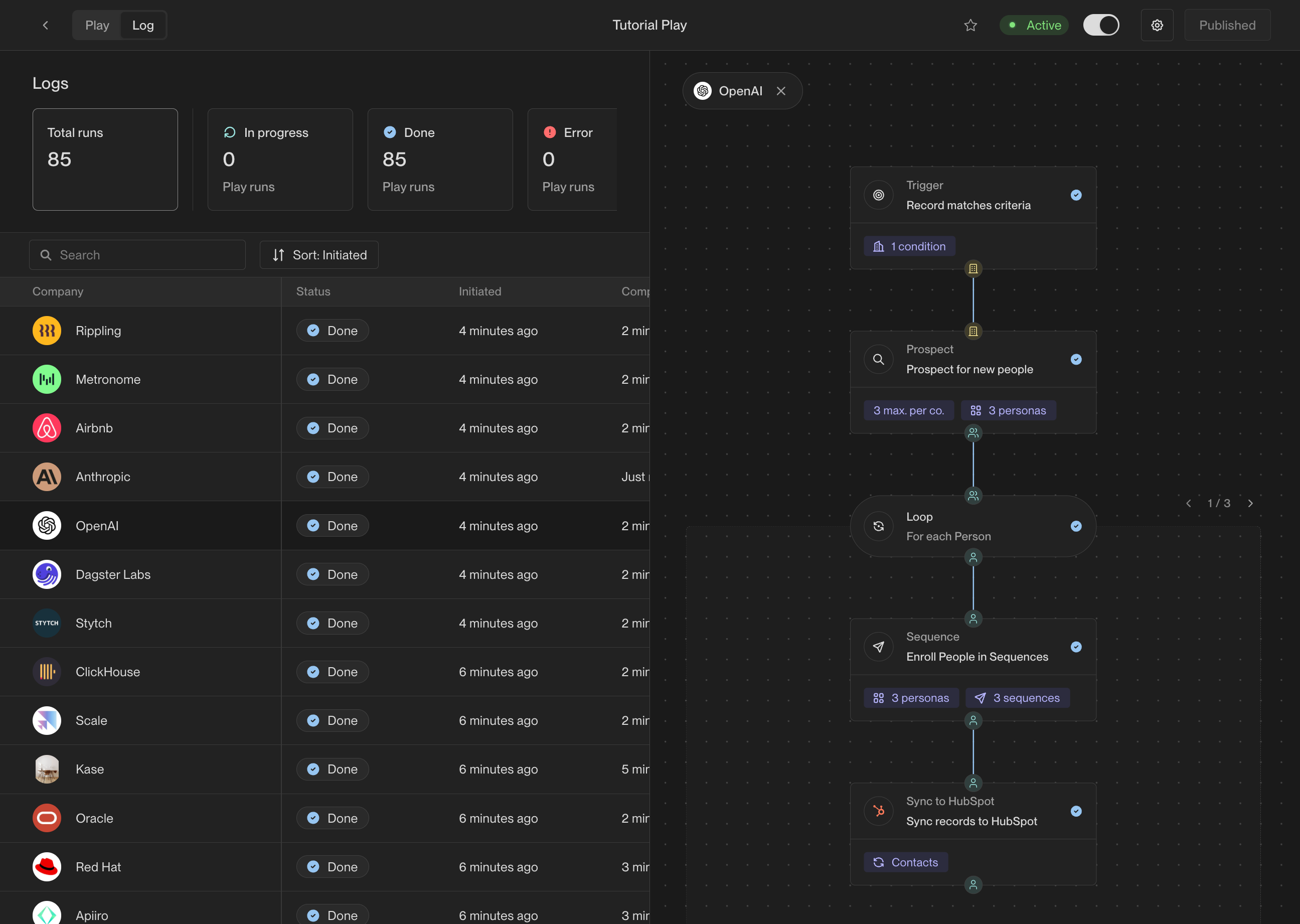
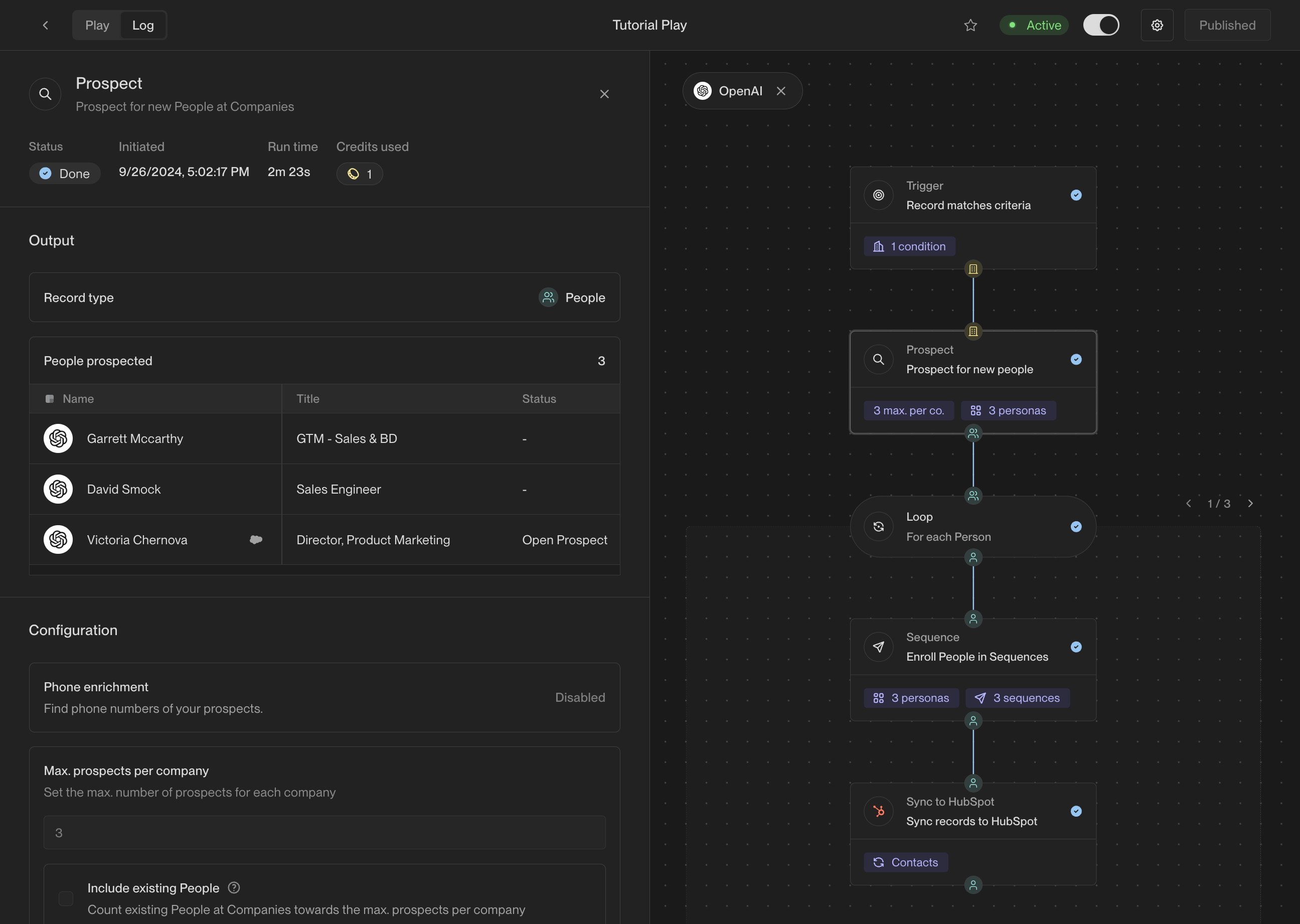
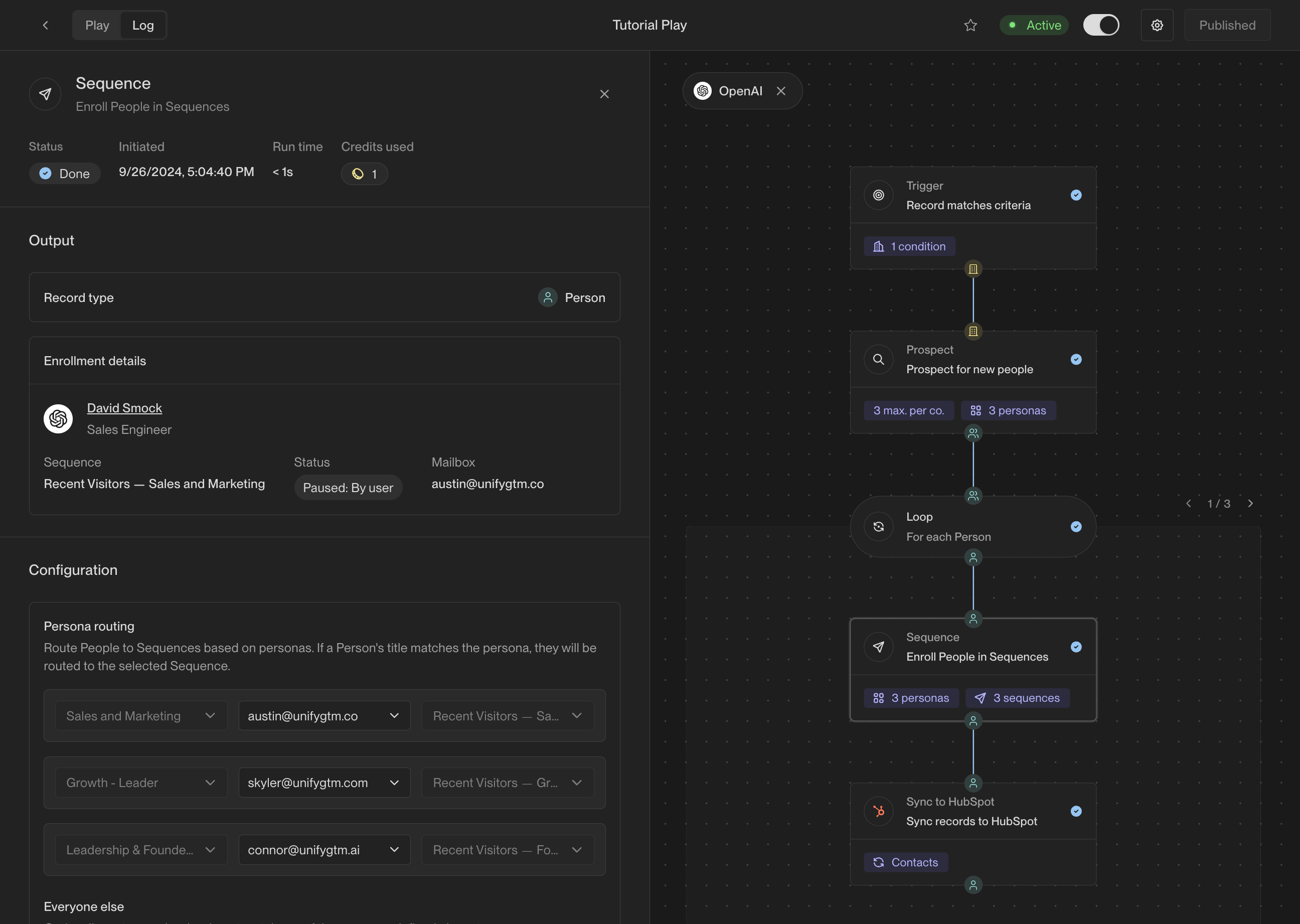
Click on any company to view the details of its run, including the exact actions
that were taken and the results of each action. Click on any action to view the
precise inputs, outputs, and result of that action.
## Conclusion
Congratulations on creating a Play! Combining website intent, prospecting, and
sequences into a single automated flow is a popular Play and an excellent
starting point.
For a comprehensive overview of Unify Plays, check out the reference guide:
Detailed reference guide that covers the fundamentals of plays, the actions
and triggers available to use, and more.
 ### Tutorial preview
One of the most popular use cases for Plays is to find prospects at companies
that are visiting your website and enroll them in outbound sequences. This is a
great example of a *warm outbound* campaign that targets key decision-makers
at companies showing buying intent.
In this guide, you'll create a Unify Play that runs on companies visiting your
website and performs the following actions:
1. **Prospect**: Find new people at the company that match your buyer personas.
2. **Sequence**: Enroll the new prospects in a sequence to send them emails.
3. **Sync to CRM**: Sync newly found people to Salesforce or HubSpot.
This standard Play is a great starting point to understand how Plays work and
kickstart your outbound strategy.
## Walkthrough
### Step 1: Create a new Play
Look for the [Plays](https://app.unifygtm.com/dashboard/plays) tab in the
sidebar and click on it. This is where you will create and manage all your
team's Plays. To create a new Play, click the **New Play** button.
### Tutorial preview
One of the most popular use cases for Plays is to find prospects at companies
that are visiting your website and enroll them in outbound sequences. This is a
great example of a *warm outbound* campaign that targets key decision-makers
at companies showing buying intent.
In this guide, you'll create a Unify Play that runs on companies visiting your
website and performs the following actions:
1. **Prospect**: Find new people at the company that match your buyer personas.
2. **Sequence**: Enroll the new prospects in a sequence to send them emails.
3. **Sync to CRM**: Sync newly found people to Salesforce or HubSpot.
This standard Play is a great starting point to understand how Plays work and
kickstart your outbound strategy.
## Walkthrough
### Step 1: Create a new Play
Look for the [Plays](https://app.unifygtm.com/dashboard/plays) tab in the
sidebar and click on it. This is where you will create and manage all your
team's Plays. To create a new Play, click the **New Play** button.
 ### Step 2: Choose a trigger
Once you've created a new Play, you will see the Play Builder. The first step
when building any Play is to choose a *trigger*. The trigger lets you specify
exactly when the Play should run and which companies or people it should run on.
In the center of the builder, you will see an action that says **Select a trigger**.
Click on it to show the trigger configuration panel. For this Play, choose the
**Website visitors** template.
### Step 2: Choose a trigger
Once you've created a new Play, you will see the Play Builder. The first step
when building any Play is to choose a *trigger*. The trigger lets you specify
exactly when the Play should run and which companies or people it should run on.
In the center of the builder, you will see an action that says **Select a trigger**.
Click on it to show the trigger configuration panel. For this Play, choose the
**Website visitors** template.
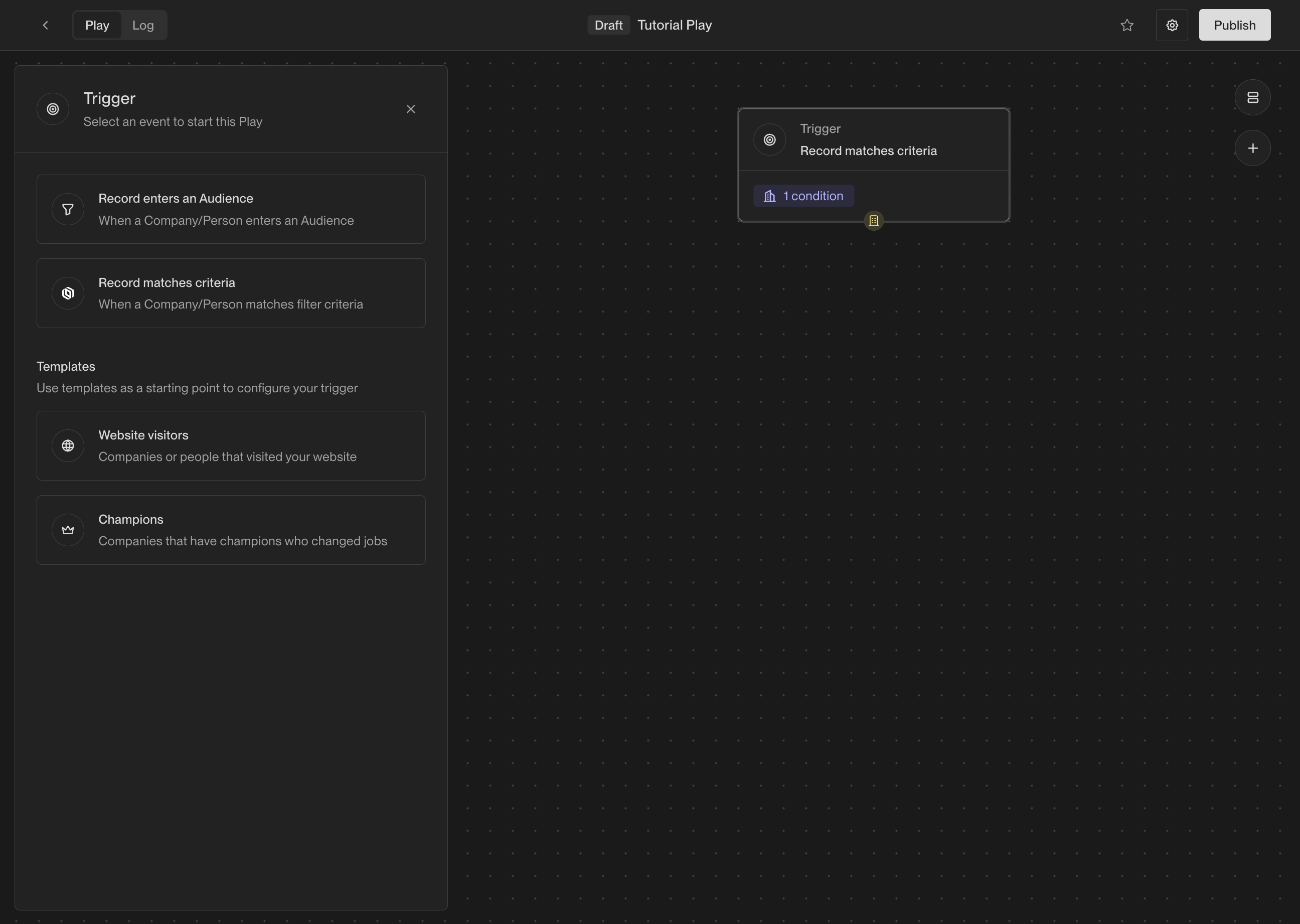
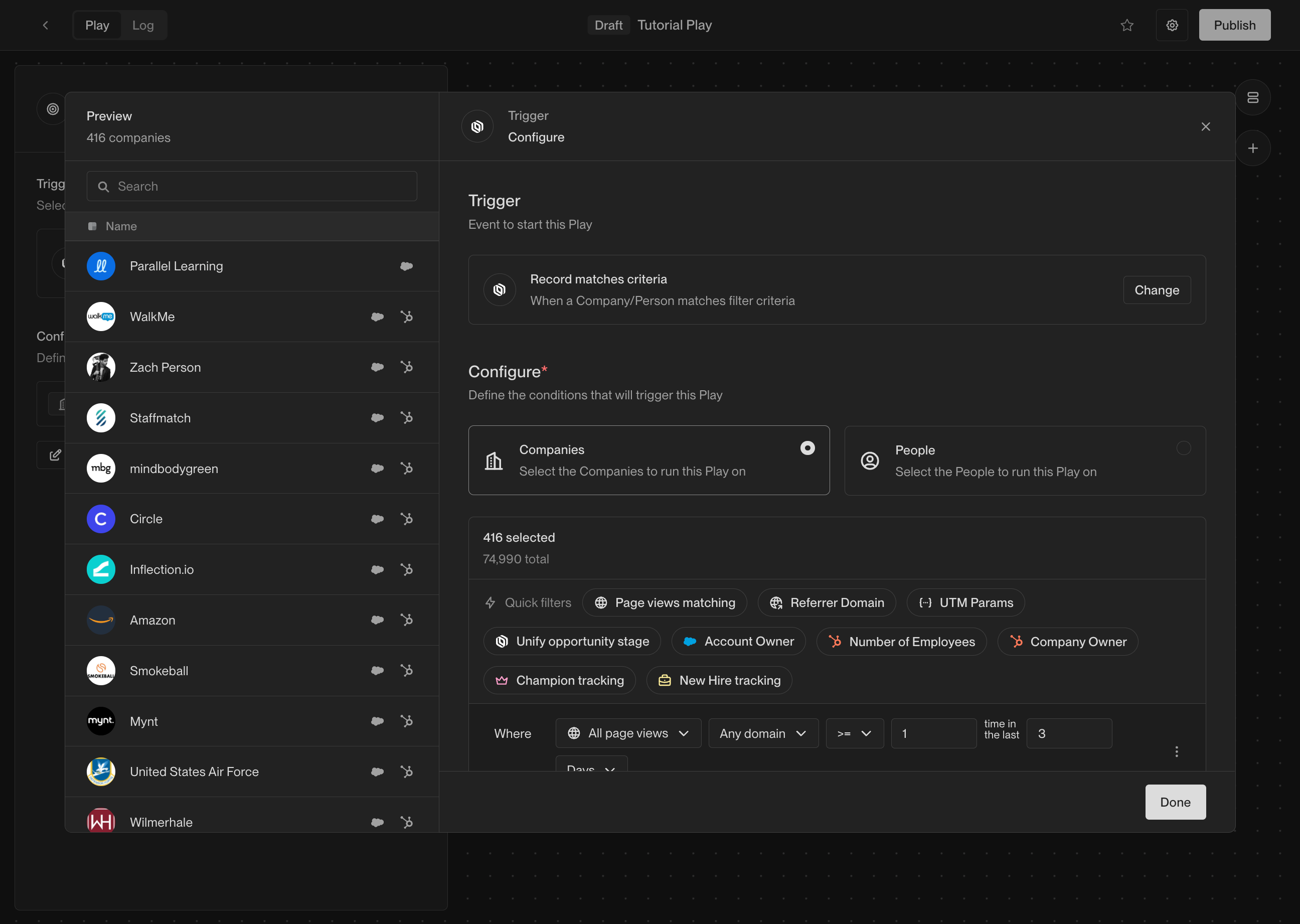 Here you have the option to further filter and refine the companies that this
Play will run on. For example, if you only want to run this Play on companies
with more than 100 employees, you can add a filter on **Employee Count**.
You can learn more about the available filters and how to use them in the tutorial
[How to create an Audience](/tutorials/how-to-create-an-audience). You can always
return later to add or modify filters. Click **Done** to finish configuring the
trigger.
### Step 3: Add actions
Now that the trigger has been selected, it's time to start adding actions. There
are many actions to choose from, and you can configure them in countless ways.
For this Play, we're going to start simple and add three actions.
#### Prospect for people
Start by adding a prospecting action. This action will take the company coming
from the trigger and search for relevant prospects. Drag the **Prospect for People**
action from the action list and drop it into the builder.
Here you have the option to further filter and refine the companies that this
Play will run on. For example, if you only want to run this Play on companies
with more than 100 employees, you can add a filter on **Employee Count**.
You can learn more about the available filters and how to use them in the tutorial
[How to create an Audience](/tutorials/how-to-create-an-audience). You can always
return later to add or modify filters. Click **Done** to finish configuring the
trigger.
### Step 3: Add actions
Now that the trigger has been selected, it's time to start adding actions. There
are many actions to choose from, and you can configure them in countless ways.
For this Play, we're going to start simple and add three actions.
#### Prospect for people
Start by adding a prospecting action. This action will take the company coming
from the trigger and search for relevant prospects. Drag the **Prospect for People**
action from the action list and drop it into the builder.
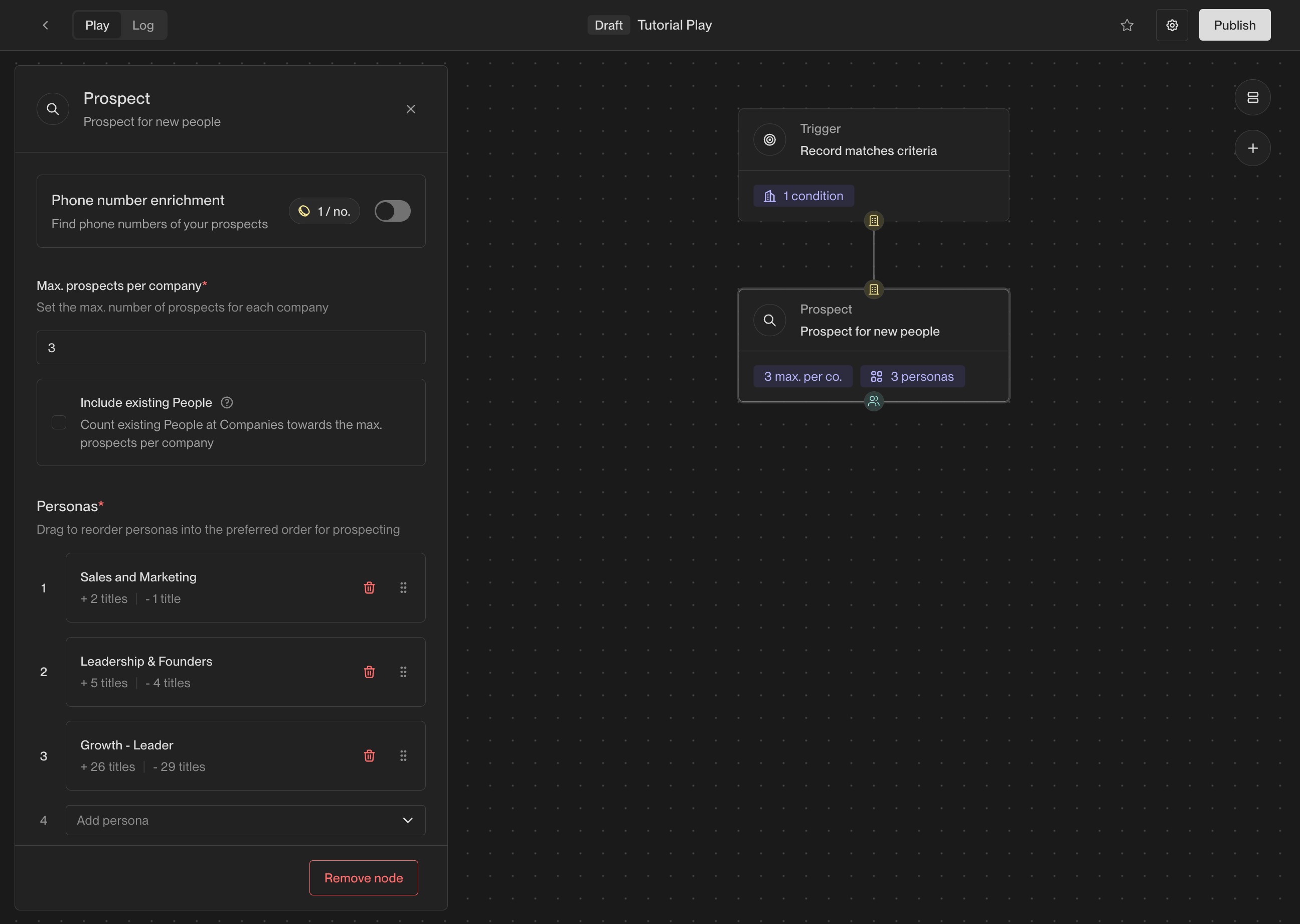 Once added, you will see the prospecting options shown in the configuration
panel on the left. Here are the most important selections to make:
* **Max. prospects per company**: This is how many prospects you want to find at
each company. We recommend starting with 2-4 prospects per company.
* **Personas**: These are the personas to search for. You can select from
existing personas or create new ones. Unify will find people matching these
personas in order, so list them in order of preference.
If you haven't defined any personas yet, you can learn how to do so in the
tutorial [How to create Personas](/tutorials/how-to-use-personas).
#### Loop
Next, add a **Loop** action. The prospecting action will return a list of people
found at the company, and the loop will run subsequent actions once for each
person in the list.
Once added, you will see the prospecting options shown in the configuration
panel on the left. Here are the most important selections to make:
* **Max. prospects per company**: This is how many prospects you want to find at
each company. We recommend starting with 2-4 prospects per company.
* **Personas**: These are the personas to search for. You can select from
existing personas or create new ones. Unify will find people matching these
personas in order, so list them in order of preference.
If you haven't defined any personas yet, you can learn how to do so in the
tutorial [How to create Personas](/tutorials/how-to-use-personas).
#### Loop
Next, add a **Loop** action. The prospecting action will return a list of people
found at the company, and the loop will run subsequent actions once for each
person in the list.
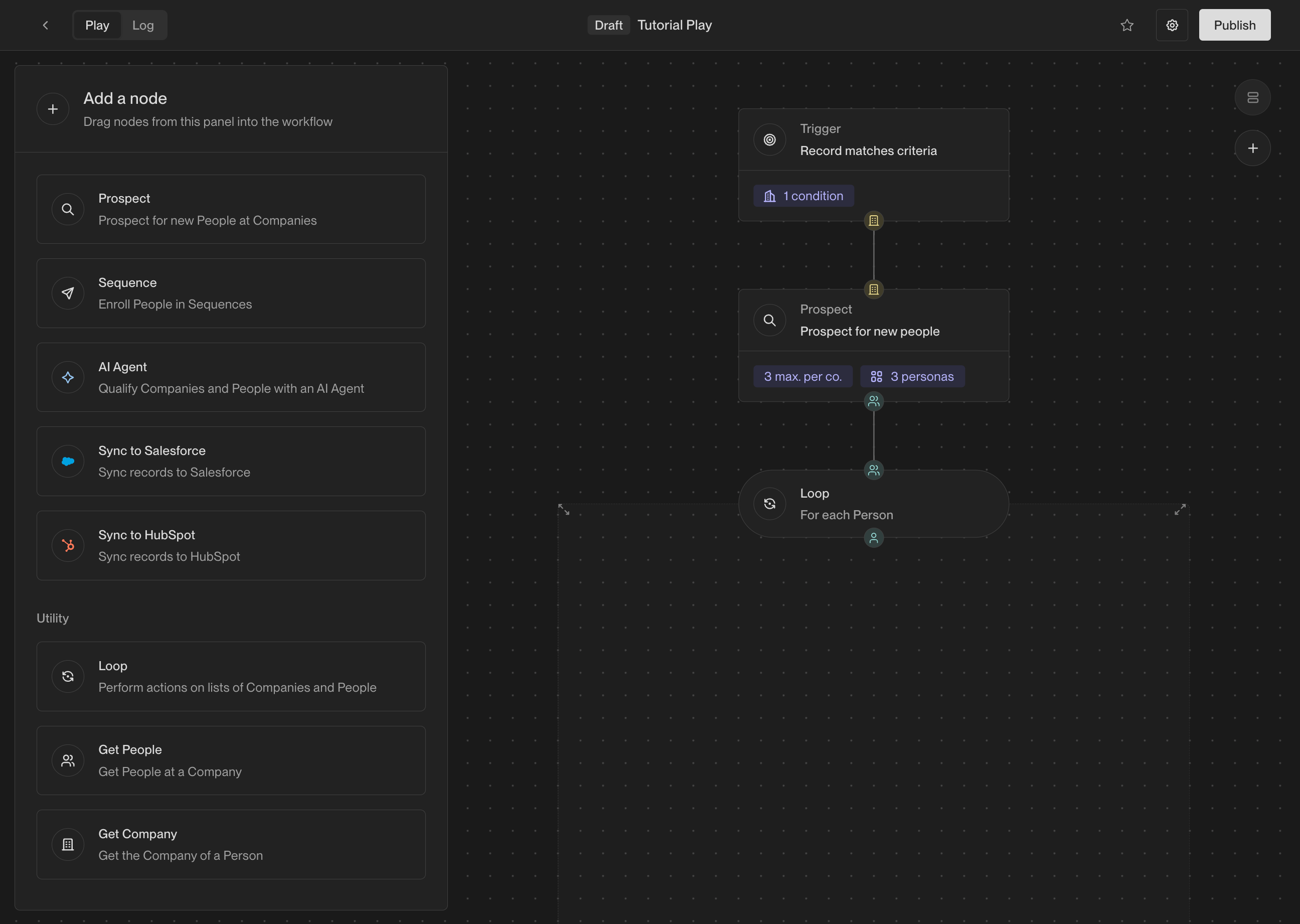 Each action receives an input and produces an output. Actions in the Play
Builder have small colored symbols that represent what type of input and output
they expect.
Here's what each symbol represents:
| Symbol | | Value |
| :-------------------------------------------------------------------------: | - | :------------------------------------ |
| {
Each action receives an input and produces an output. Actions in the Play
Builder have small colored symbols that represent what type of input and output
they expect.
Here's what each symbol represents:
| Symbol | | Value |
| :-------------------------------------------------------------------------: | - | :------------------------------------ |
| {
 #### Sync to CRM
Finally, add an action to sync each new person to your CRM. Depending on which
CRM you've connected in Unify, you will see either a **Sync to Salesforce** or
**Sync to HubSpot** action.
#### Sync to CRM
Finally, add an action to sync each new person to your CRM. Depending on which
CRM you've connected in Unify, you will see either a **Sync to Salesforce** or
**Sync to HubSpot** action.
 ### Step 4: Publish and view logs
Once your Play is ready, click the **Publish** button in the top right corner of
the Play Builder. This will activate the Play and start running it on companies
that match the trigger criteria you defined earlier.
### Step 4: Publish and view logs
Once your Play is ready, click the **Publish** button in the top right corner of
the Play Builder. This will activate the Play and start running it on companies
that match the trigger criteria you defined earlier.
 As the Play starts to run on companies, you will see them appear in the logs.
Click on the **Logs** tab at the top of the Play Builder to view the logs.
As the Play starts to run on companies, you will see them appear in the logs.
Click on the **Logs** tab at the top of the Play Builder to view the logs.
 Click on any company to view the details of its run, including the exact actions
that were taken and the results of each action. Click on any action to view the
precise inputs, outputs, and result of that action.
Click on any company to view the details of its run, including the exact actions
that were taken and the results of each action. Click on any action to view the
precise inputs, outputs, and result of that action.
 ## Conclusion
Congratulations on creating a Play! Combining website intent, prospecting, and
sequences into a single automated flow is a popular Play and an excellent
starting point.
For a comprehensive overview of Unify Plays, check out the reference guide:
## Conclusion
Congratulations on creating a Play! Combining website intent, prospecting, and
sequences into a single automated flow is a popular Play and an excellent
starting point.
For a comprehensive overview of Unify Plays, check out the reference guide: