> ## Documentation Index
> Fetch the complete documentation index at: https://docs.unifygtm.com/llms.txt
> Use this file to discover all available pages before exploring further.
# Sequence step types
> Learn what each Sequence step type does and when to use it.
export const PhoneCallIcon = ({size = 24}) => <>
;
export const ManualEmailIcon = ({size = 24}) => <>
;
export const ActionItemIcon = ({size = 24}) => <>
;
Sequence steps define what should happen after a Person is enrolled in a
Sequence. Steps can send emails automatically or create tasks for a user, such
as manual emails or phone calls.
## Adding steps to Sequences
When drafting or editing a Sequence, click **+** in the Sequence Builder to add
a new step.
Send a personalized email automatically when the step is scheduled.
} href="#manual-email">
Create an email task that a user reviews and sends from Unify.
} href="#phone-call">
Create a task to call the Person.
} href="#action-item">
Create a generic task with custom instructions.
Every manual step type creates a task for the person and assigns it to a user.
## Automatic email
Automatic email steps send without requiring a user to review the message first.
Use them for outreach that can be safely sent once Unify has hydrated the
recipient-specific content and the mailbox has capacity during an allowed send
window.
Automatic emails can use
[template variables](/reference/sequences/personalization/template-variables),
[snippets](/reference/sequences/personalization/template-variables#snippets),
and [smart snippets](/reference/sequences/personalization/smart-snippets). If
required personalization data is missing or invalid, Unify blocks the enrollment
instead of sending an incomplete email.
## Manual email
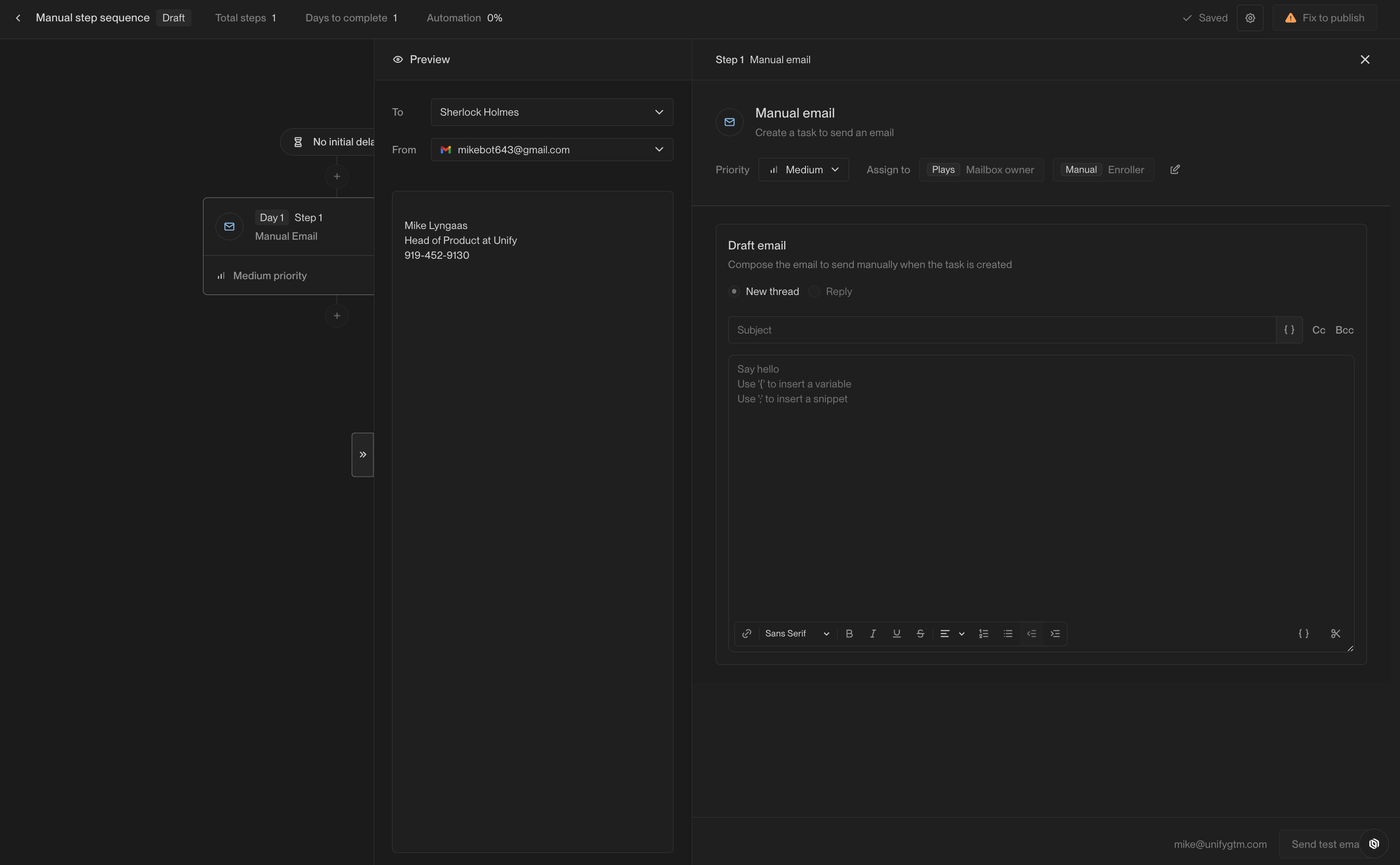
Just like automated emails, manual email steps can be composed using
[template variables](/reference/sequences/personalization/template-variables),
[snippets](/reference/sequences/personalization/template-variables#snippets),
or [smart snippets](/reference/sequences/personalization/smart-snippets). When a
Person reaches the step, Unify creates a manual email task instead of sending
the email immediately.
Use manual email steps when a user should review, edit, or tailor the message
before it goes out. You can set the task priority and choose who the task should
be assigned to.
## Phone call
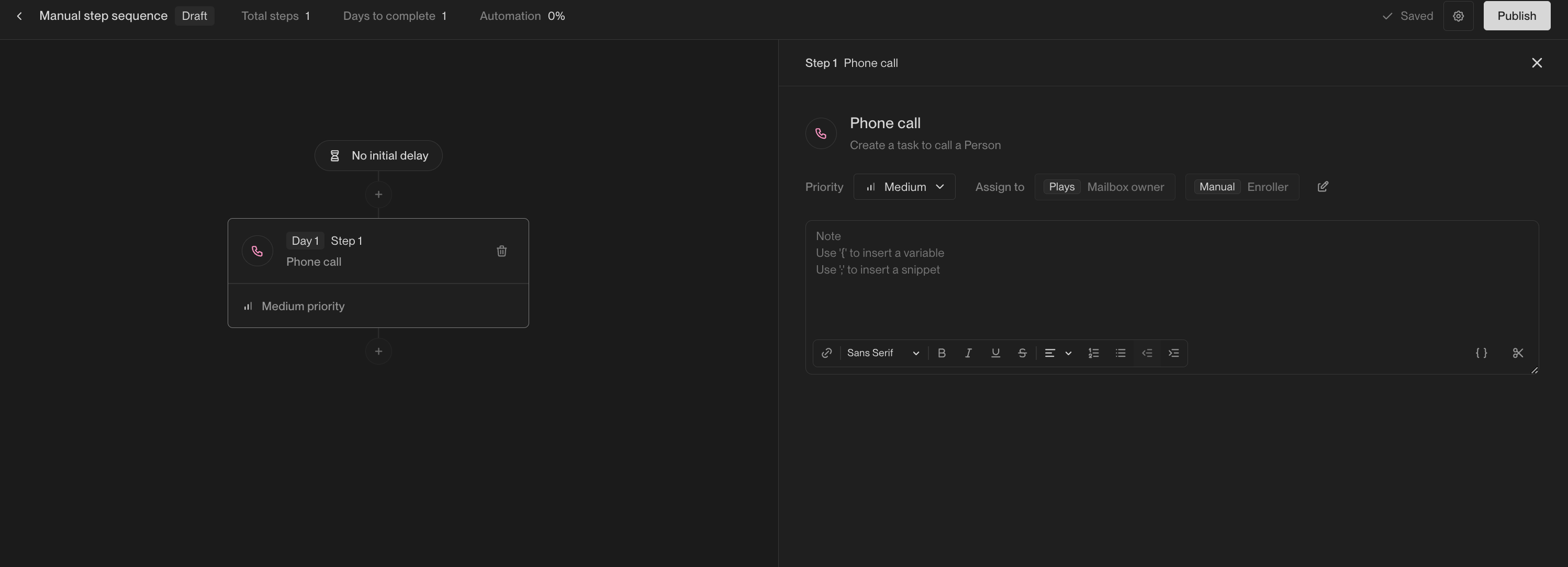
Phone call steps create a phone call task for the assigned user. Use them when a
rep should call the Person before the Sequence continues.
Phone call steps can include notes that appear on the call task once created.
[Template variables](/reference/sequences/personalization/template-variables),
[snippets](/reference/sequences/personalization/template-variables#snippets),
and [smart snippets](/reference/sequences/personalization/smart-snippets) can
customize those notes for each Person.
## Action item
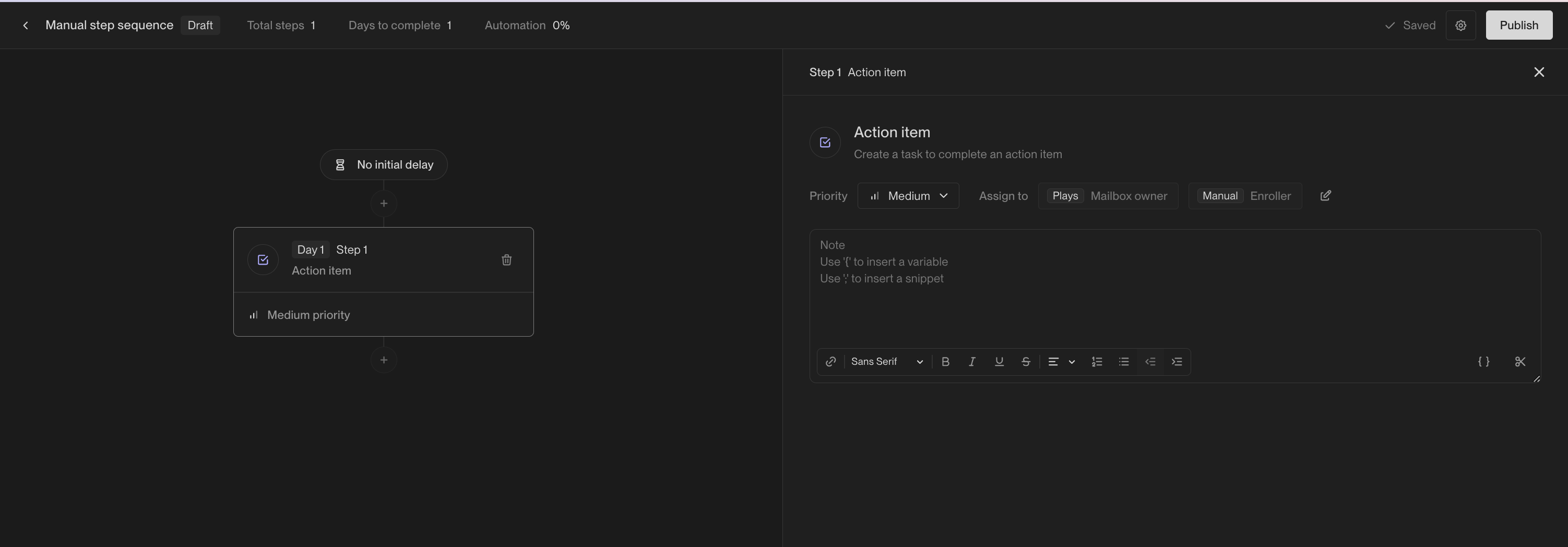
Action item steps create a general task for the assigned user. Use them for
manual work that is not specifically an email or call, such as reviewing an
account, checking CRM data, preparing for a meeting, or taking a custom follow-up
action.
Action item steps can include notes that appear on the task once created. These
notes can provide instructions or context about the Person or Company.
[Template variables](/reference/sequences/personalization/template-variables),
[snippets](/reference/sequences/personalization/template-variables#snippets),
and [smart snippets](/reference/sequences/personalization/smart-snippets) can
customize those notes for each task.
## Step timing and delays
Sequence timing is controlled separately from the step type. When adding or
editing steps, configure the delay or condition that determines when the next
step should run. Delays can be set in seconds, minutes, hours, days, or weeks.
 ## Phone call
Phone call steps create a phone call task for the assigned user. Use them when a
rep should call the Person before the Sequence continues.
Phone call steps can include notes that appear on the call task once created.
[Template variables](/reference/sequences/personalization/template-variables),
[snippets](/reference/sequences/personalization/template-variables#snippets),
and [smart snippets](/reference/sequences/personalization/smart-snippets) can
customize those notes for each Person.
## Phone call
Phone call steps create a phone call task for the assigned user. Use them when a
rep should call the Person before the Sequence continues.
Phone call steps can include notes that appear on the call task once created.
[Template variables](/reference/sequences/personalization/template-variables),
[snippets](/reference/sequences/personalization/template-variables#snippets),
and [smart snippets](/reference/sequences/personalization/smart-snippets) can
customize those notes for each Person.
 ## Action item
Action item steps create a general task for the assigned user. Use them for
manual work that is not specifically an email or call, such as reviewing an
account, checking CRM data, preparing for a meeting, or taking a custom follow-up
action.
Action item steps can include notes that appear on the task once created. These
notes can provide instructions or context about the Person or Company.
[Template variables](/reference/sequences/personalization/template-variables),
[snippets](/reference/sequences/personalization/template-variables#snippets),
and [smart snippets](/reference/sequences/personalization/smart-snippets) can
customize those notes for each task.
## Action item
Action item steps create a general task for the assigned user. Use them for
manual work that is not specifically an email or call, such as reviewing an
account, checking CRM data, preparing for a meeting, or taking a custom follow-up
action.
Action item steps can include notes that appear on the task once created. These
notes can provide instructions or context about the Person or Company.
[Template variables](/reference/sequences/personalization/template-variables),
[snippets](/reference/sequences/personalization/template-variables#snippets),
and [smart snippets](/reference/sequences/personalization/smart-snippets) can
customize those notes for each task.
 ## Step timing and delays
Sequence timing is controlled separately from the step type. When adding or
editing steps, configure the delay or condition that determines when the next
step should run. Delays can be set in seconds, minutes, hours, days, or weeks.
## Step timing and delays
Sequence timing is controlled separately from the step type. When adding or
editing steps, configure the delay or condition that determines when the next
step should run. Delays can be set in seconds, minutes, hours, days, or weeks.