> ## Documentation Index
> Fetch the complete documentation index at: https://docs.unifygtm.com/llms.txt
> Use this file to discover all available pages before exploring further.
# Template variables
> Use template variables to personalize your emails.
## Overview
Template variables are key to personalizing messages sent through Unify. You can
use template variables to insert dynamic values into your emails, such as a
person's name, company, or job title.
## Inserting variables
You can insert template variables into emails you write when creating Sequences
in Unify. To open the template variable dropdown, click the template variable
button in the Sequence Builder.
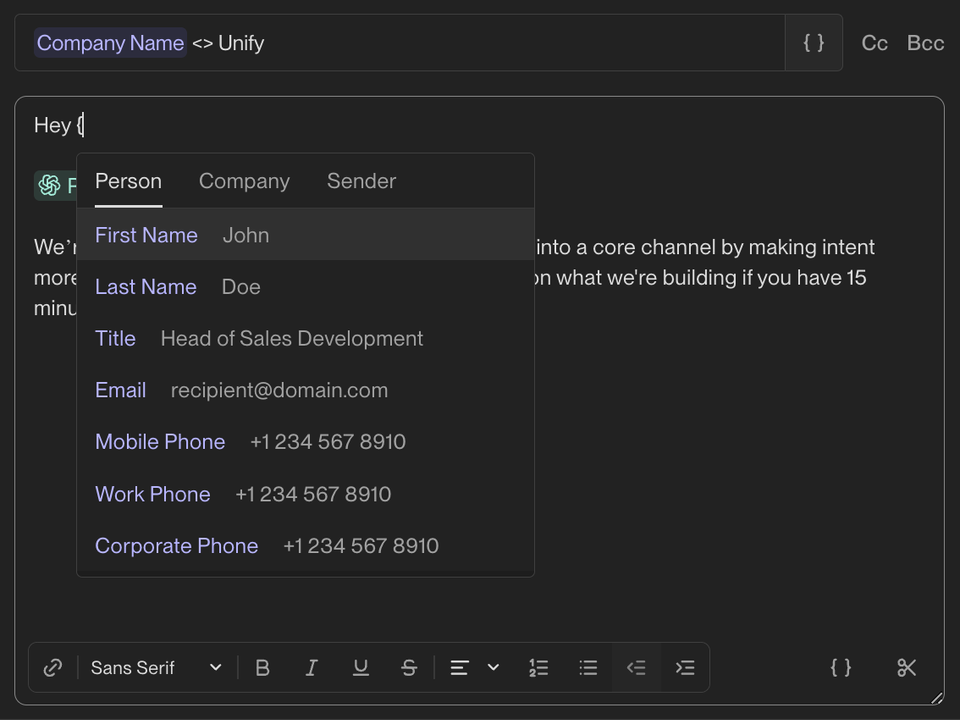
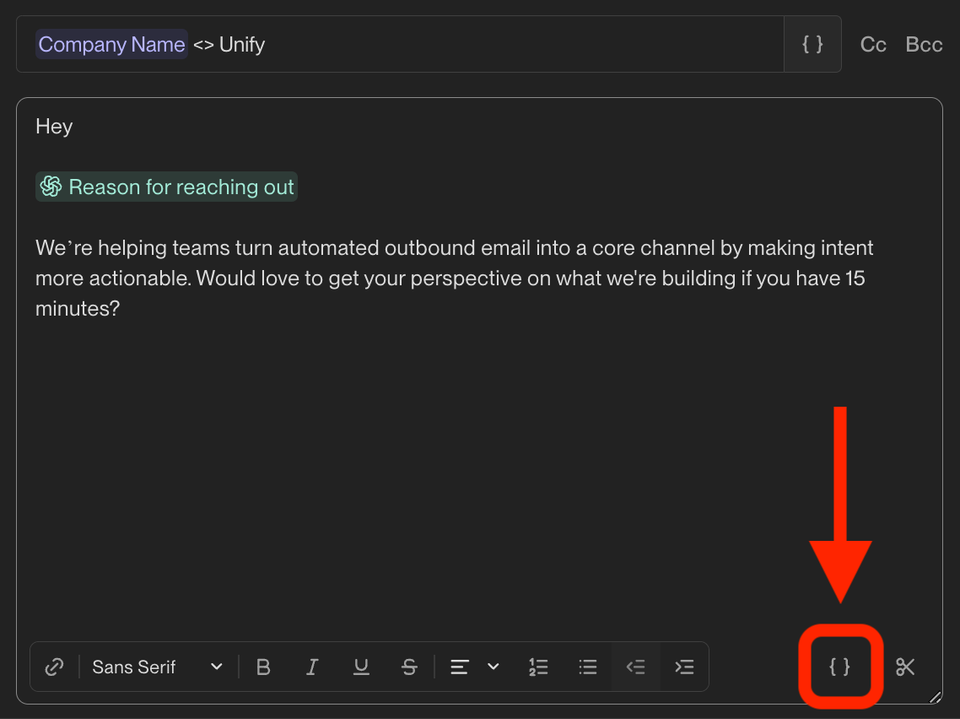 You can also press **`{`** on your keyboard to open the template variable dropdown. Once open, you can select a variable and insert it into your email.
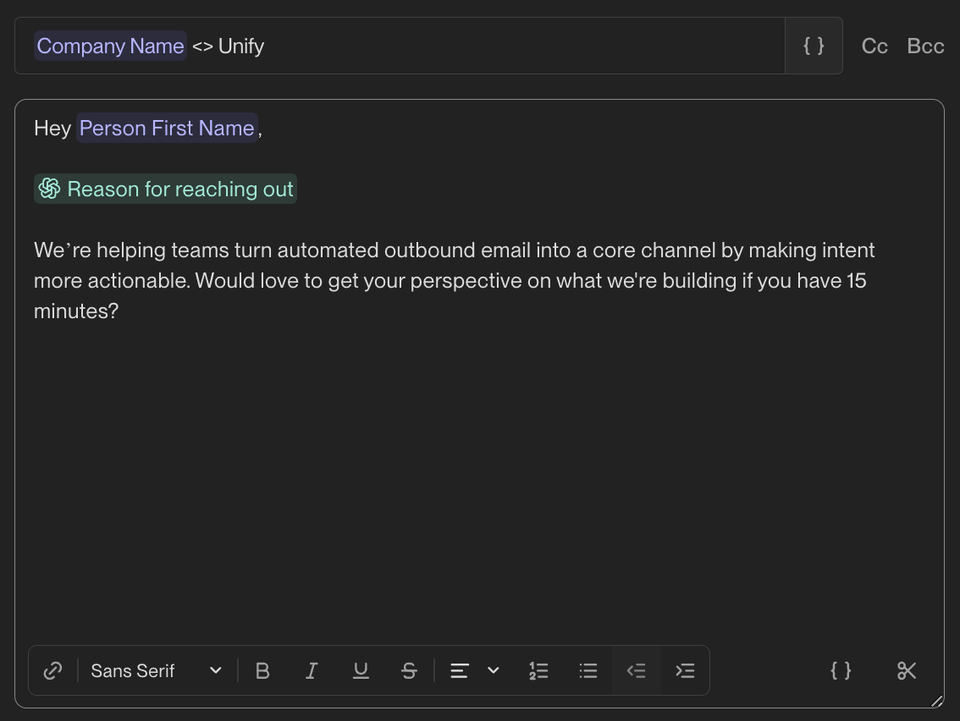 When a Person is enrolled in this Sequence, this value will be filled in
dynamically.
## Handling missing data
### Enrollment blocking
Sometimes, Unify won’t have data to populate variables used in a Sequence email.
In these cases, Unify will never send an email with a placeholder or missing
value. Instead, Unify will *block* the Sequence enrollment.
When a Person is enrolled in this Sequence, this value will be filled in
dynamically.
## Handling missing data
### Enrollment blocking
Sometimes, Unify won’t have data to populate variables used in a Sequence email.
In these cases, Unify will never send an email with a placeholder or missing
value. Instead, Unify will *block* the Sequence enrollment.
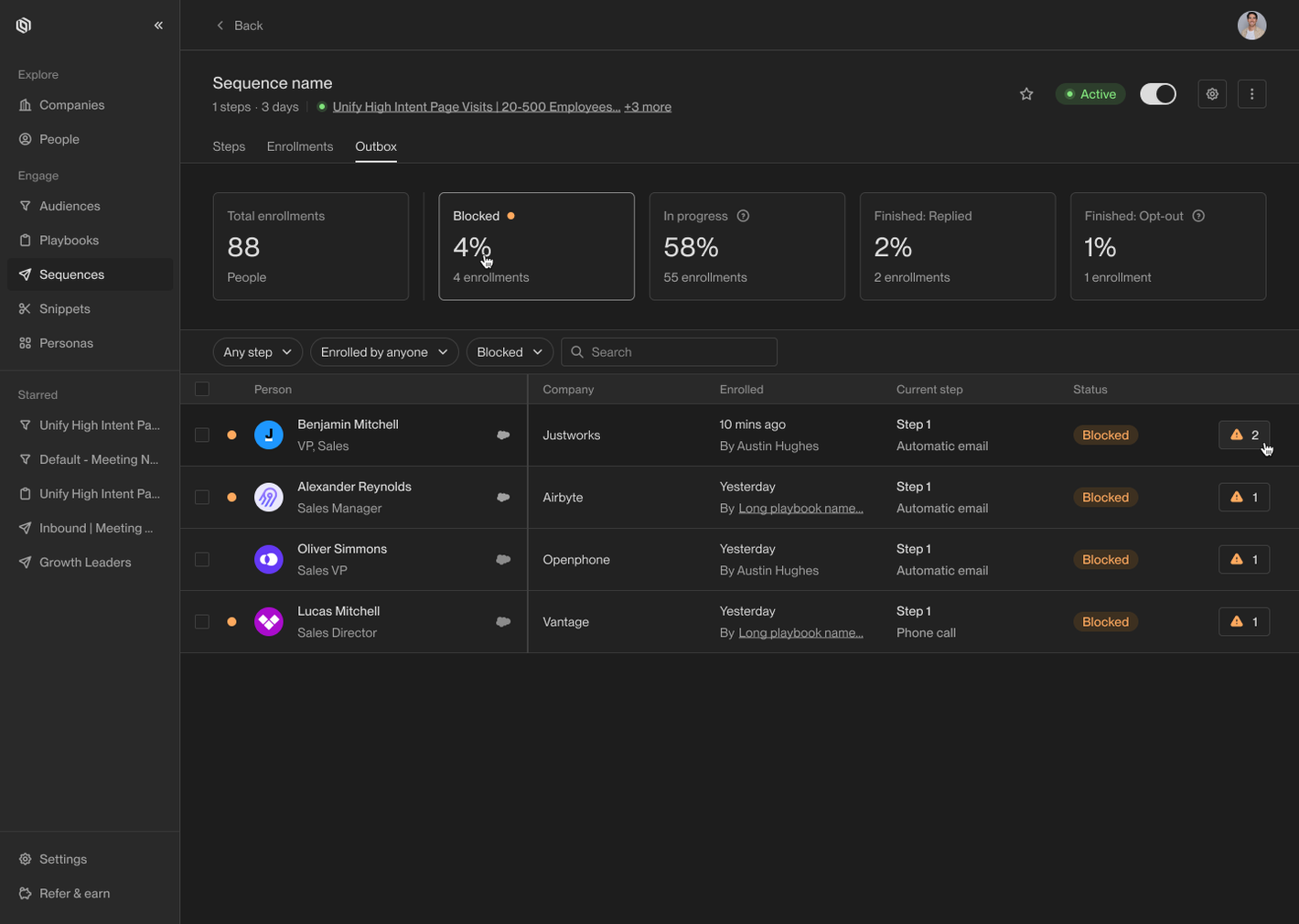 Blocked enrollments can be seen on the Sequence details page. Click a blocked
enrollment to edit the message and manually fill in any missing values.
Blocked enrollments can be seen on the Sequence details page. Click a blocked
enrollment to edit the message and manually fill in any missing values.
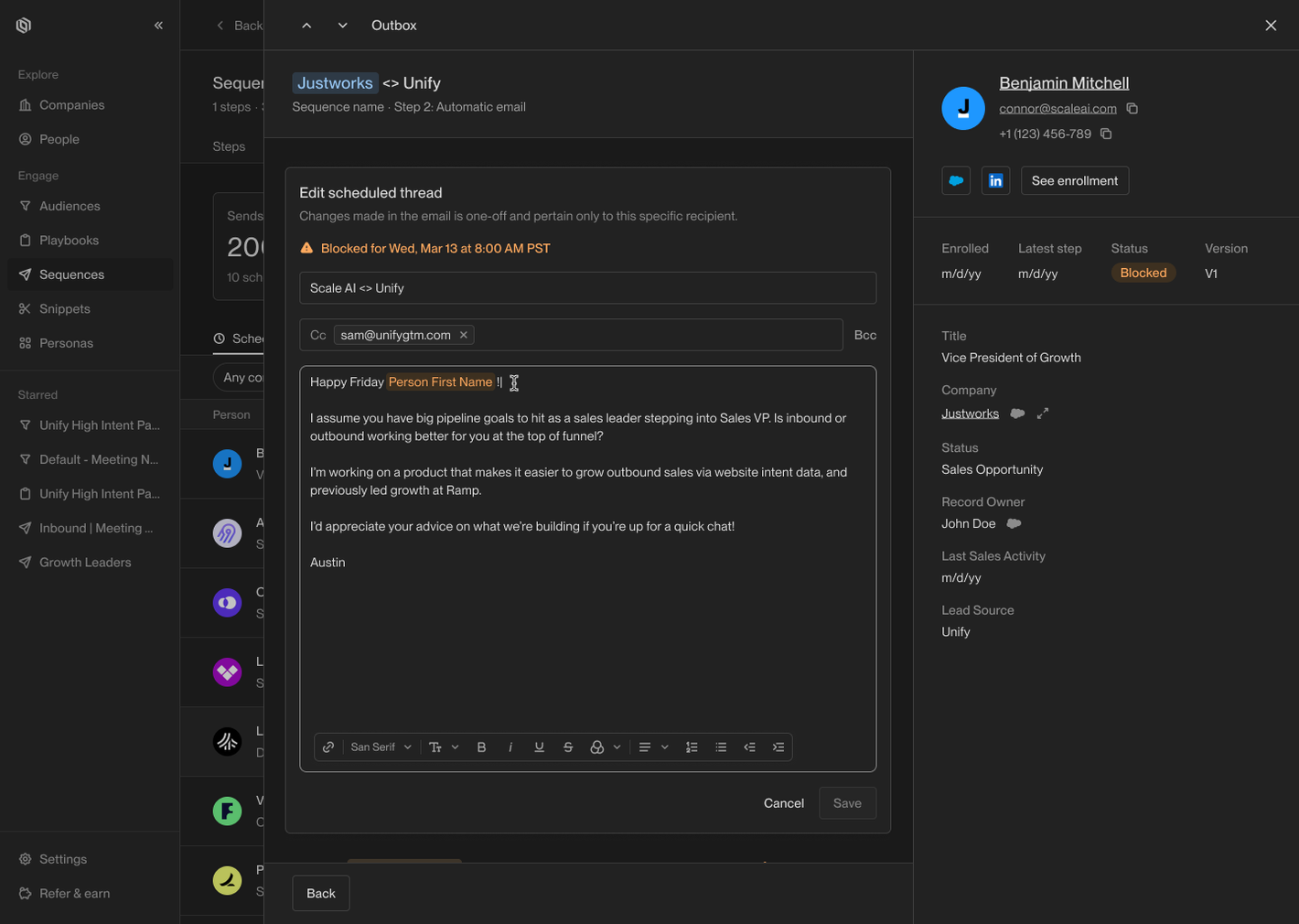 The template variables with missing values will appear highlighted in orange.
Once you’ve replaced the missing values, click **Save** and the blocked status
will disappear.
The template variables with missing values will appear highlighted in orange.
Once you’ve replaced the missing values, click **Save** and the blocked status
will disappear.
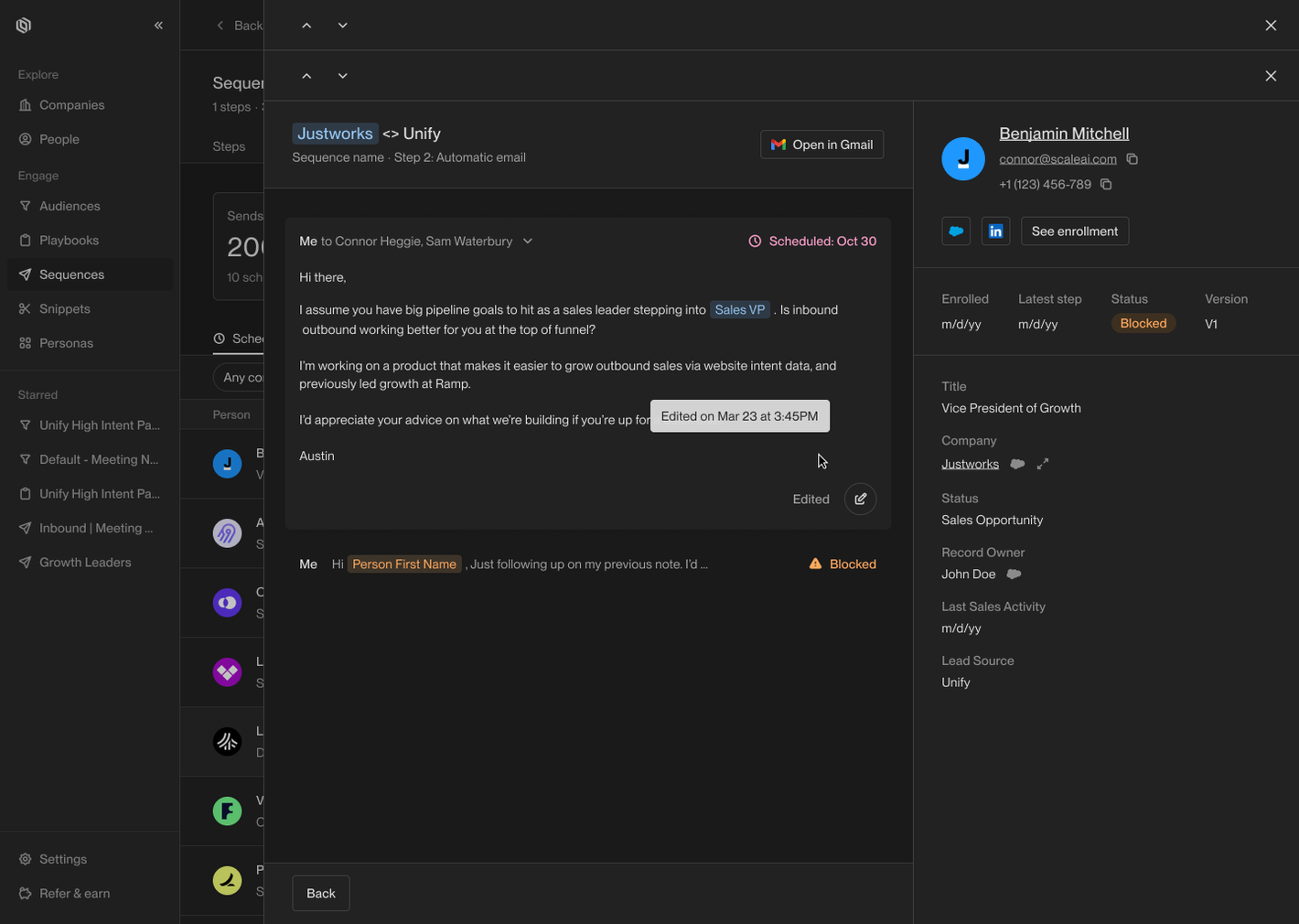 The step will then be rescheduled and sent automatically as part of the
Sequence.
For other enrollment statuses and blocked-enrollment troubleshooting, see
[Sequence enrollments](/reference/sequences/enrollments).
### Snippets
To avoid having to manually unblock enrollments that are missing a value, it's
highly recommended that you take advantage of *snippets*.
Snippets are reusable blocks of copy that can be inserted into messages the same
as template variables. However, snippets also allow you to define fallback text
which is used if any template variables are missing values.
The step will then be rescheduled and sent automatically as part of the
Sequence.
For other enrollment statuses and blocked-enrollment troubleshooting, see
[Sequence enrollments](/reference/sequences/enrollments).
### Snippets
To avoid having to manually unblock enrollments that are missing a value, it's
highly recommended that you take advantage of *snippets*.
Snippets are reusable blocks of copy that can be inserted into messages the same
as template variables. However, snippets also allow you to define fallback text
which is used if any template variables are missing values.
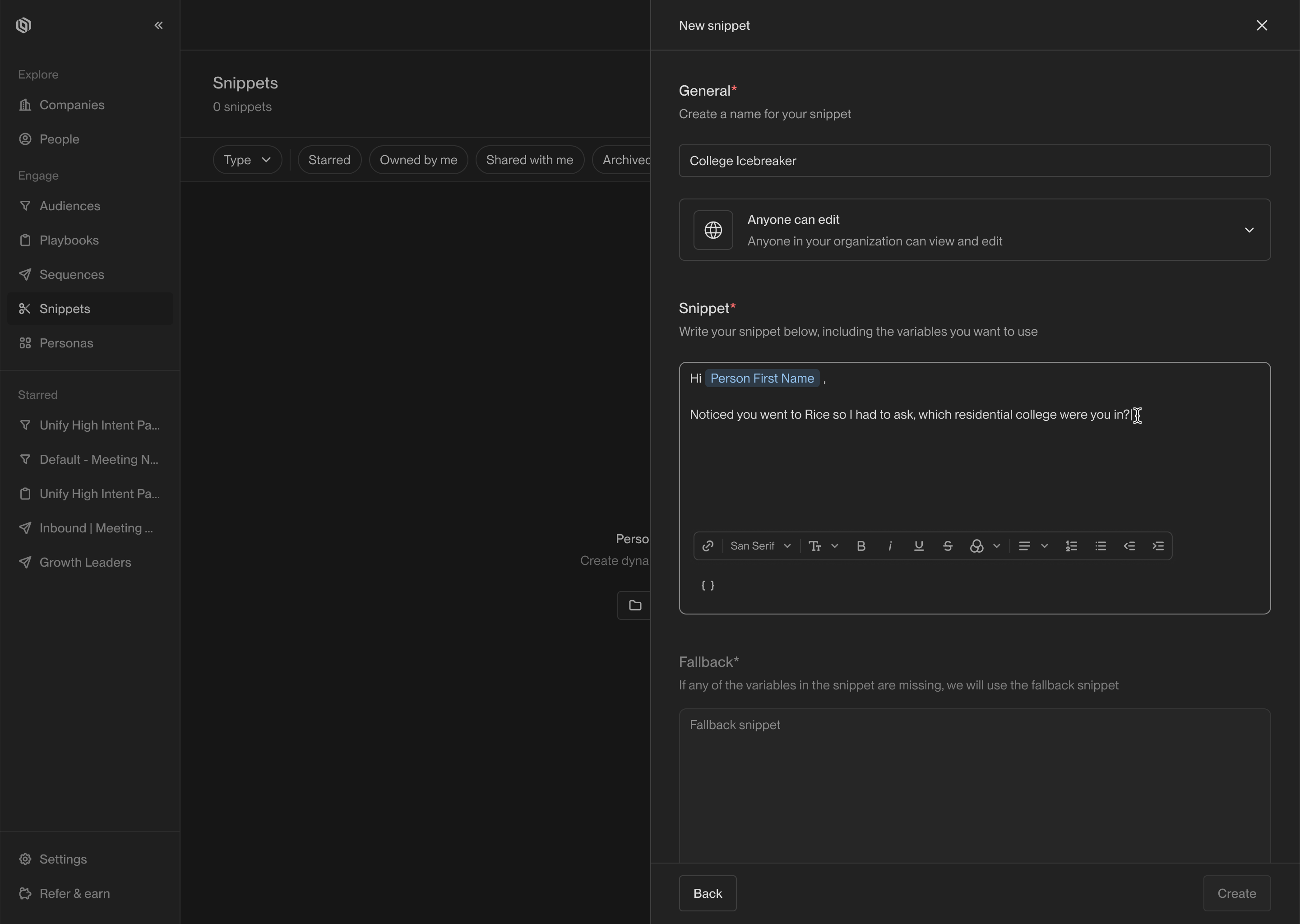 You can access snippets by navigating to the [Snippets](https://app.unifygtm.com/dashboard/snippets)
tab in the sidebar. When defining a snippet, you can use template variables or
even other snippets in the copy. Underneath the snippet text area, there is a
second text area where you can define a fallback.
You can access snippets by navigating to the [Snippets](https://app.unifygtm.com/dashboard/snippets)
tab in the sidebar. When defining a snippet, you can use template variables or
even other snippets in the copy. Underneath the snippet text area, there is a
second text area where you can define a fallback.
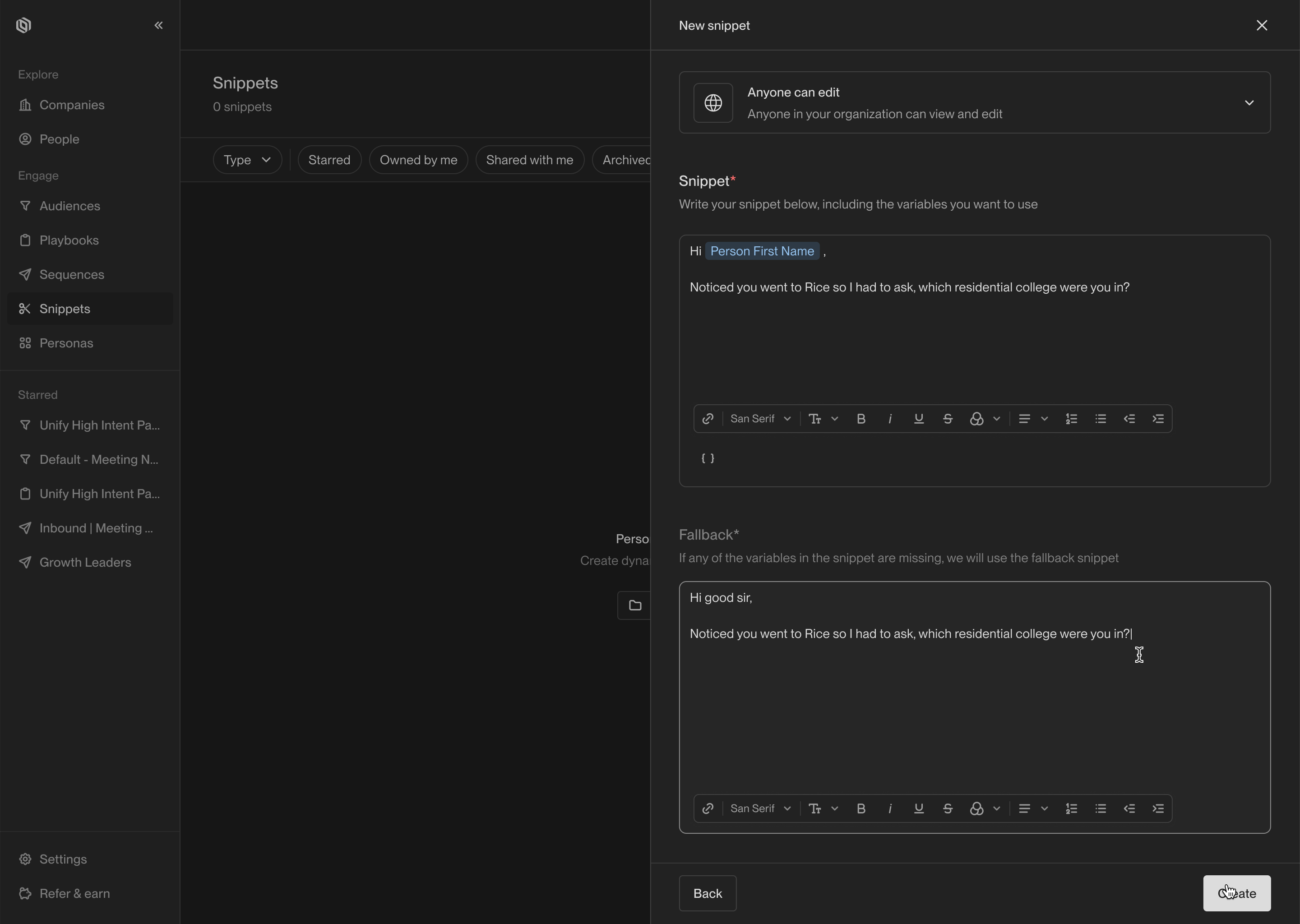 The fallback will be used if any of the variables used in the copy are missing.
If you use snippets within snippets (which is called *snippet-ception*), the
fallback for the nested snippet will be used in the top-level snippet.
The fallback will be used if any of the variables used in the copy are missing.
If you use snippets within snippets (which is called *snippet-ception*), the
fallback for the nested snippet will be used in the top-level snippet.