> ## Documentation Index
> Fetch the complete documentation index at: https://docs.unifygtm.com/llms.txt
> Use this file to discover all available pages before exploring further.
# Smart snippets
> Personalize your outreach with AI-powered email copy generation.
## Overview
Smart snippets allow you to personalize messages with AI-generated copy that's
unique to each recipient. You can use smart snippets to enhance your messaging,
improve deliverability, and increase engagement.
Smart snippets are concise, self-contained pieces of text that serve a clear
communicative purpose. Each snippet should be laser-focused on the parts of your
outbound message that change the most to fit each recipient differently.
## Creating a smart snippet
Navigate to the [Snippets](https://app.unifygtm.com/dashboard/snippets) tab in
the sidebar, select **New snippet** in the top right corner, and choose
**Smart snippet**. You will see the smart snippet creation screen.
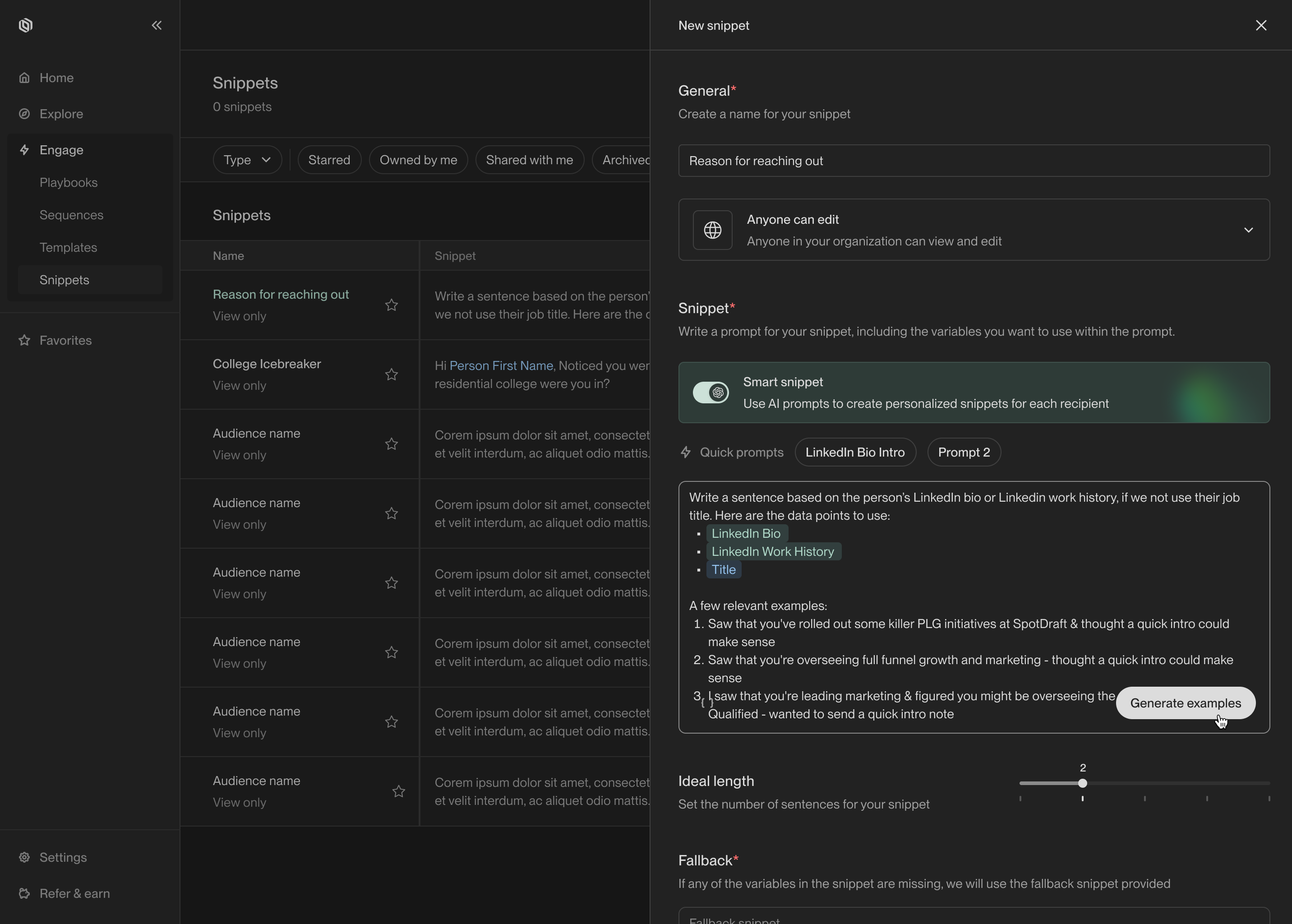 To define a smart snippet, you provide a prompt that describes the content you
want to generate. The prompt should include template variables for any data you
want the model to use when writing the snippet. You can click on the quick
prompts to see example prompts for inspiration.
After you've entered your prompt, click **Generate examples** to see what the
smart snippet will generate for a sample of real people from your data. You can
edit the prompt and regenerate examples to iteratively refine your snippet.
To define a smart snippet, you provide a prompt that describes the content you
want to generate. The prompt should include template variables for any data you
want the model to use when writing the snippet. You can click on the quick
prompts to see example prompts for inspiration.
After you've entered your prompt, click **Generate examples** to see what the
smart snippet will generate for a sample of real people from your data. You can
edit the prompt and regenerate examples to iteratively refine your snippet.
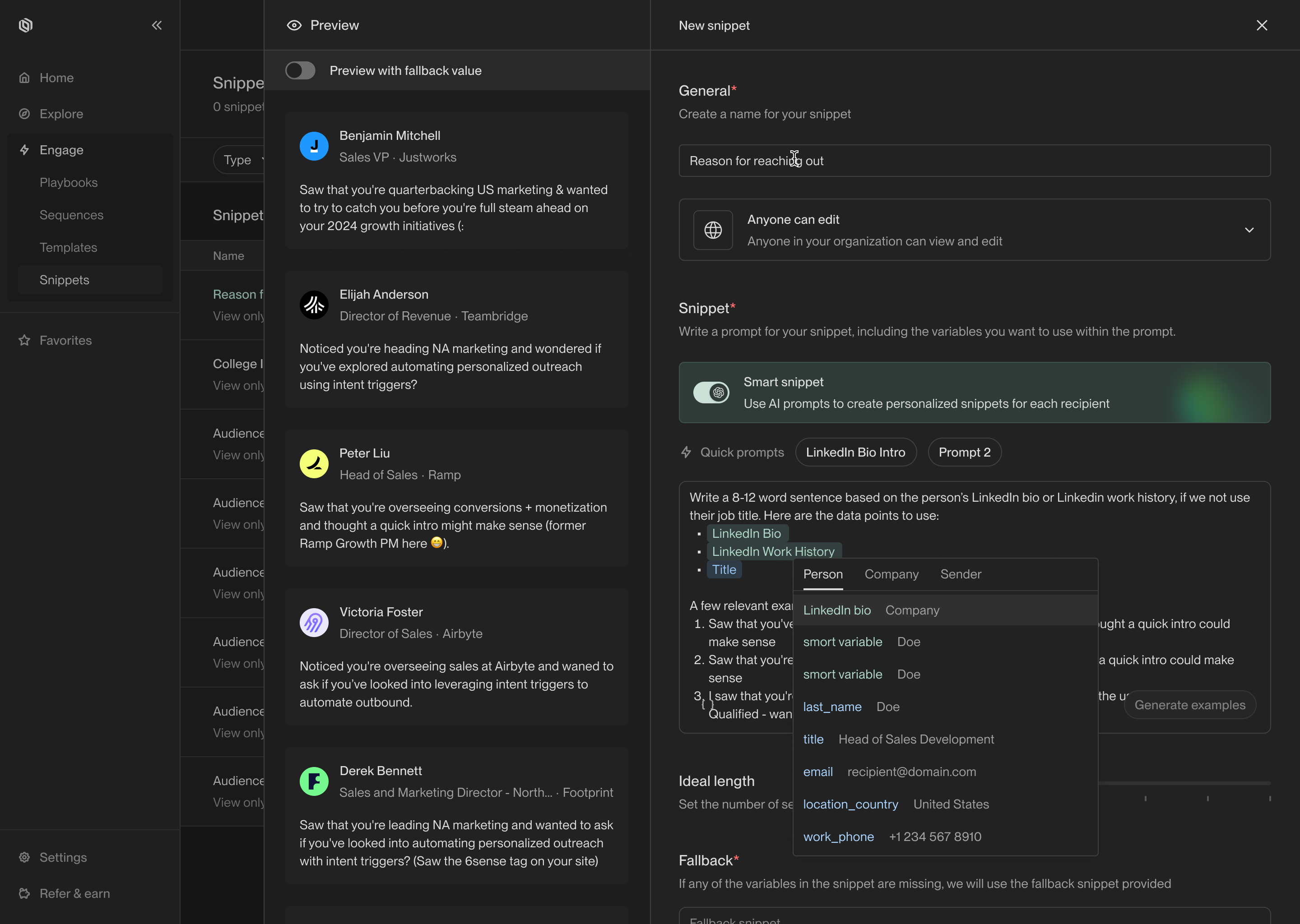 Just like regular snippets, you should define a fallback value in case any
template variables in the prompt are missing data. This will prevent enrollments
from being blocked by the missing data.
When you're satisfied with your prompt, click **Create** to save it. You will
now be able to use the snippet in your Sequences.
## Recommendations
Here are a few practices we recommend to get the most out of smart snippets:
1. Always include at least one template variable for the model to use to
personalize the snippet. For example, include some details about the sender,
the recipient, or their company. This helps the model write more precise and
personalized copy.
2. Include 2-3 example outputs to guide the model. Examples help the model
understand the tone and structure you're trying to achieve. The model will
often pick up on vocabulary and stylistic choices from your examples.
3. Start small. Pick a specific part of the email, such as the salutation or
hook, and focus on personalizing that part. Smart snippets are most effective
when they're used to personalize small sections of your email. Remember that
you can use as many snippets in an email as you want!
Just like regular snippets, you should define a fallback value in case any
template variables in the prompt are missing data. This will prevent enrollments
from being blocked by the missing data.
When you're satisfied with your prompt, click **Create** to save it. You will
now be able to use the snippet in your Sequences.
## Recommendations
Here are a few practices we recommend to get the most out of smart snippets:
1. Always include at least one template variable for the model to use to
personalize the snippet. For example, include some details about the sender,
the recipient, or their company. This helps the model write more precise and
personalized copy.
2. Include 2-3 example outputs to guide the model. Examples help the model
understand the tone and structure you're trying to achieve. The model will
often pick up on vocabulary and stylistic choices from your examples.
3. Start small. Pick a specific part of the email, such as the salutation or
hook, and focus on personalizing that part. Smart snippets are most effective
when they're used to personalize small sections of your email. Remember that
you can use as many snippets in an email as you want!