> ## Documentation Index
> Fetch the complete documentation index at: https://docs.unifygtm.com/llms.txt
> Use this file to discover all available pages before exploring further.
# Research agents
> Define research questions for qualification in plays.
export const PlanAvailability = ({plans}) => ;
## Overview
Research agents answer a defined set of questions about a company or person.
Use an agent in a play's [qualification action](/reference/plays/actions#agent-qualification)
to decide whether a record meets your criteria. For example, ask whether a
company sells to businesses, then route qualifying accounts to prospecting.
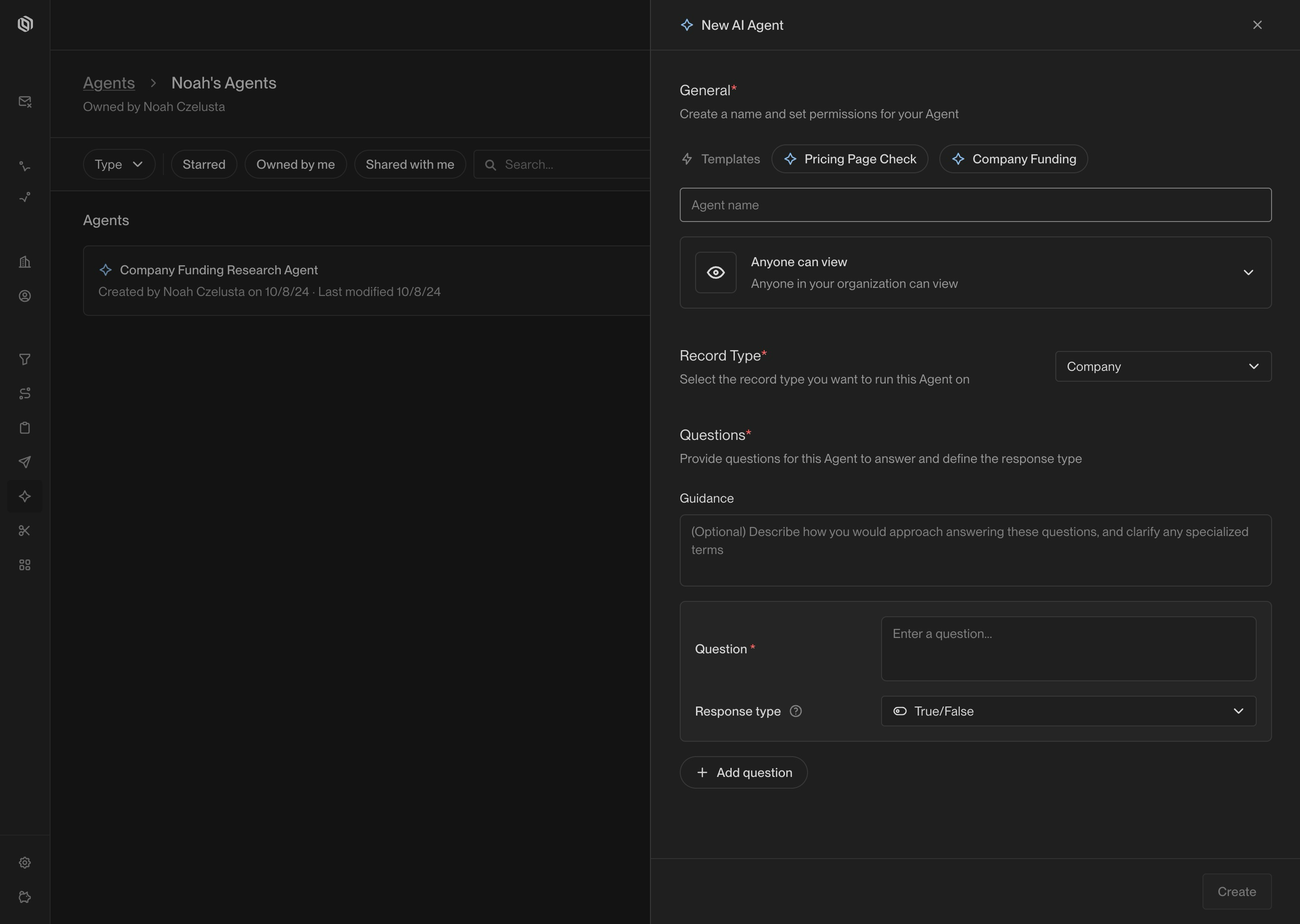
Each agent has a record type, questions with expected response types, and
optional guidance. Test it on example records before using its answers to
qualify records in a play.
## Configure an agent
Open the qualification action in your play to select an existing agent or create
one. The agent's record type must match the companies or people entering the
action.
Use a company agent for account questions and a person agent for questions
about individual prospects. Unify makes the record's data available during
research. Once an agent is saved, its record type cannot be changed.
Write a concise question and choose the format for its answer:
| Response type | Example question |
| - | - |
| True/False | Does this company have an office in San Francisco? |
| Number | How many years of full-time experience does this person have? |
| Select | Does this company sell to businesses, consumers, or governments? |
| Text | What products does this company sell? |
For a select question, provide the available options. Enable **Allow multiple options**
when several answers may apply, such as the funding rounds a company
has completed.
Use the optional guidance prompt for context that helps answer your
questions: definitions of specialized terms, relevant details about your
business, or sources to consult. Keep the questions themselves focused on
what you want to learn.
For example, define what counts as a business customer if you need to
distinguish a company's paying customers from its partners.
## Test the answers
Once the configuration is valid, the example panel lets you run the agent on
sample records. Search for a company or person, or use the shuffle control to
select a random record. Review the answers and supporting research, then adjust
the questions or guidance if the results miss your criteria.
You can run several examples and use the arrows to move between their results.
Include records you expect to qualify and records you expect to reject.
## Use the agent in a play
Click **Create** to save the agent, or **Update** when editing an existing one.
Select the agent in the qualification action and choose the answers required
for qualification. Configure whether the record must meet all requirements or
any requirement, then connect the qualifying and non-qualifying paths to the
appropriate next actions.
After the play runs, inspect the action's answers in the
[play logs](/reference/plays/build-a-play#view-logs). Use those results to refine
your qualification criteria.
This documentation is built and hosted on [Mintlify](https://mintlify.com), a developer documentation platform.