> ## Documentation Index
> Fetch the complete documentation index at: https://docs.unifygtm.com/llms.txt
> Use this file to discover all available pages before exploring further.
# Building a Play
> Learn the fundamentals of creating Plays in Unify.
export const PlayBuilderCompanyHandleDark = () => ;
export const PlayBuilderCompanyHandleLight = () => ;
export const PlayBuilderPersonListHandleDark = () => ;
export const PlayBuilderPersonListHandleLight = () => ;
export const PlayBuilderPersonHandleDark = () => ;
export const PlayBuilderPersonHandleLight = () => ;
## Actions and triggers
The building blocks of Plays are called *actions*. Each action is a different
step of a Play, each representing a different task that can be automated in
Unify.
Every Play starts with a special type of action called a *trigger*. A trigger is
the starting point which defines when the Play should run and what data should
be provided to it.
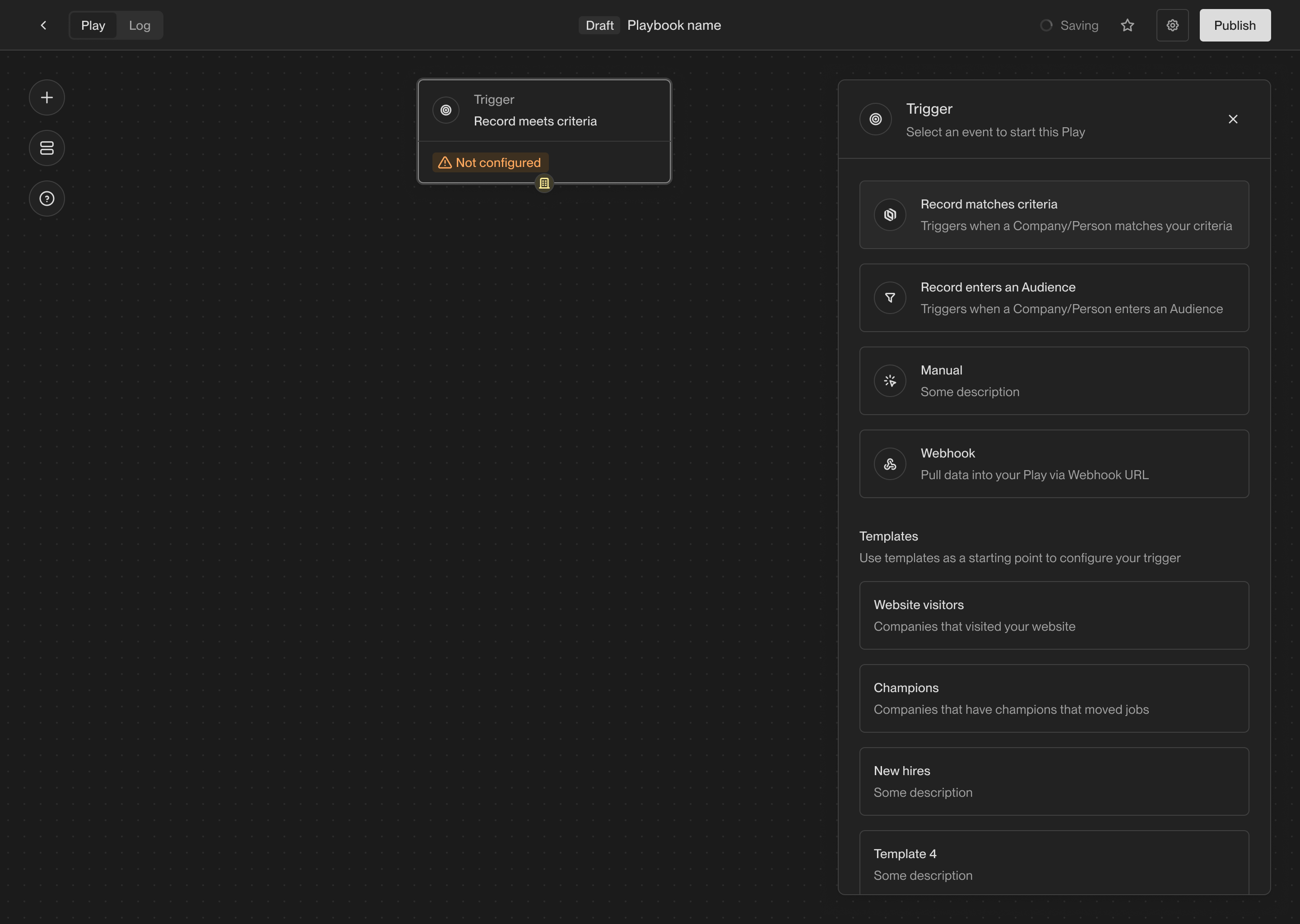
Here are a few of the triggers you can choose from:
* **Record enters an Audience**: Run a Play once on every company or person that
"enters" an Audience. Audiences can be reused across multiple Plays.
* **Record matches criteria**: Run a Play once on every company or person that
matches a set of filters. This trigger is similar to the audience trigger, but
it doesn't require you to create a separate audience. Useful when you don't
need to create a reusable audience.
* **Manual**: Only run a Play when it is manually triggered. For example, you
can send individual companies or people to a Play, or you can send an entire
audience.
Once the trigger is selected, you can start adding additional actions to the
Play. Each action performs a different task. Actions can be chained together or
perform branching logic based on the results of the previous action.
Here are some commonly used actions:
* **AI Agent qualification**: Perform AI-powered research to answer qualifying
questions about a company or person.
* **Prospect for new People**: Find new people at a company matching specific
personas. You can specify a limit on the number of people to find.
* **Sequence enrollment**: Enroll a person in a Sequence. You can route people
to different mailboxes and Sequences based on their persona.
* **Write to Salesforce or HubSpot**: Sync a company or person to Salesforce or
HubSpot. This will create or update a record in your CRM.
You can find details about the full set of available triggers and actions in the
reference sections below:
See the full list of triggers available in Unify and how to use them.
See the full list of actions available in Unify and how to use them.
Configure play-level settings such as rerun behavior.
## Inputs and outputs
Each action receives an input and produces an output. Actions in the Play
Builder have small colored symbols that represent what type of input and output
they expect.
Here's what each symbol represents:
| Symbol | | Value |
| :-------------------------------------------------------------------------: | - | :------------------------------------ |
| {}{} | | A single person record. |
| {}{} | | A list of one or more person records. |
| {}{} | | A single company record. |
Plays work by connecting each action's output to a matching input on another
action. This is how data flows through the Play and how each action knows what
to do.
## Connecting actions
To connect two actions, click on the output symbol of the first action and drag
the connection to the input symbol of the second action.
When adding a new action to the Play Builder, you can drag it on top of another
action to automatically connect them.
Another shortcut for connecting actions is to move any action near to another
action. Once the input and output symbols are close enough, they will
automatically be connected.
To delete a connection, click on the connection line and press the **Backspace**
or **Delete** key.
## Save and publish
When you first create a Play, it is automatically saved as a draft. You can
leave and return later to finish building the Play without losing your progress.
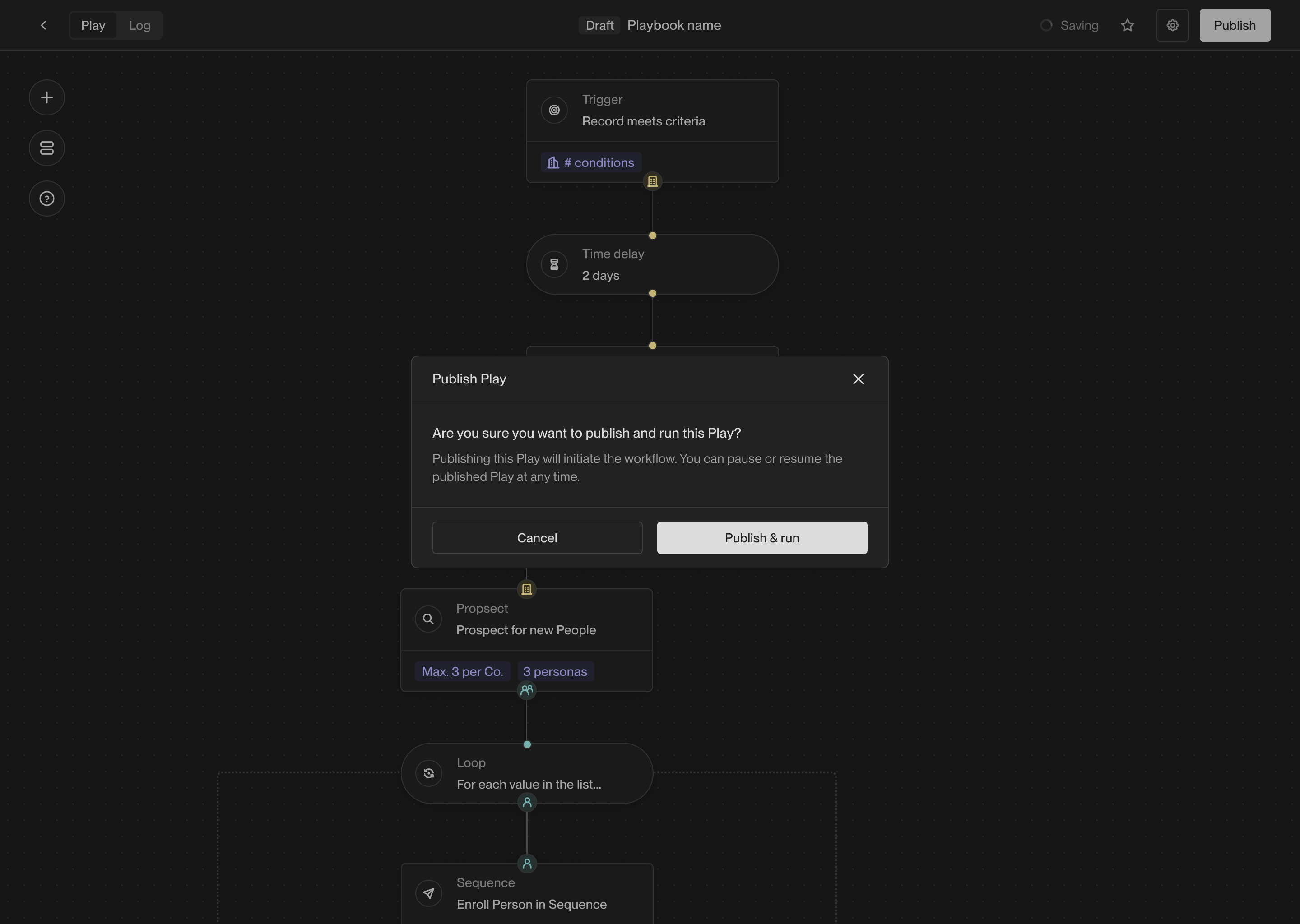
Once you're ready to start running the Play, you can publish it. Published Plays
will run automatically based on the trigger you've selected. To publish a Play,
click the **Publish** button in the top right corner of the Play Builder.
After publishing a Play, you can still make changes to it. Any changes you make
will be saved as a new draft. You can publish the new draft at any time by
clicking the **Publish** button again. You can also discard the draft and revert
to the last published version.
If you want to temporarily stop a Play from running, you can pause it by
toggling the pause button to the left of the **Publish** button. Pausing a Play
will prevent it from running until you resume it.
## View logs
Once a Play starts running, you can view the logs to see which companies and
people the Play has run on. In the top left corner of the Play Builder, click
on **Logs** to see the full history of Play executions.
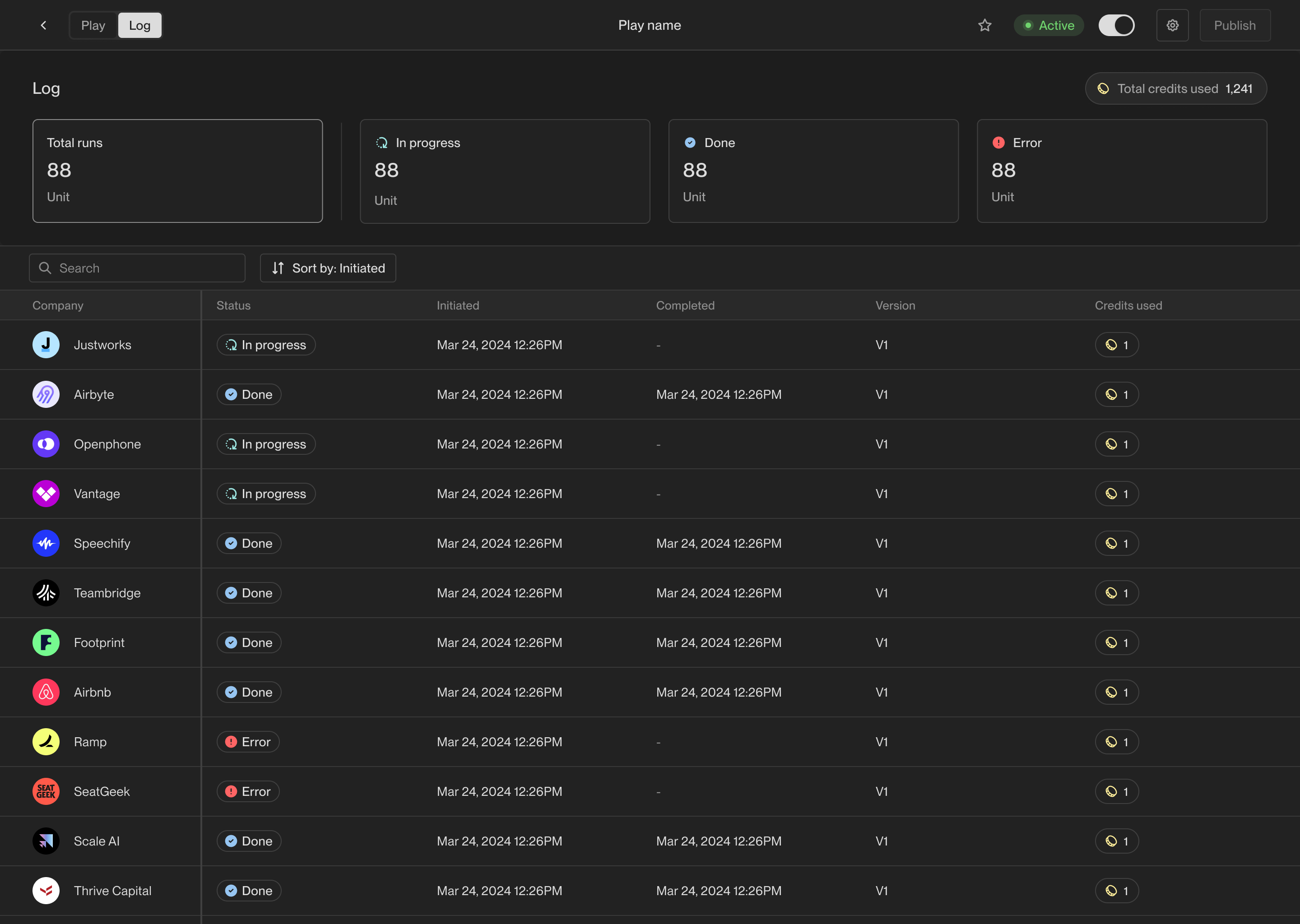
Within the logs view, you can see the status of each Play execution, including
in-progress, completed, and failed executions. You can click on any row of the
logs table to see more details about that specific execution.
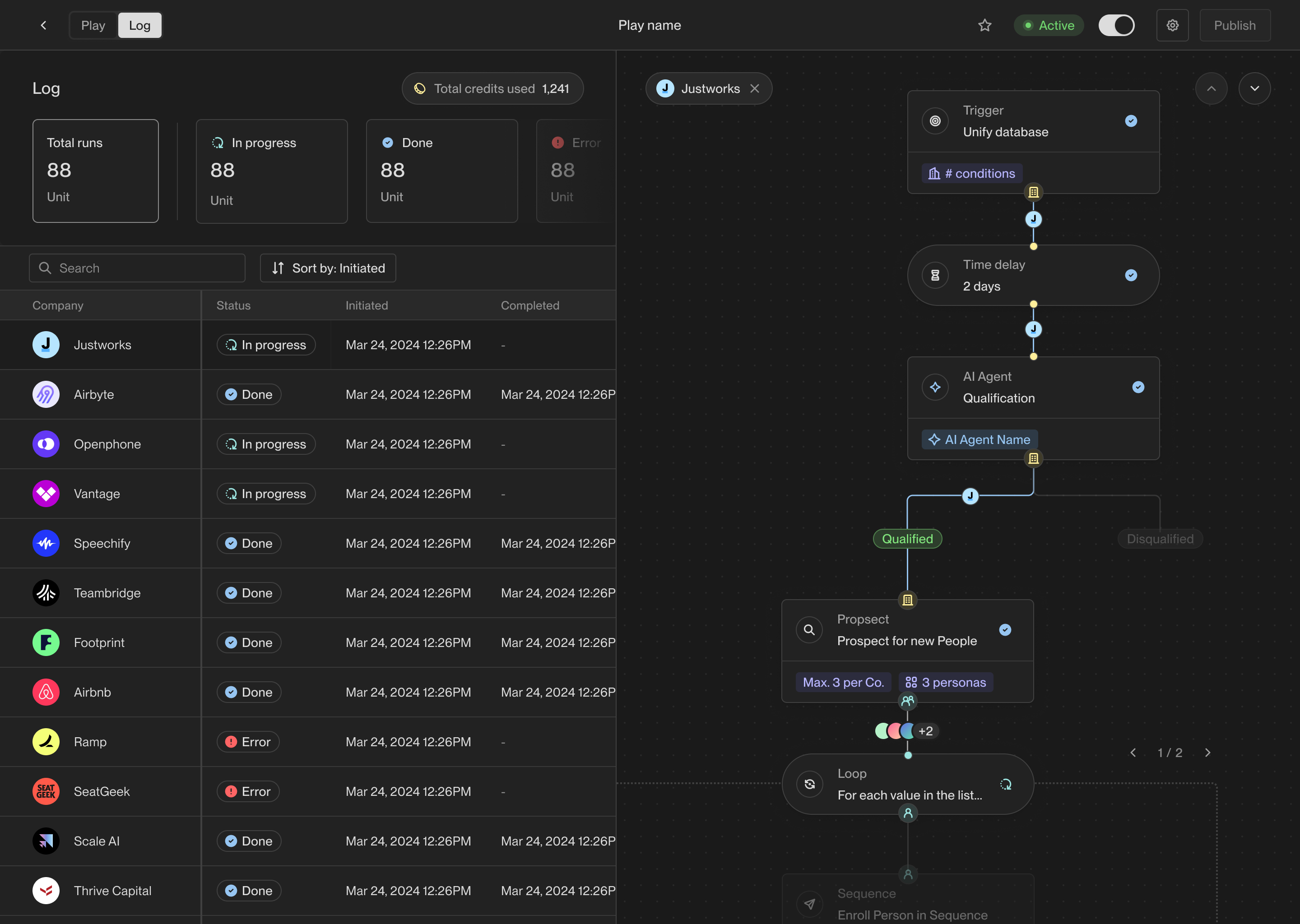
The exact path this record took through the Play is highlighted on the right
side of the details view. You can see exactly which actions ran and what the
results were at each step.
## View metrics
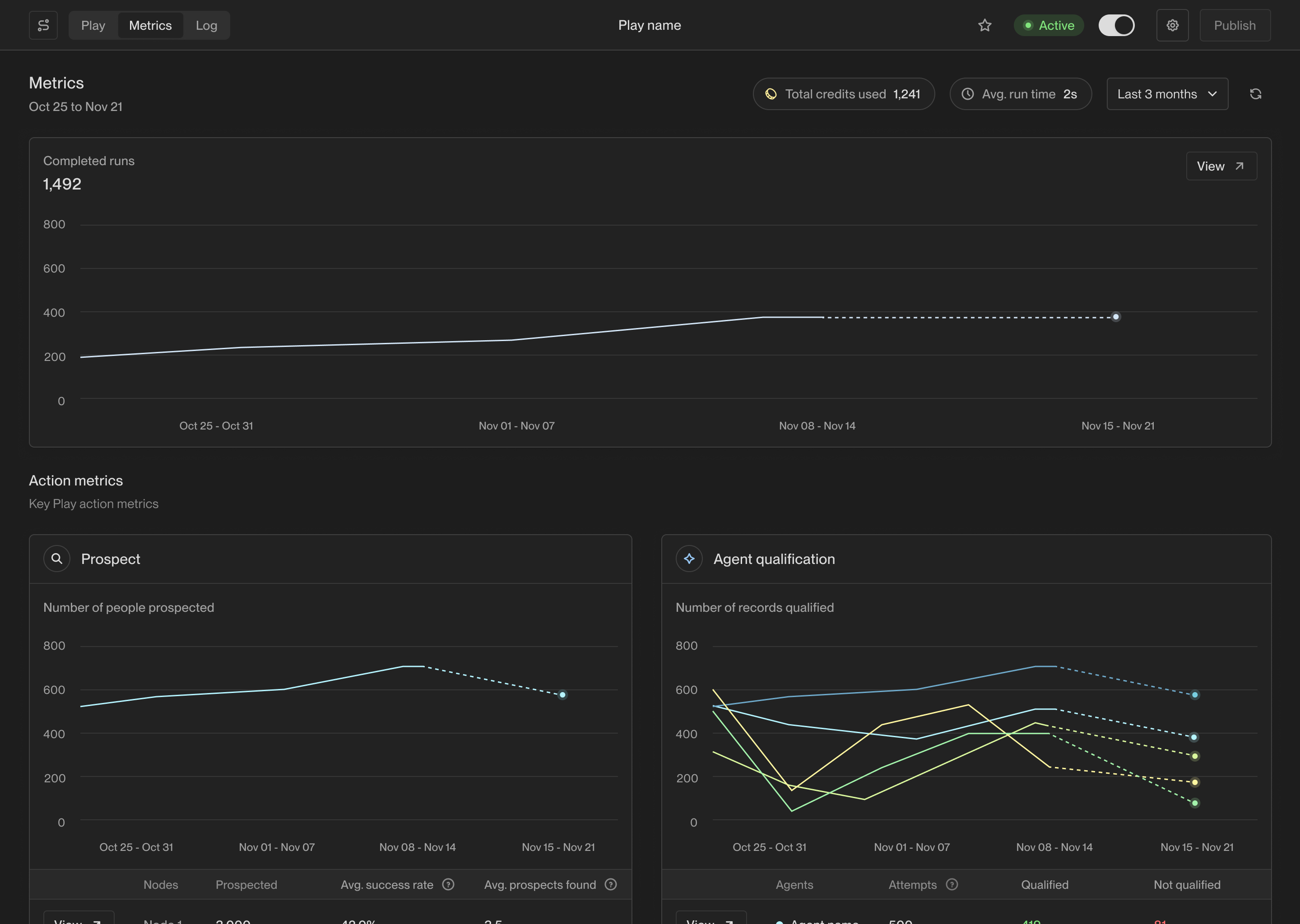
You can view metrics for each Play to see how it's performing over time. In the
top left corner of the Play Builder, click on **Metrics** to see overview
metrics and charts for the Play and its actions.
You can click on any action to see detailed information about how it's
performing. For example, clicking on an Agent qualification action will let you
measure how many records are being qualified over time and why.
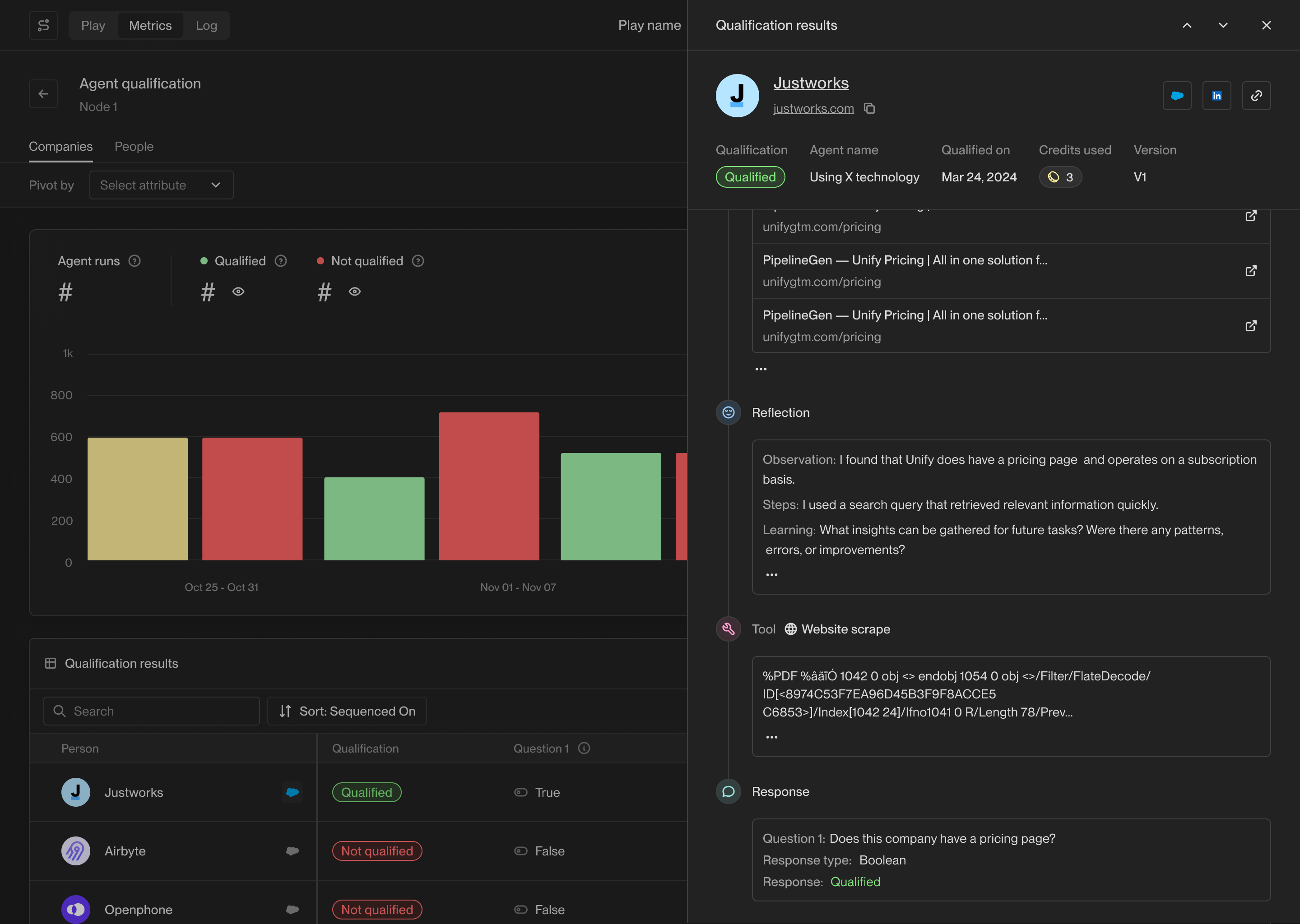
The action-specific metrics pages will also show you the records that have
passed through that action and their results.
 Here are a few of the triggers you can choose from:
* **Record enters an Audience**: Run a Play once on every company or person that
"enters" an Audience. Audiences can be reused across multiple Plays.
* **Record matches criteria**: Run a Play once on every company or person that
matches a set of filters. This trigger is similar to the audience trigger, but
it doesn't require you to create a separate audience. Useful when you don't
need to create a reusable audience.
* **Manual**: Only run a Play when it is manually triggered. For example, you
can send individual companies or people to a Play, or you can send an entire
audience.
Once the trigger is selected, you can start adding additional actions to the
Play. Each action performs a different task. Actions can be chained together or
perform branching logic based on the results of the previous action.
Here are some commonly used actions:
* **AI Agent qualification**: Perform AI-powered research to answer qualifying
questions about a company or person.
* **Prospect for new People**: Find new people at a company matching specific
personas. You can specify a limit on the number of people to find.
* **Sequence enrollment**: Enroll a person in a Sequence. You can route people
to different mailboxes and Sequences based on their persona.
* **Write to Salesforce or HubSpot**: Sync a company or person to Salesforce or
HubSpot. This will create or update a record in your CRM.
You can find details about the full set of available triggers and actions in the
reference sections below:
Here are a few of the triggers you can choose from:
* **Record enters an Audience**: Run a Play once on every company or person that
"enters" an Audience. Audiences can be reused across multiple Plays.
* **Record matches criteria**: Run a Play once on every company or person that
matches a set of filters. This trigger is similar to the audience trigger, but
it doesn't require you to create a separate audience. Useful when you don't
need to create a reusable audience.
* **Manual**: Only run a Play when it is manually triggered. For example, you
can send individual companies or people to a Play, or you can send an entire
audience.
Once the trigger is selected, you can start adding additional actions to the
Play. Each action performs a different task. Actions can be chained together or
perform branching logic based on the results of the previous action.
Here are some commonly used actions:
* **AI Agent qualification**: Perform AI-powered research to answer qualifying
questions about a company or person.
* **Prospect for new People**: Find new people at a company matching specific
personas. You can specify a limit on the number of people to find.
* **Sequence enrollment**: Enroll a person in a Sequence. You can route people
to different mailboxes and Sequences based on their persona.
* **Write to Salesforce or HubSpot**: Sync a company or person to Salesforce or
HubSpot. This will create or update a record in your CRM.
You can find details about the full set of available triggers and actions in the
reference sections below:
 After publishing a Play, you can still make changes to it. Any changes you make
will be saved as a new draft. You can publish the new draft at any time by
clicking the **Publish** button again. You can also discard the draft and revert
to the last published version.
If you want to temporarily stop a Play from running, you can pause it by
toggling the pause button to the left of the **Publish** button. Pausing a Play
will prevent it from running until you resume it.
## View logs
Once a Play starts running, you can view the logs to see which companies and
people the Play has run on. In the top left corner of the Play Builder, click
on **Logs** to see the full history of Play executions.
After publishing a Play, you can still make changes to it. Any changes you make
will be saved as a new draft. You can publish the new draft at any time by
clicking the **Publish** button again. You can also discard the draft and revert
to the last published version.
If you want to temporarily stop a Play from running, you can pause it by
toggling the pause button to the left of the **Publish** button. Pausing a Play
will prevent it from running until you resume it.
## View logs
Once a Play starts running, you can view the logs to see which companies and
people the Play has run on. In the top left corner of the Play Builder, click
on **Logs** to see the full history of Play executions.
 Within the logs view, you can see the status of each Play execution, including
in-progress, completed, and failed executions. You can click on any row of the
logs table to see more details about that specific execution.
Within the logs view, you can see the status of each Play execution, including
in-progress, completed, and failed executions. You can click on any row of the
logs table to see more details about that specific execution.
 The exact path this record took through the Play is highlighted on the right
side of the details view. You can see exactly which actions ran and what the
results were at each step.
## View metrics
You can view metrics for each Play to see how it's performing over time. In the
top left corner of the Play Builder, click on **Metrics** to see overview
metrics and charts for the Play and its actions.
The exact path this record took through the Play is highlighted on the right
side of the details view. You can see exactly which actions ran and what the
results were at each step.
## View metrics
You can view metrics for each Play to see how it's performing over time. In the
top left corner of the Play Builder, click on **Metrics** to see overview
metrics and charts for the Play and its actions.
 You can click on any action to see detailed information about how it's
performing. For example, clicking on an Agent qualification action will let you
measure how many records are being qualified over time and why.
You can click on any action to see detailed information about how it's
performing. For example, clicking on an Agent qualification action will let you
measure how many records are being qualified over time and why.
 The action-specific metrics pages will also show you the records that have
passed through that action and their results.
The action-specific metrics pages will also show you the records that have
passed through that action and their results.