> ## Documentation Index
> Fetch the complete documentation index at: https://docs.unifygtm.com/llms.txt
> Use this file to discover all available pages before exploring further.
# Define attributes
> Learn how to create and manage attributes on objects in Unify.
## Overview
Objects in Unify have *attributes*, which are like fields or columns. Every
attribute has a [value type](/reference/objects/value-types) which defines what
kind of values it contains. Attributes can be used throughout Unify, such as
when creating plays or personalizing emails.
There are no limitations on the number of objects or attributes you can create.
However, we recommend creating separate objects for each distinct data source to
keep data organized.
## Create an attribute
Creating attributes can also be done [via the
API](/developers/api/data/attributes/create), which may be convenient for
developers who prefer to programmatically define many attributes at a time.
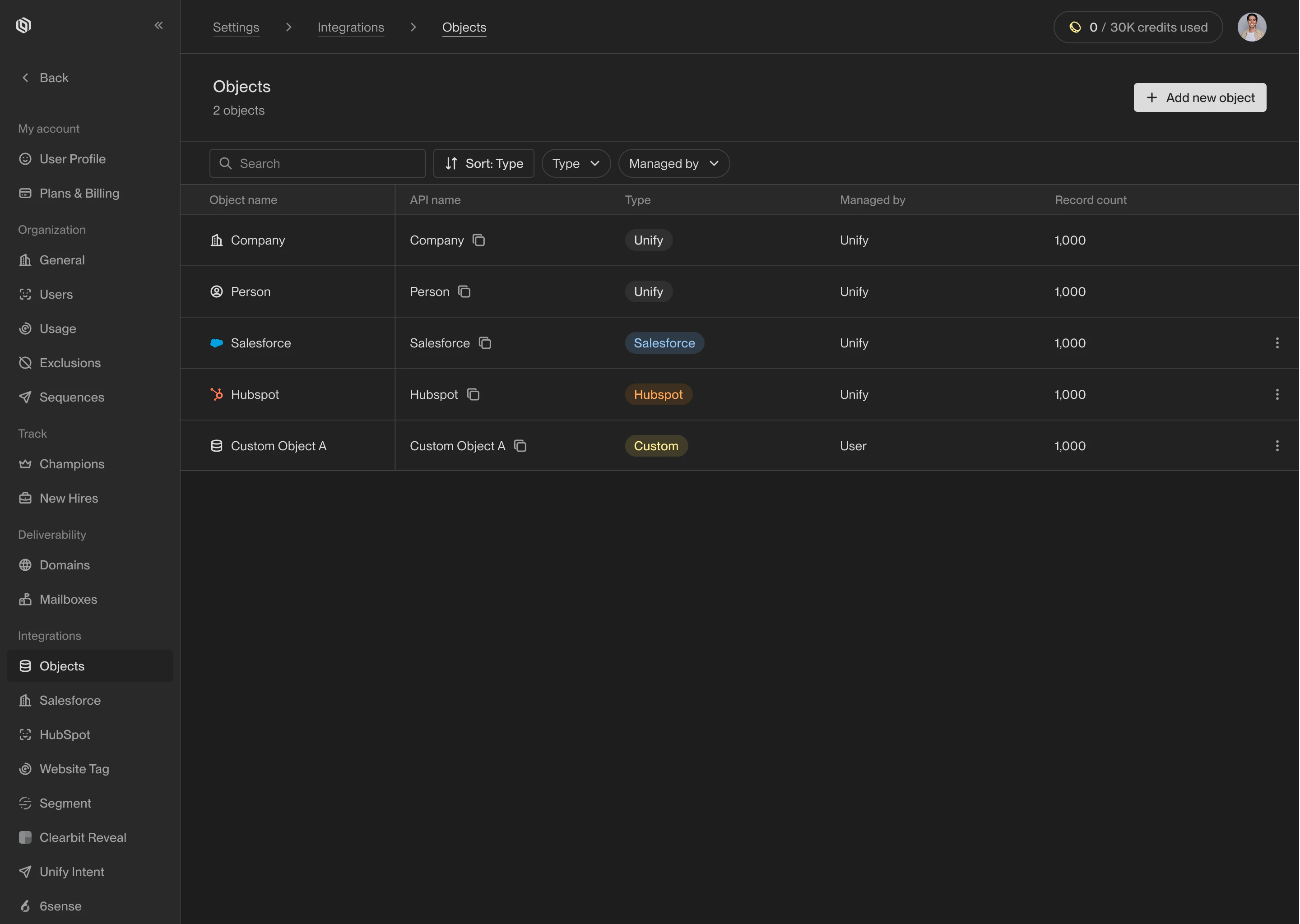
Navigate to [Settings → Objects](https://app.unifygtm.com/dashboard/settings/integrations/objects)
and select the object you want to create an attribute for.
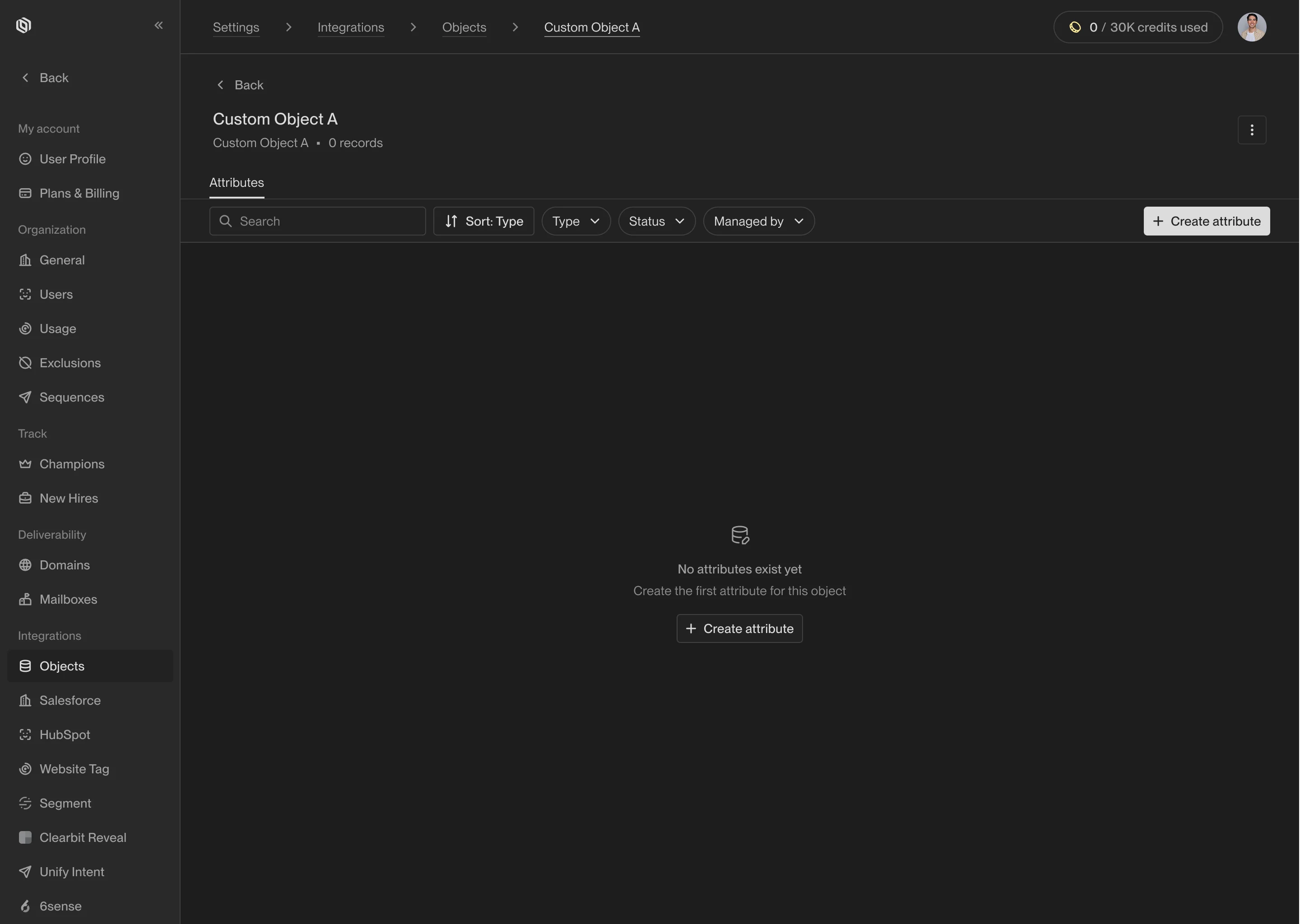
 On the object's attributes page, select **Create attribute**.
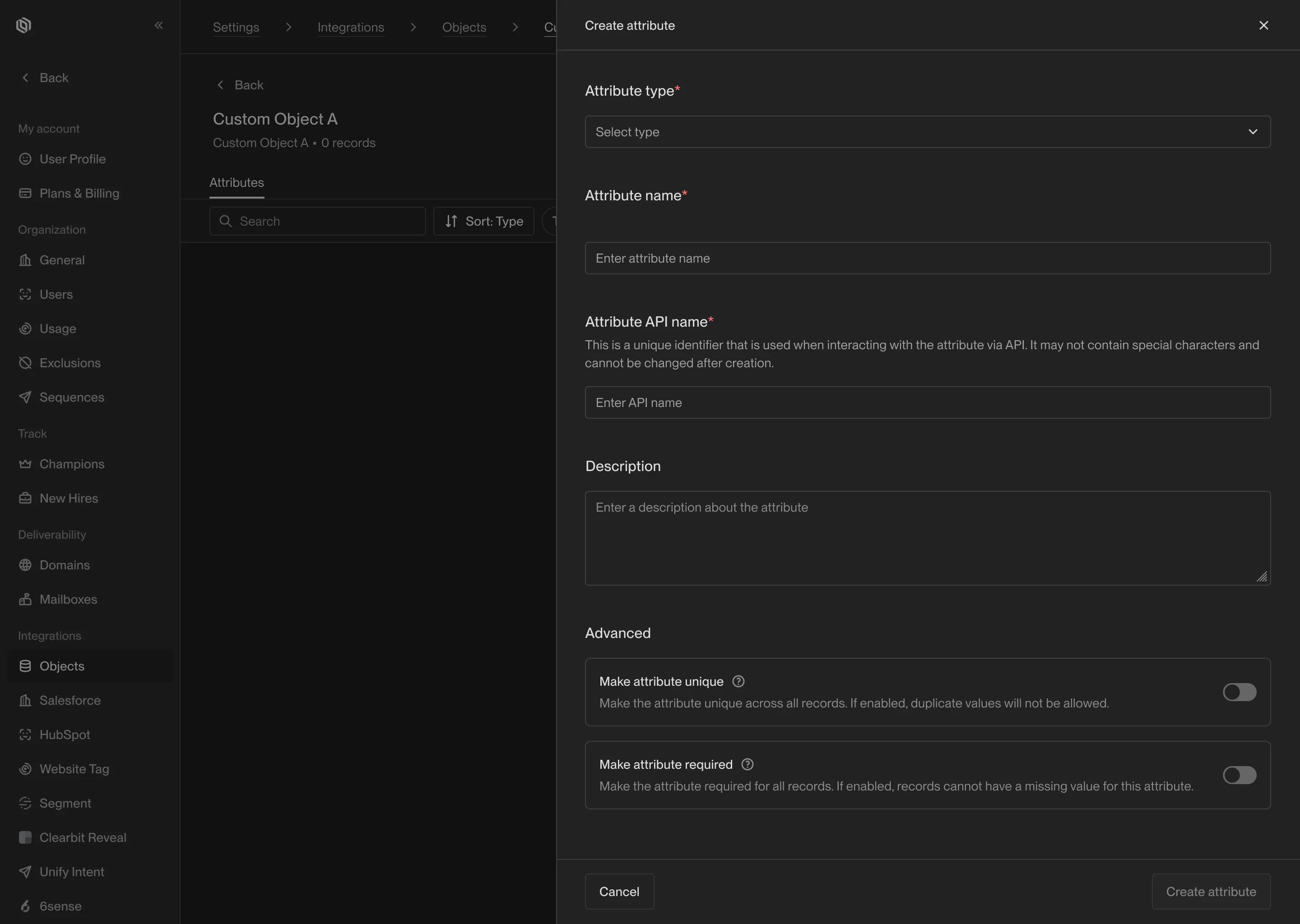
 On the attribute creation screen, you will need to provide several pieces of
information which define how the attribute will work:
* **Attribute type** — The value type for this attribute. See [Attribute value types](/reference/objects/value-types.mdx)
for details on the available options and how they work.
* **Attribute name** — The display name for the attribute that will be shown
in Unify.
* **API name** — A unique identifier that will be used by developers when
using the API. A suitable API name will be generated automatically,
and typically there is no need to change it.
* **Description** — An optional description to be shown in Unify.
* **Make attribute unique** — Whether the values for this attribute should
be distinct across records. If enabled, any attempt to create a record
with a duplicate value will fail. This setting can be disabled later on.
* **Make attribute required** — Whether a value is required to create a
record. If enabled, any attempt to create a record without a value for
this attribute will fail. This setting can be disabled later on.
Depending on the value type you select, there may be additional information
to fill in. For example, **Select** and **Multiselect** attributes require a
list of options, and **Reference** attributes require a target object.
On the attribute creation screen, you will need to provide several pieces of
information which define how the attribute will work:
* **Attribute type** — The value type for this attribute. See [Attribute value types](/reference/objects/value-types.mdx)
for details on the available options and how they work.
* **Attribute name** — The display name for the attribute that will be shown
in Unify.
* **API name** — A unique identifier that will be used by developers when
using the API. A suitable API name will be generated automatically,
and typically there is no need to change it.
* **Description** — An optional description to be shown in Unify.
* **Make attribute unique** — Whether the values for this attribute should
be distinct across records. If enabled, any attempt to create a record
with a duplicate value will fail. This setting can be disabled later on.
* **Make attribute required** — Whether a value is required to create a
record. If enabled, any attempt to create a record without a value for
this attribute will fail. This setting can be disabled later on.
Depending on the value type you select, there may be additional information
to fill in. For example, **Select** and **Multiselect** attributes require a
list of options, and **Reference** attributes require a target object.
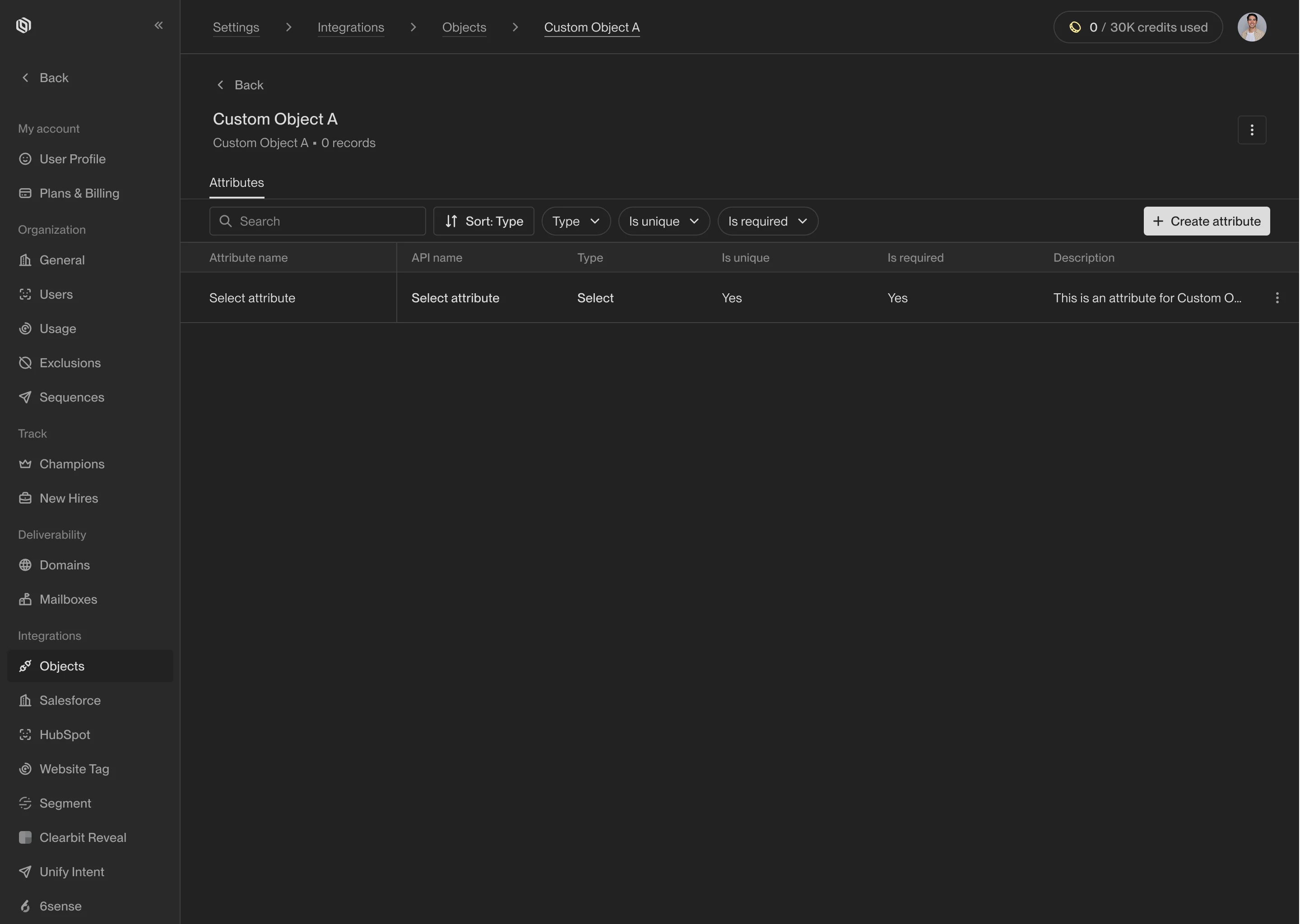
 Select **Create attribute** to save the attribute. You will see the newly
created attribute in the list of attributes for this object.
Select **Create attribute** to save the attribute. You will see the newly
created attribute in the list of attributes for this object.