> ## Documentation Index
> Fetch the complete documentation index at: https://docs.unifygtm.com/llms.txt
> Use this file to discover all available pages before exploring further.

# Notification preferences

> Set how you want to be notified for updates and activities on Unify.

export const WillingToMeetIcon = ({size = 24, inline}) => <span style={{
  ...inline && ({
    display: 'inline-block'
  }),
  verticalAlign: 'text-bottom',
  marginRight: '4px'
}}>
    <svg class="block dark:hidden" stroke="var(--icon-success-light)" fill="none" stroke-width="2" viewBox="0 0 24 24" stroke-linecap="round" stroke-linejoin="round" height={size} width={size} xmlns="http://www.w3.org/2000/svg">
      <path stroke="none" d="M0 0h24v24H0z" fill="none" />
      <path d="M5 4h4l2 5l-2.5 1.5a11 11 0 0 0 5 5l1.5 -2.5l5 2v4a2 2 0 0 1 -2 2a16 16 0 0 1 -15 -15a2 2 0 0 1 2 -2" />
      <path d="M15 7a2 2 0 0 1 2 2" />
      <path d="M15 3a6 6 0 0 1 6 6" />
    </svg>
    <svg class="hidden dark:block" stroke="var(--icon-success-dark)" fill="none" stroke-width="2" viewBox="0 0 24 24" stroke-linecap="round" stroke-linejoin="round" height={size} width={size} xmlns="http://www.w3.org/2000/svg">
      <path stroke="none" d="M0 0h24v24H0z" fill="none" />
      <path d="M5 4h4l2 5l-2.5 1.5a11 11 0 0 0 5 5l1.5 -2.5l5 2v4a2 2 0 0 1 -2 2a16 16 0 0 1 -15 -15a2 2 0 0 1 2 -2" />
      <path d="M15 7a2 2 0 0 1 2 2" />
      <path d="M15 3a6 6 0 0 1 6 6" />
    </svg>
  </span>;

export const PositiveToneIcon = ({size = 24, inline}) => <span style={{
  ...inline && ({
    display: 'inline-block'
  }),
  verticalAlign: 'text-bottom',
  marginRight: '4px'
}}>
    <svg class="block dark:hidden" stroke="var(--icon-success-light)" fill="none" stroke-width="2" viewBox="0 0 24 24" stroke-linecap="round" stroke-linejoin="round" height={size} width={size} xmlns="http://www.w3.org/2000/svg">
      <path stroke="none" d="M0 0h24v24H0z" fill="none" />
      <path d="M7 11v8a1 1 0 0 1 -1 1h-2a1 1 0 0 1 -1 -1v-7a1 1 0 0 1 1 -1h3a4 4 0 0 0 4 -4v-1a2 2 0 0 1 4 0v5h3a2 2 0 0 1 2 2l-1 5a2 3 0 0 1 -2 2h-7a3 3 0 0 1 -3 -3" />
    </svg>
    <svg class="hidden dark:block" stroke="var(--icon-success-dark)" fill="none" stroke-width="2" viewBox="0 0 24 24" stroke-linecap="round" stroke-linejoin="round" height={size} width={size} xmlns="http://www.w3.org/2000/svg">
      <path stroke="none" d="M0 0h24v24H0z" fill="none" />
      <path d="M7 11v8a1 1 0 0 1 -1 1h-2a1 1 0 0 1 -1 -1v-7a1 1 0 0 1 1 -1h3a4 4 0 0 0 4 -4v-1a2 2 0 0 1 4 0v5h3a2 2 0 0 1 2 2l-1 5a2 3 0 0 1 -2 2h-7a3 3 0 0 1 -3 -3" />
    </svg>
  </span>;

export const OutOfOfficeIcon = ({size = 24, inline}) => <svg className="stroke-gray-600 dark:stroke-gray-400" fill="none" strokeWidth="2" viewBox="0 0 24 24" strokeLinecap="round" strokeLinejoin="round" height={size} width={size} xmlns="http://www.w3.org/2000/svg" style={{
  ...inline && ({
    display: 'inline-block'
  }),
  verticalAlign: 'text-bottom',
  marginRight: '4px'
}}>
    <path stroke="none" d="M0 0h24v24H0z" fill="none" />
    <path d="M17.553 16.75a7.5 7.5 0 0 0 -10.606 0" />
    <path d="M18 3.804a6 6 0 0 0 -8.196 2.196l10.392 6a6 6 0 0 0 -2.196 -8.196z" />
    <path d="M16.732 10c1.658 -2.87 2.225 -5.644 1.268 -6.196c-.957 -.552 -3.075 1.326 -4.732 4.196" />
    <path d="M15 9l-3 5.196" />
    <path d="M3 19.25a2.4 2.4 0 0 1 1 -.25a2.4 2.4 0 0 1 2 1a2.4 2.4 0 0 0 2 1a2.4 2.4 0 0 0 2 -1a2.4 2.4 0 0 1 2 -1a2.4 2.4 0 0 1 2 1a2.4 2.4 0 0 0 2 1a2.4 2.4 0 0 0 2 -1a2.4 2.4 0 0 1 2 -1a2.4 2.4 0 0 1 1 .25" />
  </svg>;

export const NeedsMoreInfoIcon = ({size = 24, inline}) => <span style={{
  ...inline && ({
    display: 'inline-block'
  }),
  verticalAlign: 'text-bottom',
  marginRight: '4px'
}}>
    <svg class="block dark:hidden" stroke="var(--icon-success-light)" fill="none" stroke-width="2" viewBox="0 0 24 24" stroke-linecap="round" stroke-linejoin="round" height={size} width={size} xmlns="http://www.w3.org/2000/svg">
      <path stroke="none" d="M0 0h24v24H0z" fill="none" />
      <path d="M8 9h8" />
      <path d="M8 13h6" />
      <path d="M14 18h-1l-5 3v-3h-2a3 3 0 0 1 -3 -3v-8a3 3 0 0 1 3 -3h12a3 3 0 0 1 3 3v4.5" />
      <path d="M19 22v.01" />
      <path d="M19 19a2.003 2.003 0 0 0 .914 -3.782a1.98 1.98 0 0 0 -2.414 .483" />
    </svg>
    <svg class="hidden dark:block" stroke="var(--icon-success-dark)" fill="none" stroke-width="2" viewBox="0 0 24 24" stroke-linecap="round" stroke-linejoin="round" height={size} width={size} xmlns="http://www.w3.org/2000/svg">
      <path stroke="none" d="M0 0h24v24H0z" fill="none" />
      <path d="M8 9h8" />
      <path d="M8 13h6" />
      <path d="M14 18h-1l-5 3v-3h-2a3 3 0 0 1 -3 -3v-8a3 3 0 0 1 3 -3h12a3 3 0 0 1 3 3v4.5" />
      <path d="M19 22v.01" />
      <path d="M19 19a2.003 2.003 0 0 0 .914 -3.782a1.98 1.98 0 0 0 -2.414 .483" />
    </svg>
  </span>;

export const NeutralToneIcon = ({size = 24, inline}) => <span style={{
  ...inline && ({
    display: 'inline-block'
  }),
  verticalAlign: 'text-bottom',
  marginRight: '4px'
}}>
    <svg class="block dark:hidden" stroke="var(--icon-teal-light)" fill="none" stroke-width="2" viewBox="0 0 24 24" stroke-linecap="round" stroke-linejoin="round" height={size} width={size} xmlns="http://www.w3.org/2000/svg">
      <path stroke="none" d="M0 0h24v24H0z" fill="none" />
      <path d="M12 12m-9 0a9 9 0 1 0 18 0a9 9 0 1 0 -18 0" />
      <path d="M9 10l.01 0" />
      <path d="M15 10l.01 0" />
      <path d="M9 15l6 0" />
    </svg>
    <svg class="hidden dark:block" stroke="var(--icon-teal-dark)" fill="none" stroke-width="2" viewBox="0 0 24 24" stroke-linecap="round" stroke-linejoin="round" height={size} width={size} xmlns="http://www.w3.org/2000/svg">
      <path stroke="none" d="M0 0h24v24H0z" fill="none" />
      <path d="M12 12m-9 0a9 9 0 1 0 18 0a9 9 0 1 0 -18 0" />
      <path d="M9 10l.01 0" />
      <path d="M15 10l.01 0" />
      <path d="M9 15l6 0" />
    </svg>
  </span>;

export const AutomatedIcon = ({size = 24, inline}) => <svg className="stroke-gray-600 dark:stroke-gray-400" fill="none" strokeWidth="2" viewBox="0 0 24 24" strokeLinecap="round" strokeLinejoin="round" height={size} width={size} xmlns="http://www.w3.org/2000/svg" style={{
  ...inline && ({
    display: 'inline-block'
  }),
  verticalAlign: 'text-bottom',
  marginRight: '4px'
}}>
    <path stroke="none" d="M0 0h24v24H0z" fill="none" />
    <path d="M13.256 20.473c-.855 .907 -2.583 .643 -2.931 -.79a1.724 1.724 0 0 0 -2.573 -1.066c-1.543 .94 -3.31 -.826 -2.37 -2.37a1.724 1.724 0 0 0 -1.065 -2.572c-1.756 -.426 -1.756 -2.924 0 -3.35a1.724 1.724 0 0 0 1.066 -2.573c-.94 -1.543 .826 -3.31 2.37 -2.37c1 .608 2.296 .07 2.572 -1.065c.426 -1.756 2.924 -1.756 3.35 0a1.724 1.724 0 0 0 2.573 1.066c1.543 -.94 3.31 .826 2.37 2.37a1.724 1.724 0 0 0 1.065 2.572c1.07 .26 1.488 1.29 1.254 2.15" />
    <path d="M19 16l-2 3h4l-2 3" />
    <path d="M9 12a3 3 0 1 0 6 0a3 3 0 0 0 -6 0" />
  </svg>;

Notification preferences allow you to control how and when you receive alerts for replies, tasks, and updates.
Preferences are divided into two categories: **Workspace notifications** (team-level notifications available for admins) and
**my notifications** (personal notifications available for all users).

## Workspace Notifications

<Note>
  Workspace notifications are only available to users with the **Admin** role.
</Note>

Workspace notifications allow admins to have visibility into any notification for any team member, ensuring admins stay informed about important updates
across the team.

### Workspace Replies

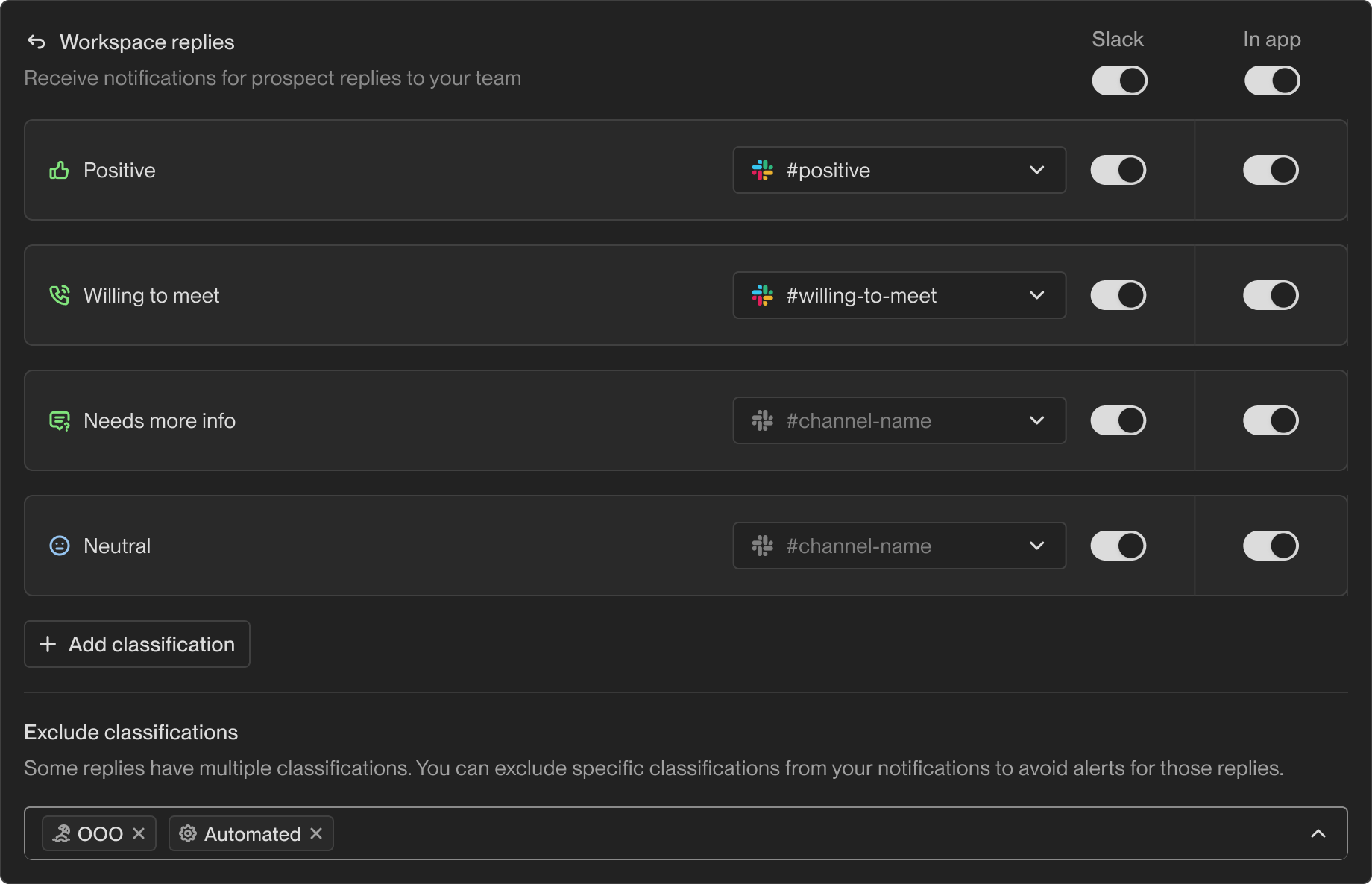
Receive notifications when prospects reply to any Sequence. Admins can customize which reply classifications trigger notifications and choose where to receive them.

<Frame caption="Workspace replies preferences">
  <img src="https://mintcdn.com/unify-19/5THlZ59mmYYtD-bs/images/reference/notifications/workspace-replies-preferences.png?fit=max&auto=format&n=5THlZ59mmYYtD-bs&q=85&s=ef4b1271b9fd97c4c35c3b5bf422e114" width="1840" height="1186" data-path="images/reference/notifications/workspace-replies-preferences.png" />
</Frame>

#### Reply Classifications

By default, the following reply classifications can be configured.

* <PositiveToneIcon size={20} inline />**Positive** — The email response shows enthusiasm, agreement, or active engagement with the sender's offer, indicating a genuine interest in moving forward
* <WillingToMeetIcon size={20} inline />**Willing to meet** — The recipient's email indicates their openness to schedule a meeting, specifically about the offer mentioned in the initial outreach
* <NeedsMoreInfoIcon size={20} inline />**Needs more info** — The recipient requests additional details or expresses uncertainty about the offer
* <NeutralToneIcon size={20} inline />**Neutral** — The email is objective, factual, respectful, unemotional, and polite yet concise

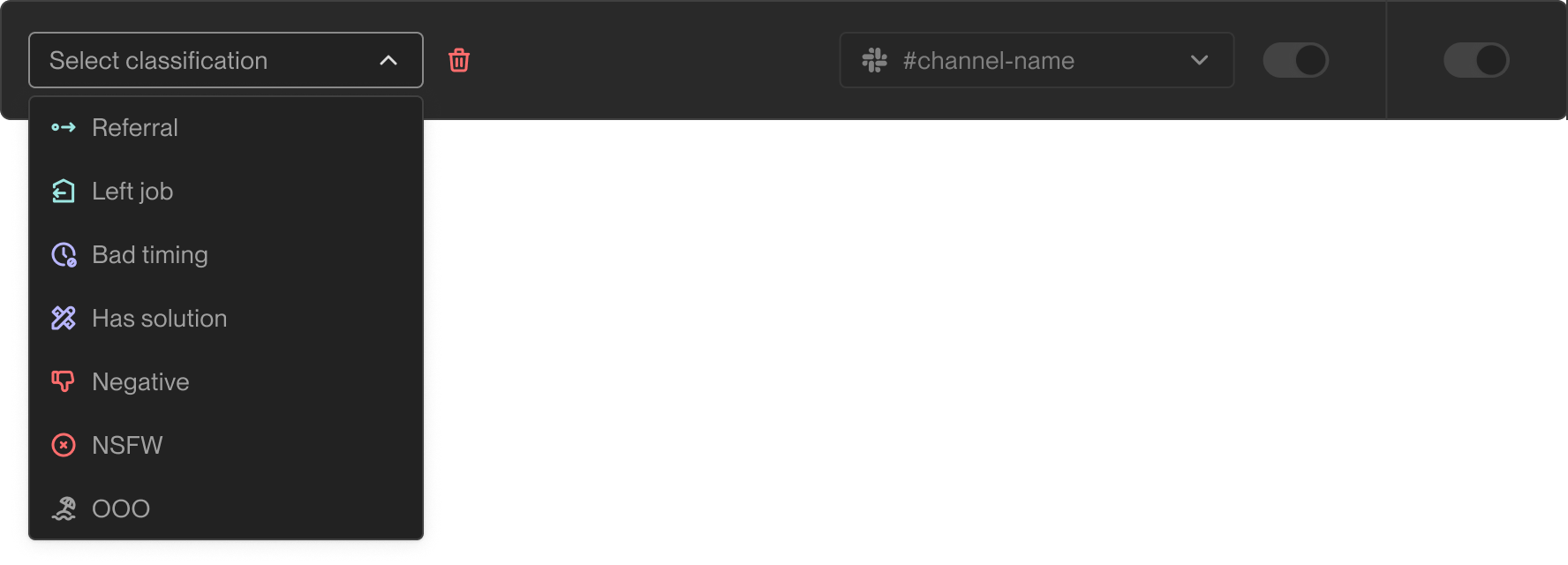
You can add additional classifications if you want to receive notifications for other types of replies. For example, if you want to be notified
about <OutOfOfficeIcon size={20} inline />**Out of Office** replies, you can add that classification in your settings.

<Tip>
  See [Reply classifications](/reference/sequences/replies#reply-classifications) for detailed definitions of all classification types.
</Tip>

<Frame caption="Adding new reply classifications">
  <img src="https://mintcdn.com/unify-19/5THlZ59mmYYtD-bs/images/reference/notifications/workspace-replies-new-classification.png?fit=max&auto=format&n=5THlZ59mmYYtD-bs&q=85&s=28d2637b529f890b19c1a98ad20299e3" width="1776" height="640" data-path="images/reference/notifications/workspace-replies-new-classification.png" />
</Frame>

#### Excluding Classifications

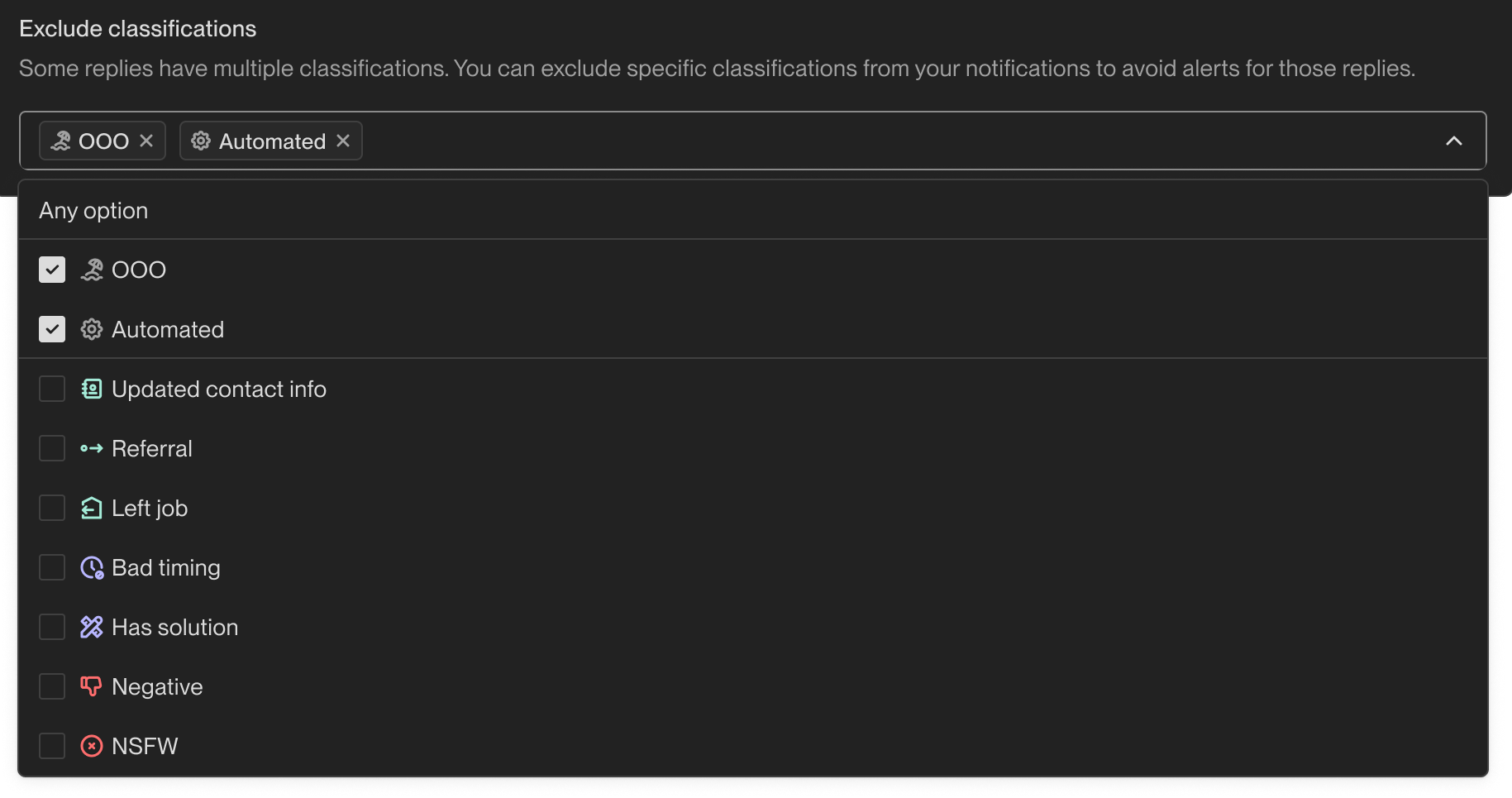
Some replies can have multiple classifications. You can exclude specific classifications from triggering notifications. **If a reply has any excluded classification, no notification will be sent**, even if it also has other classifications that would normally trigger an alert.

Common exclusions include:

* <OutOfOfficeIcon size={20} inline />**OOO** (Out of Office) — Automated away messages
* <AutomatedIcon size={20} inline />**Automated** — Auto responders and system-generated replies

<Frame caption="Workspace replies exclusions">
  <img src="https://mintcdn.com/unify-19/5THlZ59mmYYtD-bs/images/reference/notifications/workspace-replies-exclusions.png?fit=max&auto=format&n=5THlZ59mmYYtD-bs&q=85&s=a51cd5c5c47100efce99c03187fa101e" width="700" data-path="images/reference/notifications/workspace-replies-exclusions.png" />
</Frame>

### Workspace Tasks and Updates

Receive notifications for all tasks and updates created for anyone on your team. This allows admins to stay informed about task assignments and progress across the organization.

<Frame caption="Workspace tasks preferences">
  <img src="https://mintcdn.com/unify-19/5THlZ59mmYYtD-bs/images/reference/notifications/workspace-tasks-preferences.png?fit=max&auto=format&n=5THlZ59mmYYtD-bs&q=85&s=15bb5e17173984b8f5a619b0f75e8598" width="700" data-path="images/reference/notifications/workspace-tasks-preferences.png" />
</Frame>

## My Notifications

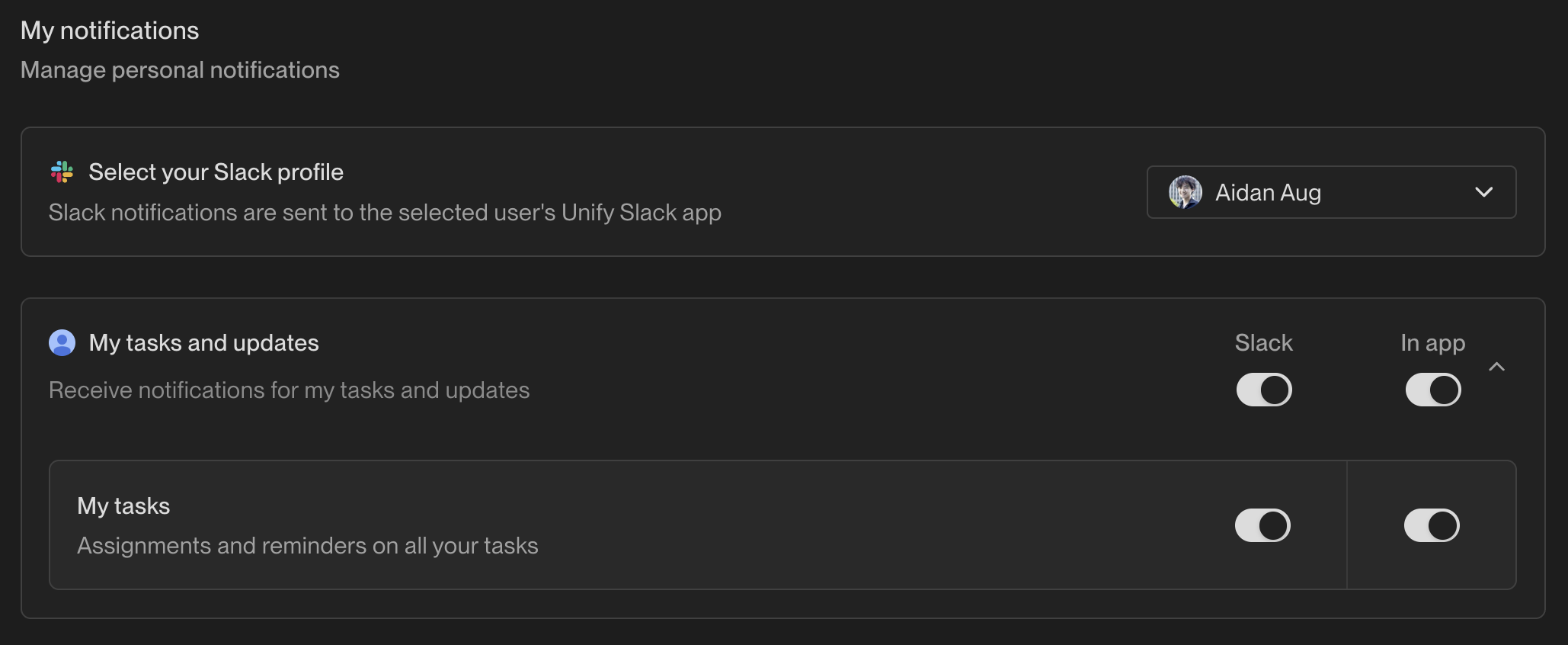
Personal notifications are available to all users (both Admins and Reps) and allow you to manage alerts specific to you.

<Frame caption="Personal notification preferences">
  <img src="https://mintcdn.com/unify-19/5THlZ59mmYYtD-bs/images/reference/notifications/personal-preferences.png?fit=max&auto=format&n=5THlZ59mmYYtD-bs&q=85&s=bc0d31c9ea8ff267e3521d380fef0834" width="700" data-path="images/reference/notifications/personal-preferences.png" />
</Frame>

### Connecting Your Slack Account

To receive Slack notifications, you need to connect your personal Slack profile to Unify.

<Steps>
  <Step title="Connect to your Slack Organization">
    Admins must configure their tenant's connection to Slack before users can select their profiles.
  </Step>

  <Step title="Select your Slack profile">
    Click on the Slack profile selector to connect your account. Slack notifications will be sent directly to your Unify Slack app.
  </Step>
</Steps>

<Tip>
  If you don't see your Slack profile in the dropdown, or if the options are disabled,
  make sure the Unify Slack app is installed in your workspace and you've been added to it.
</Tip>

### My Tasks and Updates

Receive notifications for tasks assigned to you and updates on those tasks.

**Notification channels:**

* **Slack** — Direct messages in Slack (requires Slack profile connection)
* **In app** — Notifications in the Unify notification feed

## Notification Channels

Unify supports two notification channels:

| Channel    | Description                                       | Requirements                                         |
| ---------- | ------------------------------------------------- | ---------------------------------------------------- |
| **Slack**  | Receive notifications as direct messages in Slack | Must connect your Slack Organization / Slack profile |
| **In app** | View notifications in the Unify notification feed | No setup required                                    |

You can enable either or both channels for each notification type.

## Default Settings

All new users are configured with default notification preferences upon onboarding.
You can customize these settings at any time from the notification preferences page.