> ## Documentation Index
> Fetch the complete documentation index at: https://docs.unifygtm.com/llms.txt
> Use this file to discover all available pages before exploring further.
# Required permissions and settings
> Ensure your Salesforce user has the required permissions for Unify.
## Overview
The permissions that Unify requires fall into two categories:
1. **System Permissions**: These are permissions that apply to the entire
Salesforce instance and are required for Unify to function properly.
2. **Object Permissions**: These are permissions that apply to specific objects
(e.g., Account, Contact, etc.) and are required for Unify to read and write
data.
The exact permissions that Unify needs are detailed below along with
instructions on assigning these permissions to your integration user.
## Required permissions
Access can be restricted as desired for sensitive records or fields that you
do not want Unify to access. However, Unify needs access to any records or
fields that you want to use for exclusions.
For example, to prevent Unify from engaging with current customers, Unify will
require access to the records that indicate current customers to evaluate the
exclusion rule.
| Permission | Reason |
| -------------------------------- | ----------------------------------------------------------- |
| **API Enabled** | Allows Unify to communicate with Salesforce via the API |
| **View All Users** | Enables Unify to link Salesforce users to Unify users |
| **View Setup and Configuration** | Enables Unify to provide details about missing permissions |
| **Edit Tasks** | Enables Unify to create and update tasks and email messages |
| Object | Permissions | Reason |
| ----------------- | -------------------- | ---------------------------------------------------------- |
| **Account** | *Read, Create, Edit* | Enables Unify to sync companies bidirectionally |
| **Contact** | *Read, Create, Edit* | Enables Unify to sync people bidirectionally |
| **Lead** | *Read, Create, Edit* | Enables Unify to sync companies and people bidirectionally |
| **Opportunity** | *Read* | Enables Unify to use and filter based on opportunities |
| **Email Message** | *Read, Create, Edit* | Enables Unify to write outbound emails and replies |
## Setup
### Assign required permissions
Depending on whether you are using profiles or permission sets, the steps to
assign the required permissions will differ slightly. Follow the instructions
below based on your setup.
If you're using a **Profile** to manage permissions, follow these steps:
1. Navigate to the **Setup** page in Salesforce by clicking the gear icon in
the top-right corner.
2. Go to **Users > Profiles**.
3. Choose the Profile assigned to your integration user.
4. Click **Edit**.
5. In the **Administrative Permissions** section, enable the following
options:
* **API Enabled**
* **View All Users**
* **View Setup and Configuration**
6. In the **General User Permissions** section, enable the following
options:
* **Access Activities**
7. In the **Standard Object Permissions** section, enable the following
options for each object:
* **Account**: Read, Create, Edit
* **Contact**: Read, Create, Edit
* **Lead**: Read, Create, Edit
* **Opportunity**: Read
* **Email Message**: Read, Create, Edit
8. Click **Save**.
If you're using a **Permission Set** to manage permissions, follow these steps:
1. Navigate to **Setup > Permission Sets**.
2. Create a new permission set (or modify an existing one).
3. Assign the permission set to your integration user.
4. Under **System Permissions**, enable the following options:
* **API Enabled**
* **View All Users**
* **View Setup and Configuration**
5. Under **App Permissions**, enable the following options:
* **Access Activities**
6. Under **Object Settings**, select each object and enable the following
options:
* **Account**: Read, Create, Edit
* **Contact**: Read, Create, Edit
* **Lead**: Read, Create, Edit
* **Opportunity**: Read
* **Email Message**: Read, Create, Edit
7. Click **Save**.
8. If you created a new permission set, assign it to your integration user.
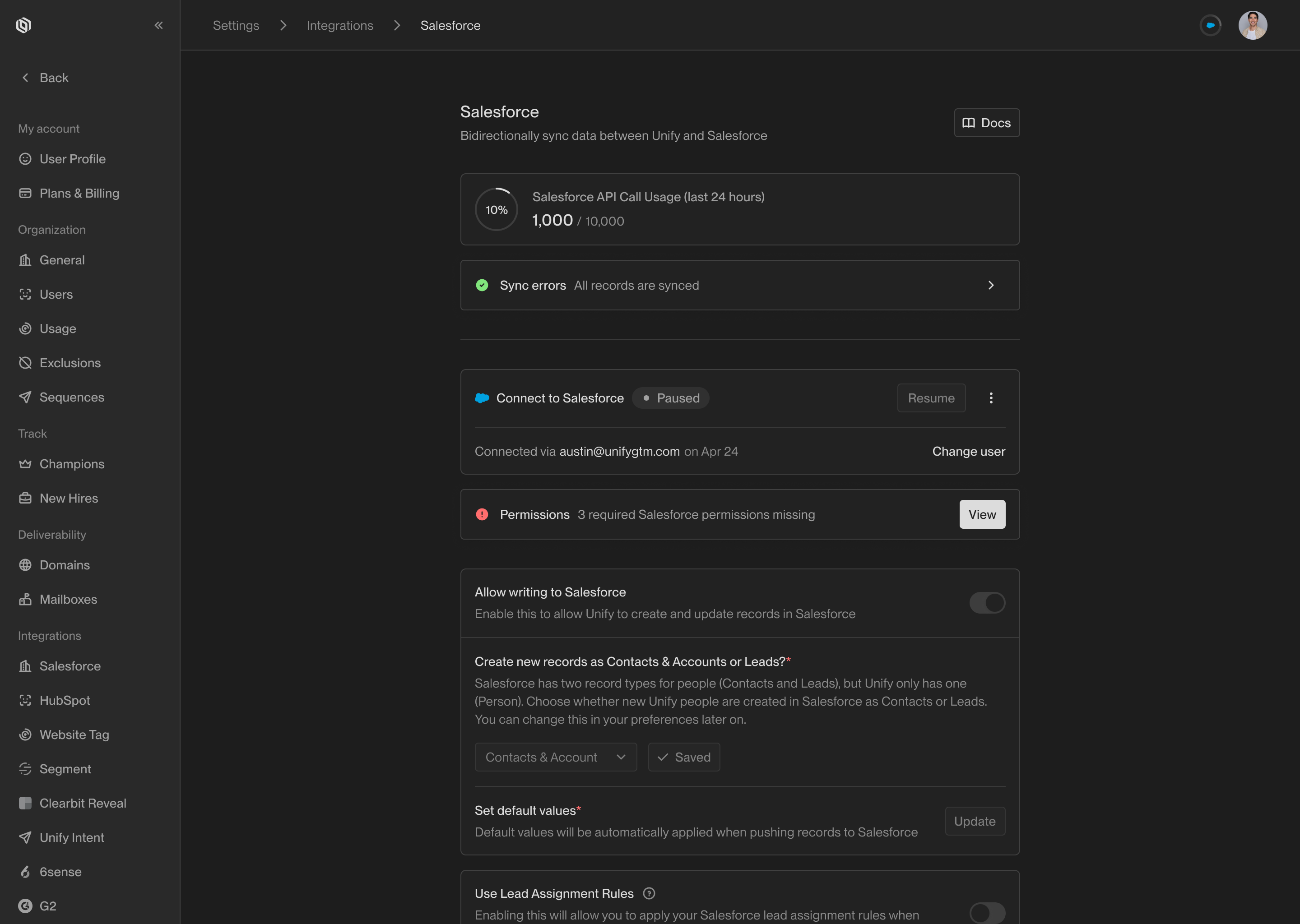
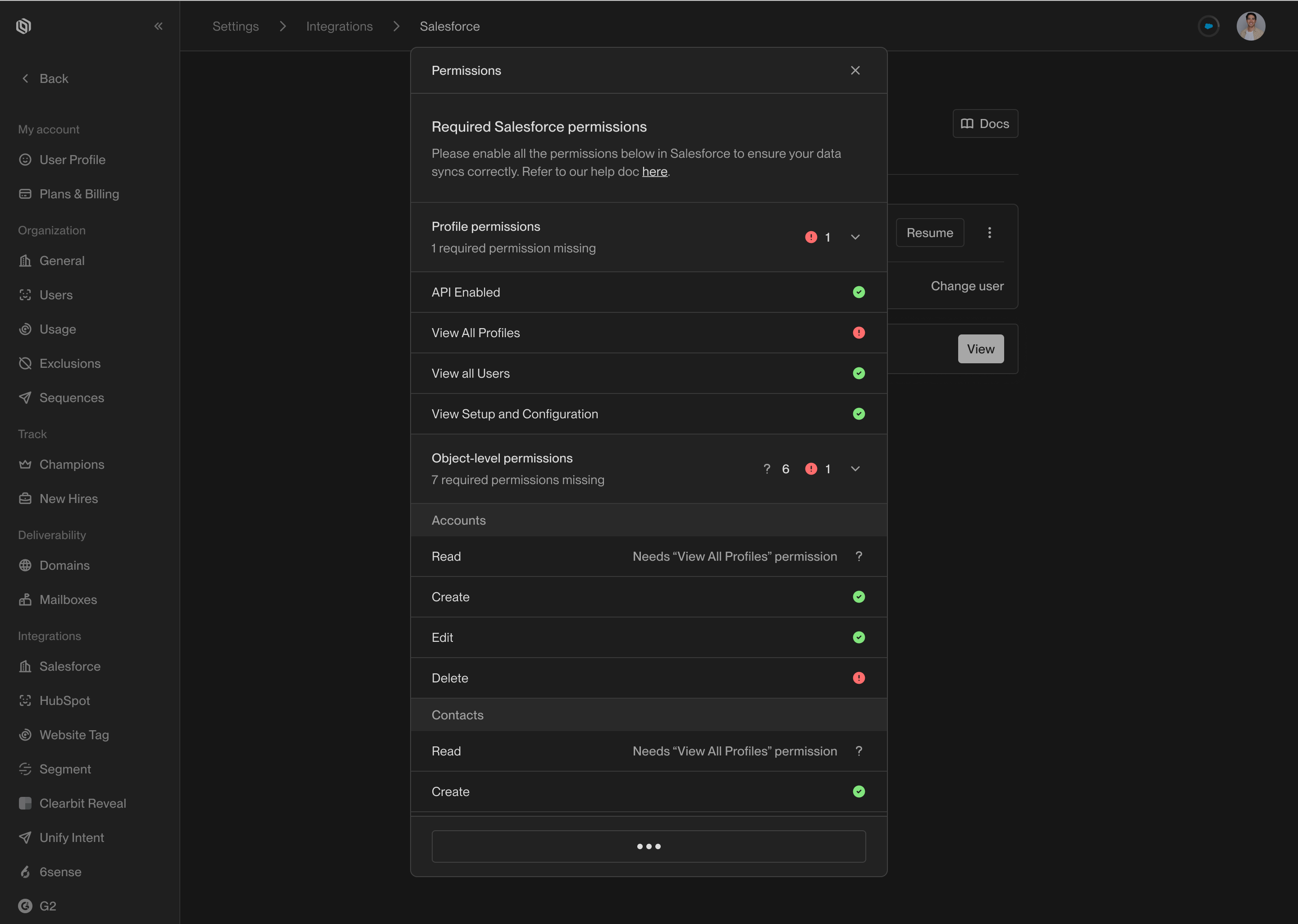
Once you've assigned these permissions, you can verify they are correctly set up
by checking the **Permissions** widget in Unify. Navigate to
[Settings → Integrations → Salesforce](https://app.unifygtm.com/dashboard/settings/integrations/salesforce)
and look for the **Permissions** widget.
 ### Enable enhanced emails
To ensure Unify can write emails to Salesforce, the **Enhanced Email** feature
must be enabled. This allows Unify to write sent emails using the **Email Message**
object.
In most Salesforce instances, Enhanced Email is enabled by default. If you don’t
see the **Email Message** object, review the following guide to enable it.
Salesforce support article explaining how to enable Enhanced Email.
For more information:
* [Use Enhanced Email for More Email Functionality](https://help.salesforce.com/s/articleView?id=sf.emailadmin_enhanced_email_overview.htm\&type=5)
* [Considerations for Using Enhanced Email](https://help.salesforce.com/s/articleView?id=sf.emailadmin_enhanced_email_considerations.htm\&type=5)
### Enable enhanced emails
To ensure Unify can write emails to Salesforce, the **Enhanced Email** feature
must be enabled. This allows Unify to write sent emails using the **Email Message**
object.
In most Salesforce instances, Enhanced Email is enabled by default. If you don’t
see the **Email Message** object, review the following guide to enable it.
Salesforce support article explaining how to enable Enhanced Email.
For more information:
* [Use Enhanced Email for More Email Functionality](https://help.salesforce.com/s/articleView?id=sf.emailadmin_enhanced_email_overview.htm\&type=5)
* [Considerations for Using Enhanced Email](https://help.salesforce.com/s/articleView?id=sf.emailadmin_enhanced_email_considerations.htm\&type=5)