> ## Documentation Index
> Fetch the complete documentation index at: https://docs.unifygtm.com/llms.txt
> Use this file to discover all available pages before exploring further.
# PostHog integration guide
> Send PostHog events into Unify.
## Overview
PostHog is a product analytics tool that allows you to capture and monitor key
events taking place. By pulling this data into Unify, you're able to run
product-led outbound for use cases like:
* **Free plan conversions** — Identify free plan users who are actively using key features and send them targeted upgrade campaigns.
* **Upsells and cross-sells** — Identify existing customers who are using specific features and send them relevant upsell or cross-sell offers.
* **Enterprise expansion** — Identify individual users at companies, reach out to other contacts at those companies, and target them with enterprise offers.
You can forward PostHog events into Unify by configuring a PostHog destination
to send events directly to the Unify [Analytics API](/developers/api/analytics/overview).
This integration can create new Unify People and Companies and update existing Unify
People and Companies with event data from your PostHog instance.
If you’re also using the Unify Tag, ensure it isn’t running on the same pages as PostHog. Otherwise, events may be double counted.
## Prerequisites
* A working PostHog setup capturing events
* Your Unify **Write Key** ([Unify → Settings → Integrations → PostHog](https://app.unifygtm.com/dashboard/settings/integrations/posthog))
## Recommended setup
Create a PostHog destination. You can filter out any event that you do not wish
to forward into Unify.
In PostHog, go to **Data → Destinations → Create a new destination**.
Search for **Unify** and click **Create**.
Add an **event matcher** to send the events you want to Unify. We recommend
sending **Pageview** and **Identify** events in addition to any custom events
of your choice.
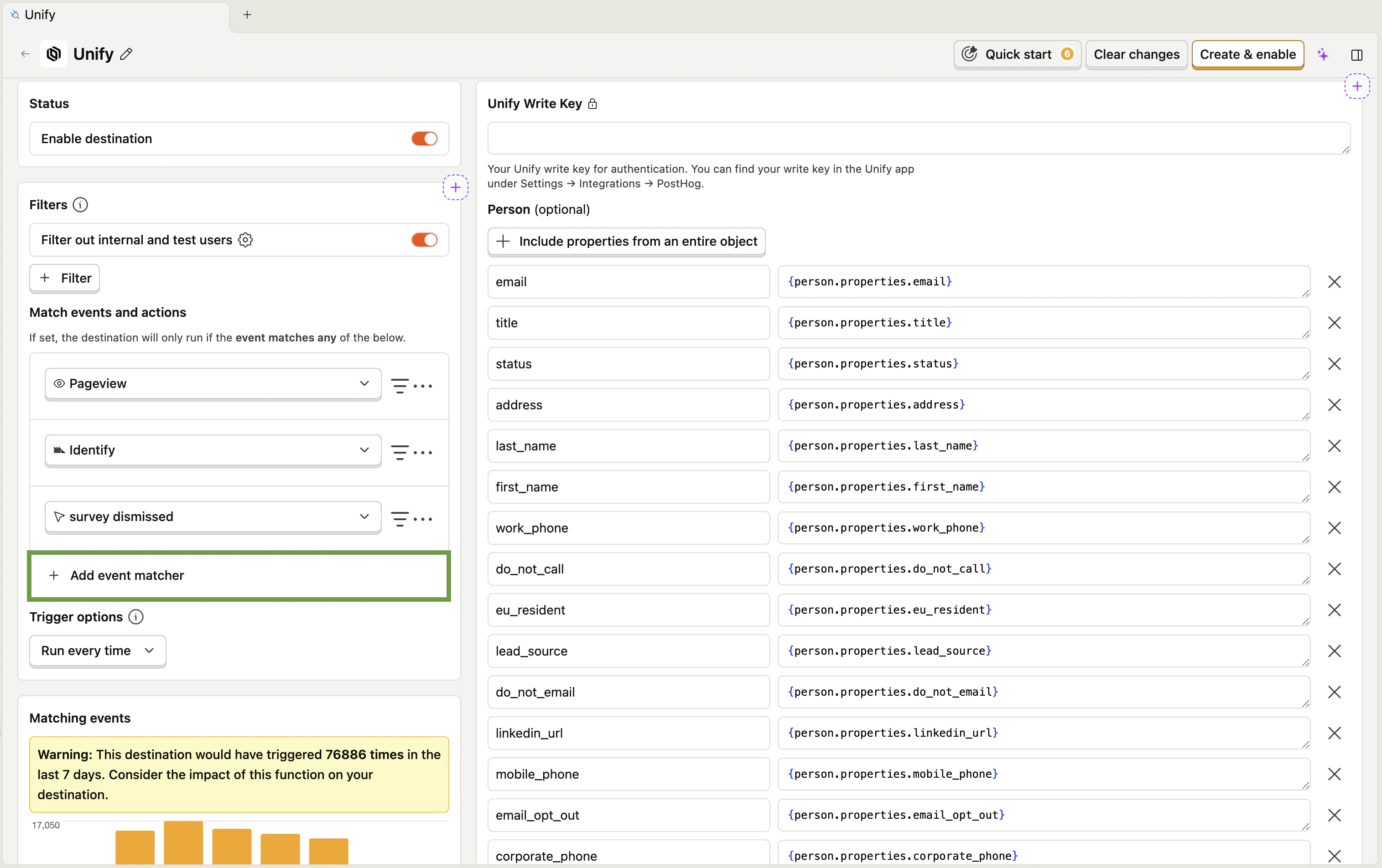 In the example above, `survey dismissed` is a custom event.
1. Paste your write key under **Unify Write Key**
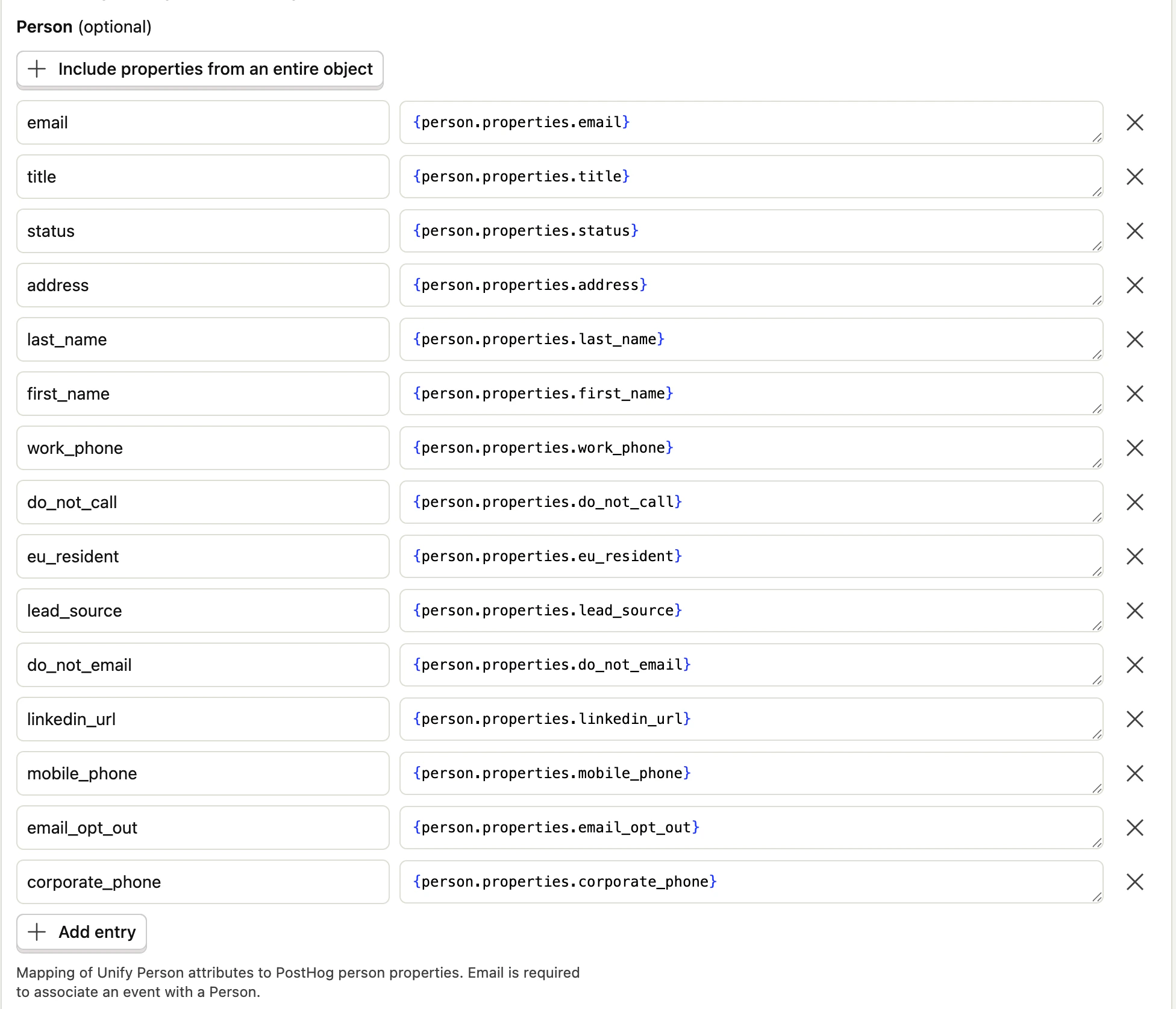
2. Ensure your Unify Person attributes are correctly mapped to your PostHog
properties
Not sure what attributes are or why this mapping matters? See our [FAQ](#faq) for more details.
In the example above, `survey dismissed` is a custom event.
1. Paste your write key under **Unify Write Key**
2. Ensure your Unify Person attributes are correctly mapped to your PostHog
properties
Not sure what attributes are or why this mapping matters? See our [FAQ](#faq) for more details.
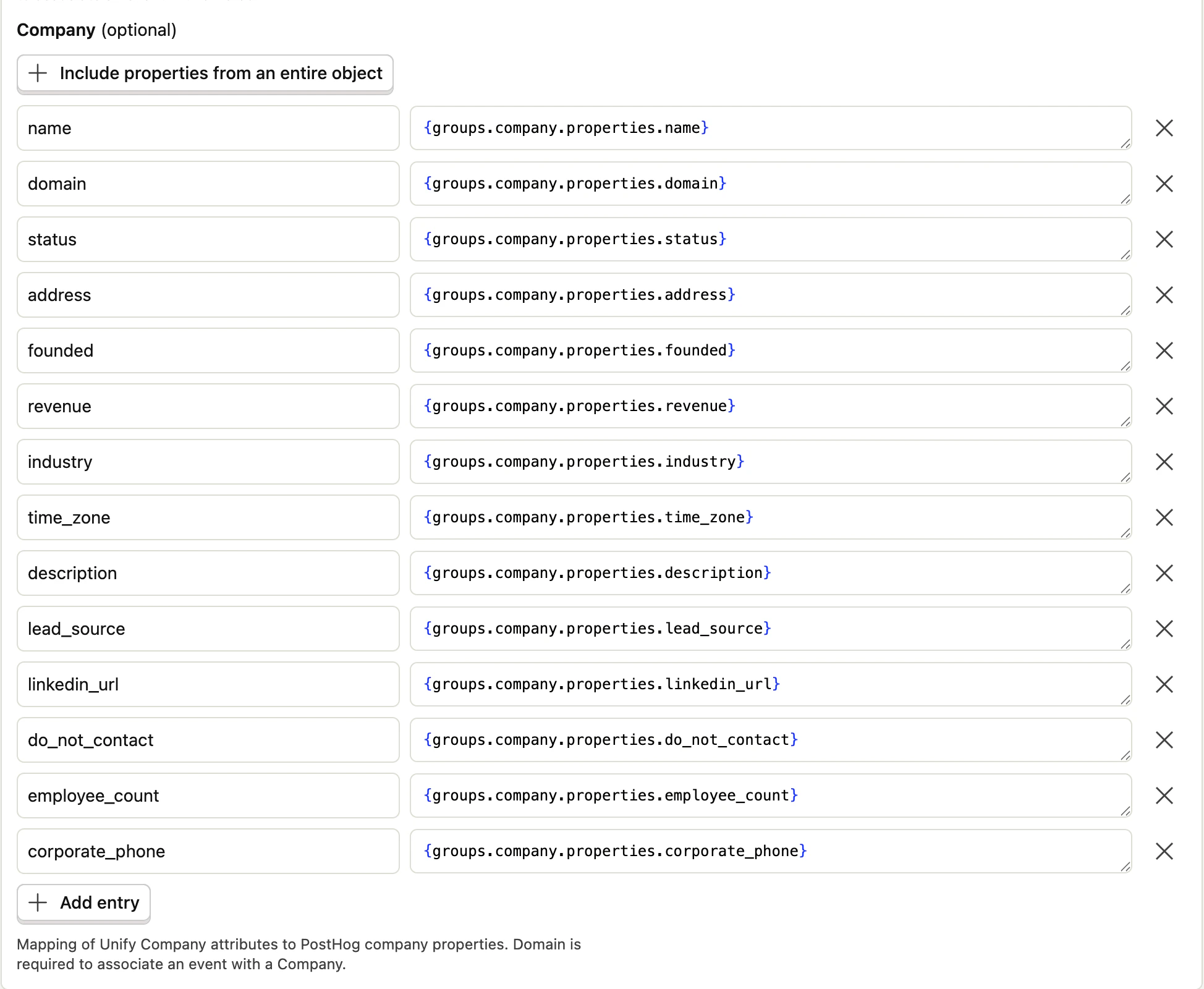
 3. Ensure your Unify Company attributes are correctly mapped to your PostHog
properties
Not sure what attributes are or why this mapping matters? See our [FAQ](#faq) for more details.
3. Ensure your Unify Company attributes are correctly mapped to your PostHog
properties
Not sure what attributes are or why this mapping matters? See our [FAQ](#faq) for more details.
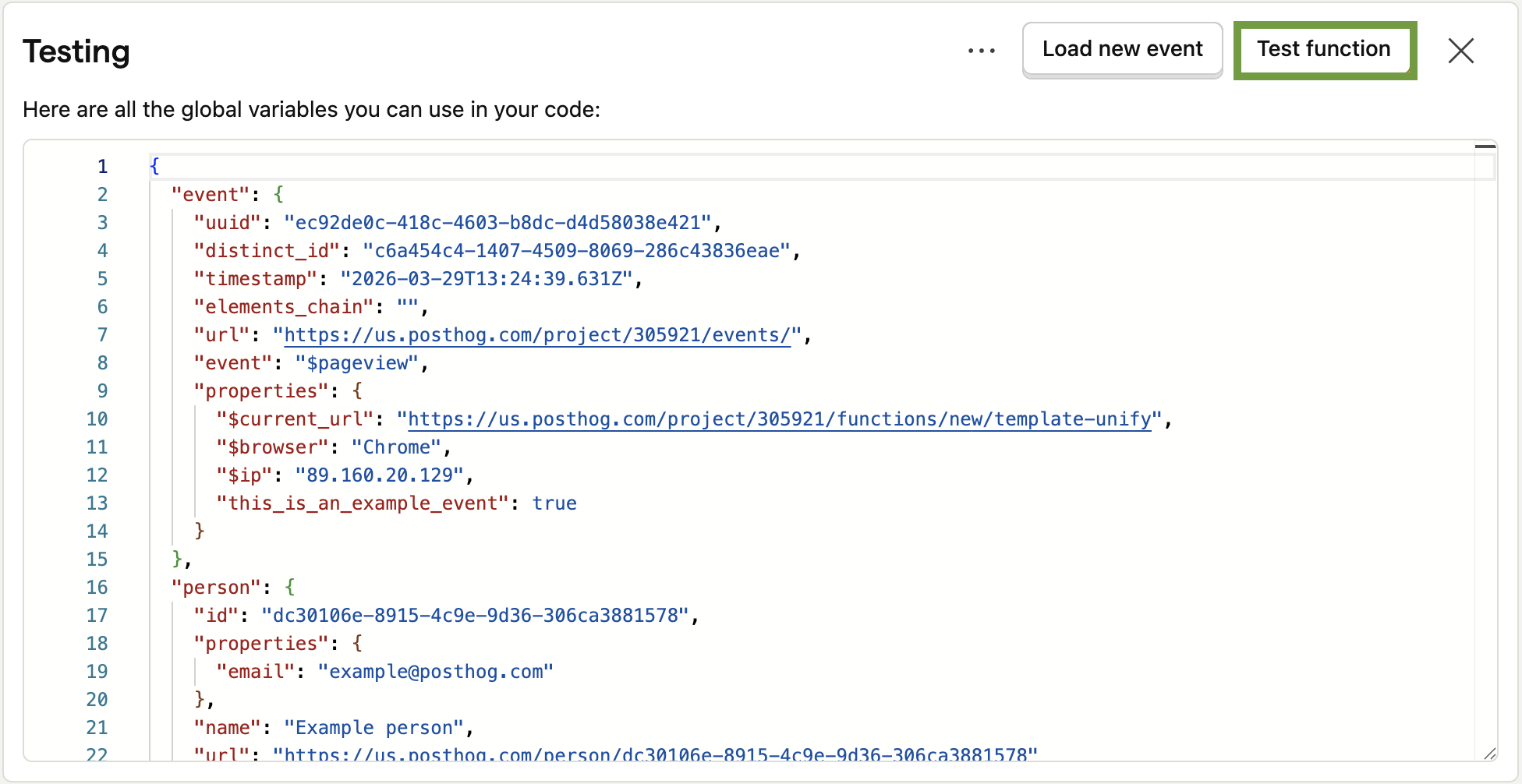
 To test whether the integration is working, you can send a test event from PostHog.
Select **Start testing** and **Test function** to send a test event to Unify.
To test whether the integration is working, you can send a test event from PostHog.
Select **Start testing** and **Test function** to send a test event to Unify.
 Events may take up to 5 minutes to show up in the [Unify event console](https://app.unifygtm.com/dashboard/settings/data/web-intent?webEventsTab=Events)
Once you've verified that the correct data has been sent, select **Create and enable**
to activate the destination.
## FAQ
The PostHog integration has the ability to create and update People and
Companies in your Unify instance. An attribute mapping describes how
PostHog should convert data into a format Unify understands. If this
mapping is not correctly configured, some data may be missing when the
Person or Company is created in Unify.
Consider the example attribute mapping below:
| Unify attribute | PostHog property |
| --------------- | ---------------------------- |
| email | "\{person.properties.email}" |
There are three things to verify when checking that an attribute mapping is correct.
1. Check that the left side of the mapping is the Unify property you
want to populate with event data. In this case, we want to populate the `email`
property of the Unify Person who will be associated with this event.
2. Check that the right side of the mapping is the correct location of the data in
the PostHog. If you have PostHog Person data that looks like
```json theme={null}
{
"person": {
"properties": {
"email": "person@acme.com"
}
}
}
```
then the value of this field in the data sent to Unify will be `person@acme.com`.
If you have PostHog Person data that looks like
```json theme={null}
{
"person": {
"properties": {
"email_address": "person@acme.com"
}
}
}
```
on the other hand, then the value of this field in the data sent to Unify will be
`undefined` since there is no `email_address` key. In this case, you would have to
change the right side of the attribute mapping to `{person.properties.email_address}`
to correct the mapping.
3. Check that the format of the event data corresponds with the attribute's
[value type](/reference/objects/value-types). The `Email address` value type is a
text field and `person@acme.com` is a valid email address, so the attribute mapping
is correct here.
PostHog does not natively have the concept of a Company. To support this, we strongly recommend using PostHog's
[group analytics](https://posthog.com/docs/product-analytics/group-analytics) feature. Please ensure a `company`
group is a defined group type in your PostHog instance.
Following that, please check your Company attribute mapping in your Unify destination is correct and that a
`domain` is being sent.
Yes. In PostHog, navigate to your Unify destination and add a new entry to the `Person` or `Company` mapping.
Add your custom attribute name on the left side and the corresponding field in PostHog on the right side.
No, only fields that are missing on an existing Person or Company will be updated with PostHog event data.
For example, if the Company `acme.com` does not have an existing `Corporate Phone Number` in Unify and
a PostHog event is sent with that data, then the `Corporate Phone Number` will be updated. If it has an
existing `Corporate Phone Number`, however, it will not be updated.
We strongly recommend sending at least Person data with event data from PostHog since this can save credits
if you have reveal enabled in Unify. However, if you still want to stop sending Person or Company data from PostHog
to Unify, then go to PostHog, navigate to your Unify destination and remove all attribute mappings.
Events may take up to 5 minutes to show up in the [Unify event console](https://app.unifygtm.com/dashboard/settings/data/web-intent?webEventsTab=Events)
Once you've verified that the correct data has been sent, select **Create and enable**
to activate the destination.
## FAQ
The PostHog integration has the ability to create and update People and
Companies in your Unify instance. An attribute mapping describes how
PostHog should convert data into a format Unify understands. If this
mapping is not correctly configured, some data may be missing when the
Person or Company is created in Unify.
Consider the example attribute mapping below:
| Unify attribute | PostHog property |
| --------------- | ---------------------------- |
| email | "\{person.properties.email}" |
There are three things to verify when checking that an attribute mapping is correct.
1. Check that the left side of the mapping is the Unify property you
want to populate with event data. In this case, we want to populate the `email`
property of the Unify Person who will be associated with this event.
2. Check that the right side of the mapping is the correct location of the data in
the PostHog. If you have PostHog Person data that looks like
```json theme={null}
{
"person": {
"properties": {
"email": "person@acme.com"
}
}
}
```
then the value of this field in the data sent to Unify will be `person@acme.com`.
If you have PostHog Person data that looks like
```json theme={null}
{
"person": {
"properties": {
"email_address": "person@acme.com"
}
}
}
```
on the other hand, then the value of this field in the data sent to Unify will be
`undefined` since there is no `email_address` key. In this case, you would have to
change the right side of the attribute mapping to `{person.properties.email_address}`
to correct the mapping.
3. Check that the format of the event data corresponds with the attribute's
[value type](/reference/objects/value-types). The `Email address` value type is a
text field and `person@acme.com` is a valid email address, so the attribute mapping
is correct here.
PostHog does not natively have the concept of a Company. To support this, we strongly recommend using PostHog's
[group analytics](https://posthog.com/docs/product-analytics/group-analytics) feature. Please ensure a `company`
group is a defined group type in your PostHog instance.
Following that, please check your Company attribute mapping in your Unify destination is correct and that a
`domain` is being sent.
Yes. In PostHog, navigate to your Unify destination and add a new entry to the `Person` or `Company` mapping.
Add your custom attribute name on the left side and the corresponding field in PostHog on the right side.
No, only fields that are missing on an existing Person or Company will be updated with PostHog event data.
For example, if the Company `acme.com` does not have an existing `Corporate Phone Number` in Unify and
a PostHog event is sent with that data, then the `Corporate Phone Number` will be updated. If it has an
existing `Corporate Phone Number`, however, it will not be updated.
We strongly recommend sending at least Person data with event data from PostHog since this can save credits
if you have reveal enabled in Unify. However, if you still want to stop sending Person or Company data from PostHog
to Unify, then go to PostHog, navigate to your Unify destination and remove all attribute mappings.