> ## Documentation Index
> Fetch the complete documentation index at: https://docs.unifygtm.com/llms.txt
> Use this file to discover all available pages before exploring further.
# Orum Salesforce Setup
> Configure Orum integration with Salesforce for call task synchronization.
## Overview
This guide walks you through the steps required to set up call tasks in Salesforce and configure the Orum integration for seamless call campaign management.
## Overview
You can bidirectionally sync your call tasks between Unify and Orum using a Salesforce report. The instructions below will help you build a report to successfully set up the sync.
## Salesforce report setup
### Call report setup in Salesforce
To create call tasks in Salesforce, set up a new report with the following criteria:
1. Navigate to your Salesforce Reports tab
2. Click **New Report**
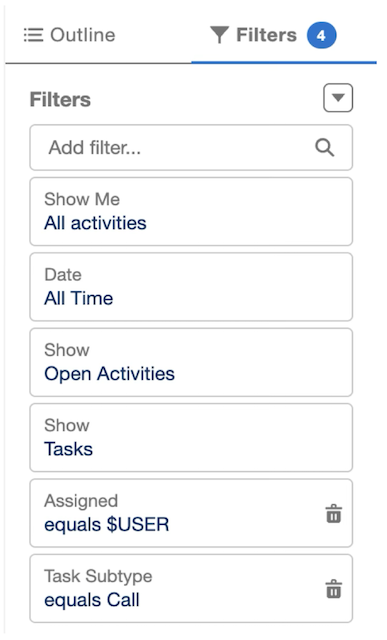
3. Configure the report with these settings:
* **Category**: Activities (Activities with Contacts)
* **Show Me**: All activities
* **Date**: All Time
* **Show**: Open Activities
* **Show**: Tasks
* **Assigned**: equals \$USER
* **Task Subtype**: equals Call
These report filters ensure that each user in Orum only sees their own open call tasks
 ### Best practices for report columns
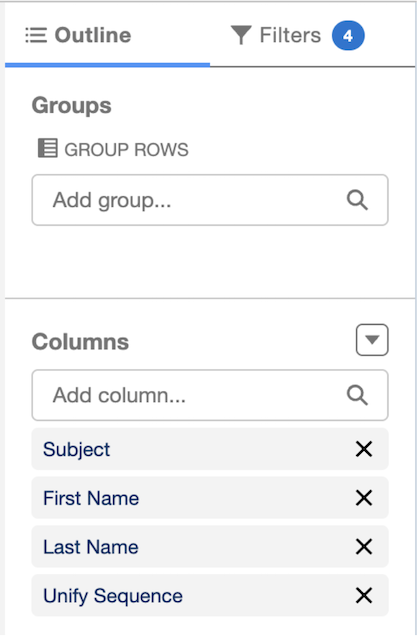
We recommend including the following columns in your report for better visibility and alignment with Unify Sequences:
1. Click **Customize** on your report
2. Add the following columns:
* Subject
* First Name
* Last Name
* Unify Sequence
### Best practices for report columns
We recommend including the following columns in your report for better visibility and alignment with Unify Sequences:
1. Click **Customize** on your report
2. Add the following columns:
* Subject
* First Name
* Last Name
* Unify Sequence
 ## Orum integration setup
Once your Salesforce report is ready, connect Orum to Salesforce:
1. Navigate to **Settings** in Orum
2. Select **Integrations**
3. Choose **Salesforce** and authorize the connection
You will need admin access to Salesforce to authorize this connection. For more information, see: [Orum admin setup](https://support.orum.com/orum/article/ART-441).
## Next steps
With your Salesforce integration configured and Orum connected, you're ready to [launch your first call campaign](/reference/integrations/orum/call-campaigns)!
Need help with the setup? Contact our support team or refer to [Orum's Salesforce documentation](https://support.orum.com/orum/article/ART-410-getting-started-with-salesforce) for additional assistance.
## Orum integration setup
Once your Salesforce report is ready, connect Orum to Salesforce:
1. Navigate to **Settings** in Orum
2. Select **Integrations**
3. Choose **Salesforce** and authorize the connection
You will need admin access to Salesforce to authorize this connection. For more information, see: [Orum admin setup](https://support.orum.com/orum/article/ART-441).
## Next steps
With your Salesforce integration configured and Orum connected, you're ready to [launch your first call campaign](/reference/integrations/orum/call-campaigns)!
Need help with the setup? Contact our support team or refer to [Orum's Salesforce documentation](https://support.orum.com/orum/article/ART-410-getting-started-with-salesforce) for additional assistance.