> ## Documentation Index
> Fetch the complete documentation index at: https://docs.unifygtm.com/llms.txt
> Use this file to discover all available pages before exploring further.
# Running Call Campaigns with Orum
> Launch and manage effective call campaigns using Orum with your CRM integration.
## Prerequisites
Before starting your call campaign, ensure you have:
* Completed your CRM setup ([HubSpot](/reference/integrations/orum/hubspot-setup) or [Salesforce](/reference/integrations/orum/salesforce-setup))
## Setting up your call campaign
### 1. Create Your Sequence
Create a Unify Sequence that includes phone call steps. This will generate the call tasks that sync to your CRM and feed into Orum. Learn more in our [Sequences guide](/reference/sequences/sequence-step-types#phone-call).
### 2. Monitor the sync
Sequence enrollments will appear in your CRM within 30 minutes of being created in Unify. These tasks will automatically be available in Orum when you reset your call list.
### 3. Set up your call session
In Orum, follow these steps to prepare your calling session:
1. **Login with your CRM** to ensure Orum can access your phone call tasks
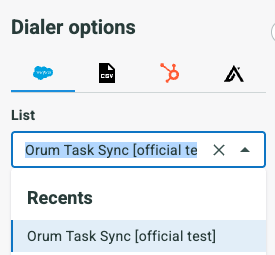
2. **Select your call list** from the available CRM reports:
 3. **Reset your tasks** by clicking the reset button to pull the latest call tasks:
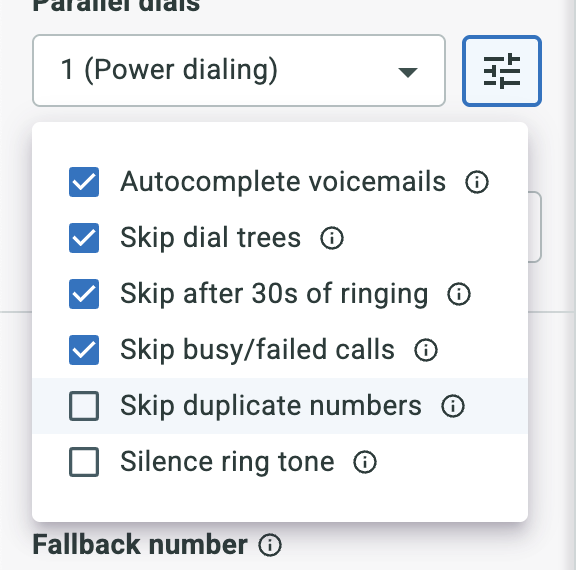
 4. **Configure filters** (optional): If you have multiple call tasks for the same person, deselect the "Skip duplicate numbers" filter to include all tasks:
 ### 4. Start calling
Begin your call campaign! As you complete calls, results will automatically sync back to both your CRM and Unify, keeping all your systems up to date.
Need additional help? Contact our support team or visit the [Orum documentation](https://support.orum.com) for more detailed troubleshooting guides.
***
That's it! By following these steps, your team will run faster, more productive call campaigns with seamless integration between your CRM, Unify, and Orum.
### 4. Start calling
Begin your call campaign! As you complete calls, results will automatically sync back to both your CRM and Unify, keeping all your systems up to date.
Need additional help? Contact our support team or visit the [Orum documentation](https://support.orum.com) for more detailed troubleshooting guides.
***
That's it! By following these steps, your team will run faster, more productive call campaigns with seamless integration between your CRM, Unify, and Orum.