> ## Documentation Index
> Fetch the complete documentation index at: https://docs.unifygtm.com/llms.txt
> Use this file to discover all available pages before exploring further.
# HubSpot integration guide
> This guide outlines how to connect your HubSpot CRM to Unify.
## Overview
In just a few steps, you can connect your HubSpot CRM to Unify and start syncing
data bidirectionally. This unlocks a few key benefits when using Unify:
1. HubSpot records can be used to [construct exclusions](/tutorials/how-to-create-an-exclusion)
that prevent Unify from engaging with specific people or companies. For
example, you can create an exclusion for all current customers or deals in
progress.
2. You can create Plays that are triggered by HubSpot records. This allows you
to run a Play based on a specific event or criteria captured within HubSpot.
3. Unify can write data back to HubSpot so that you can maintain a source of
truth in your CRM and respect rules of engagement in other tools or business
processes.
Unify's integration with HubSpot is designed from the ground up to prevent many
common pitfalls, including overwriting existing data or creating duplicate
records. For an in-depth description of how Unify does this, see [How Bidirectional Syncs Work](/reference/integrations/hubspot/bidirectional-syncs).
## Setup
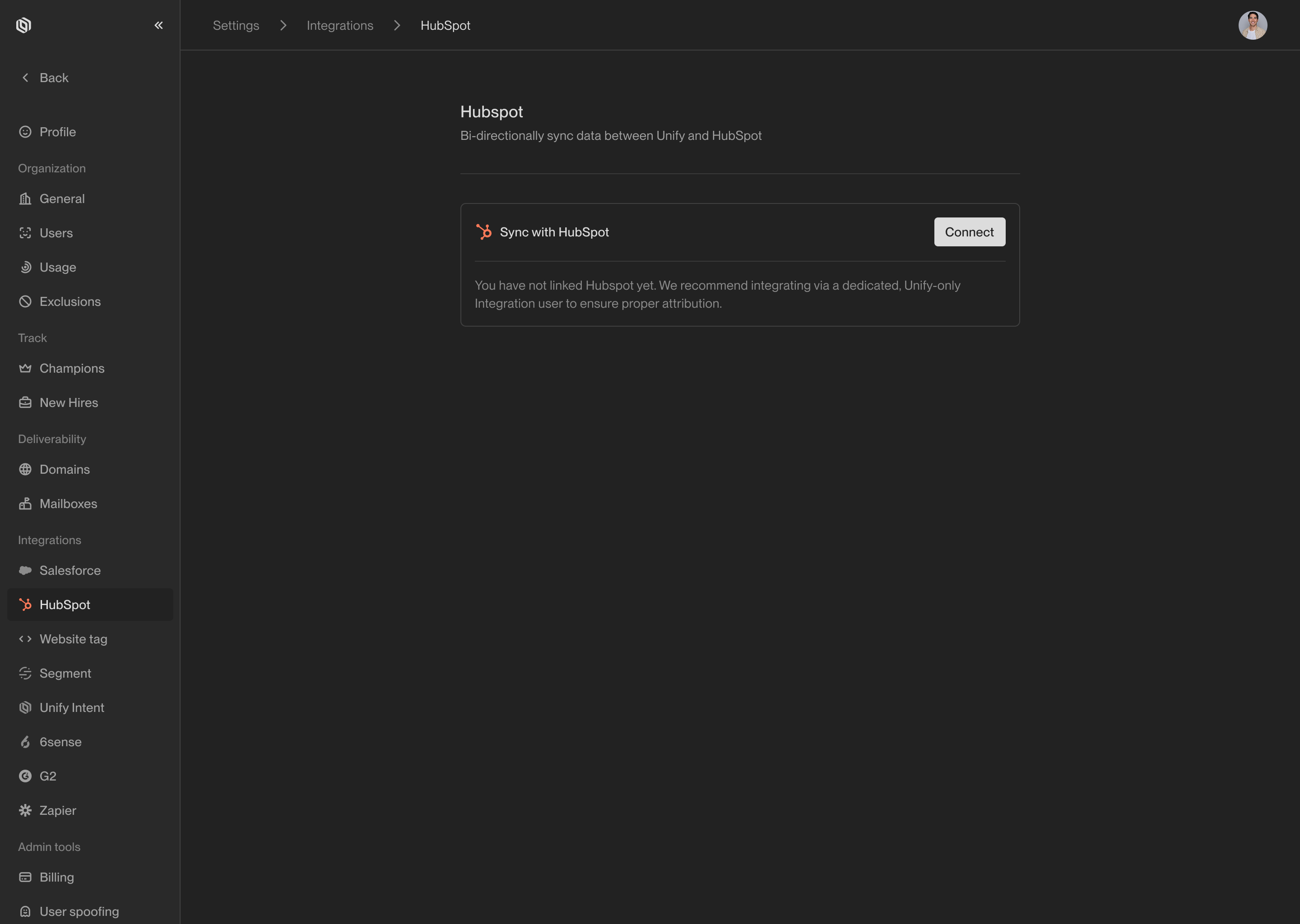
Navigate to [Settings → HubSpot](https://app.unifygtm.com/dashboard/settings/integrations/hubspot)
and select **Connect**. You will be redirected to the HubSpot authentication
page where you can sign in and authorize Unify to access HubSpot data.
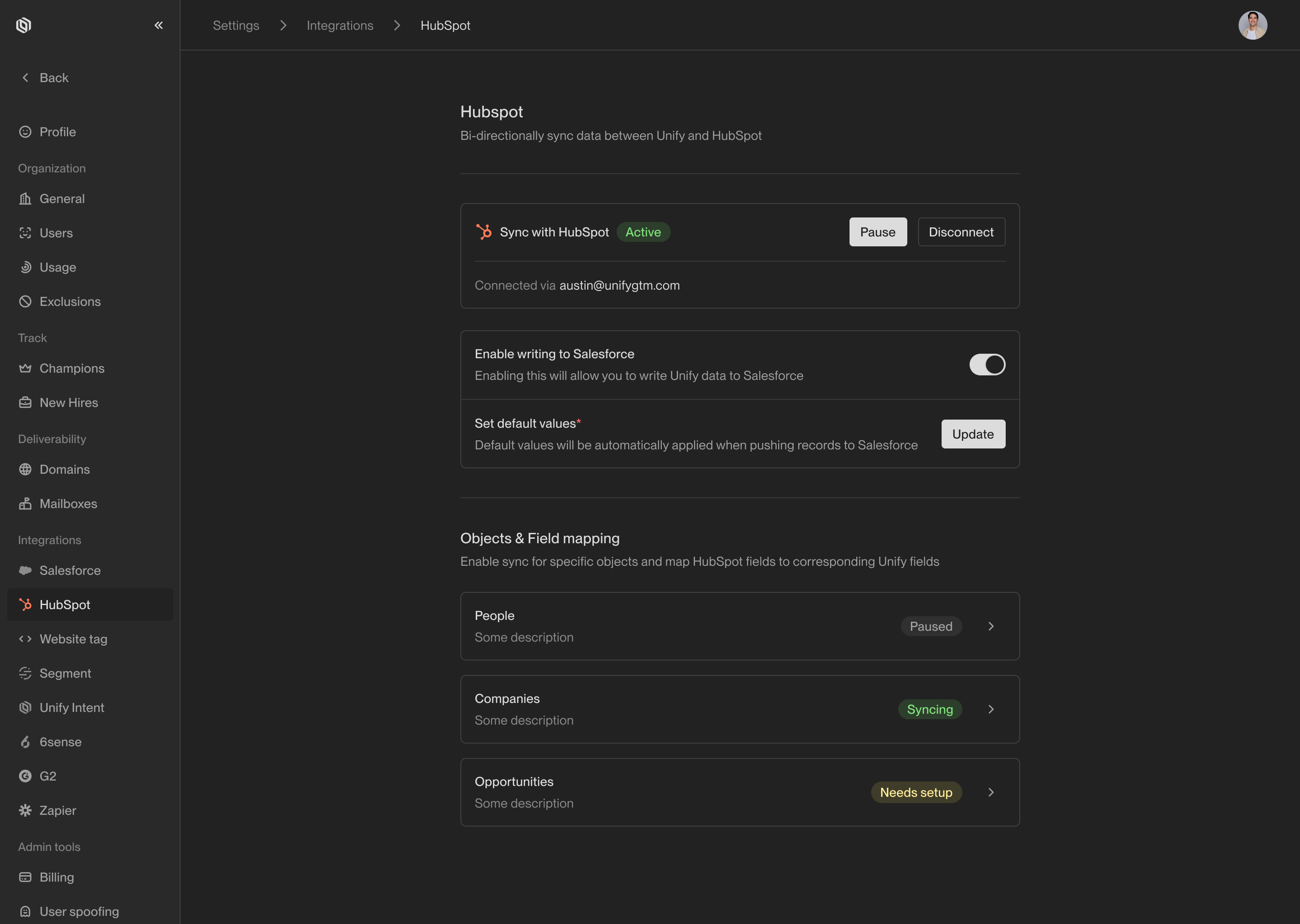 Unify provides granular control over which HubSpot properties map to which
Unify fields. For each object, select **Create Mapping** and update any
fields you wish to customize.
In most cases, the default options will be a good starting point. You can
always return to change these mappings in the future.
Unify provides granular control over which HubSpot properties map to which
Unify fields. For each object, select **Create Mapping** and update any
fields you wish to customize.
In most cases, the default options will be a good starting point. You can
always return to change these mappings in the future.
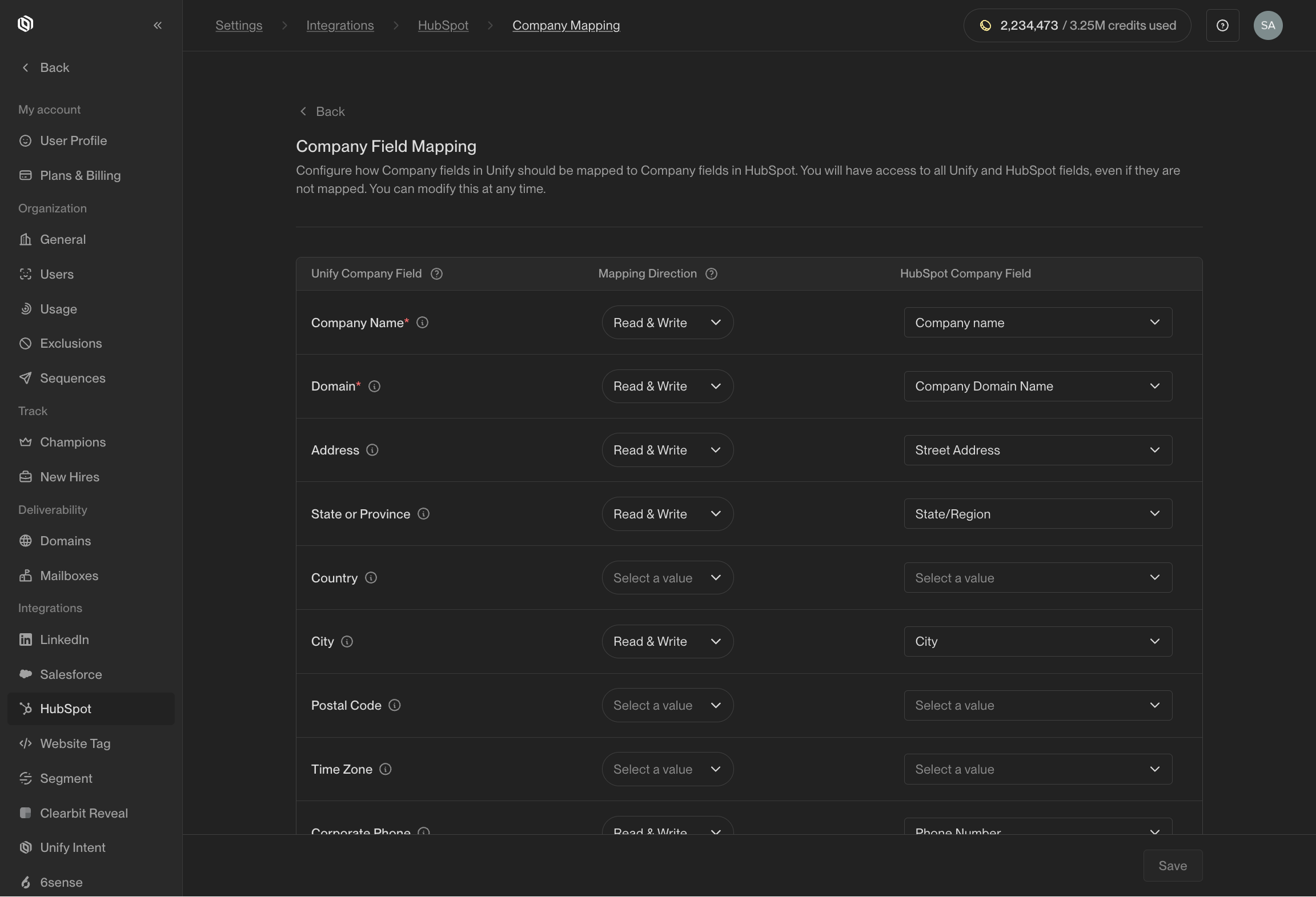 See [Field mappings](/reference/integrations/hubspot/field-mappings) for details on
how field mappings work and the available options.
Once you're satisfied with your integration settings and field mappings, you
can begin syncing data into Unify by selecting **Resume**. If at any point
you want to pause syncs again, you can return to this page and select
**Pause**.
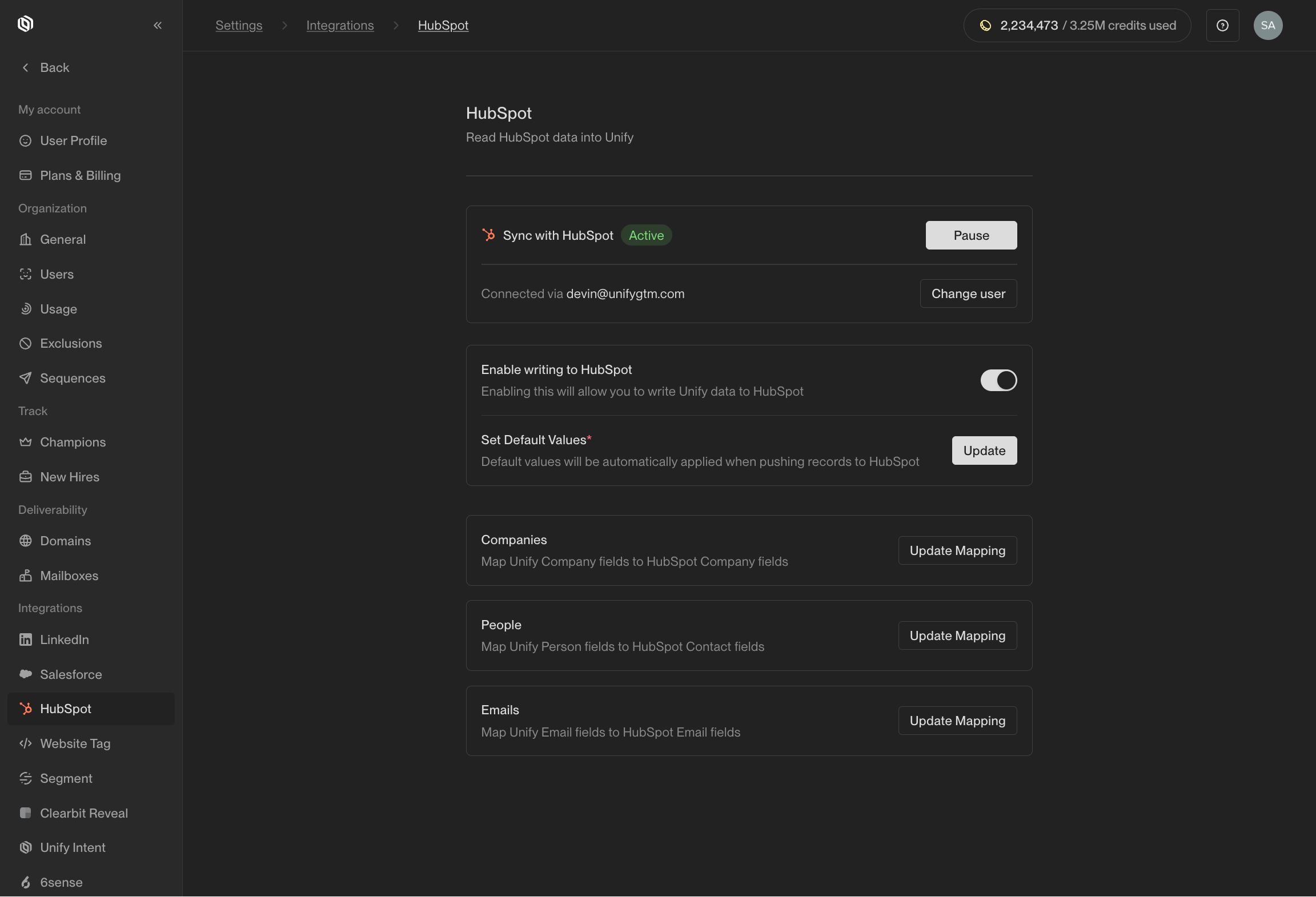
To enable Unify to write data back to HubSpot, activate the toggle next to
**Enable writing to HubSpot**. This will allow Unify to sync records back to
HubSpot.
See [Field mappings](/reference/integrations/hubspot/field-mappings) for details on
how field mappings work and the available options.
Once you're satisfied with your integration settings and field mappings, you
can begin syncing data into Unify by selecting **Resume**. If at any point
you want to pause syncs again, you can return to this page and select
**Pause**.
To enable Unify to write data back to HubSpot, activate the toggle next to
**Enable writing to HubSpot**. This will allow Unify to sync records back to
HubSpot.
 ## Additional HubSpot resources
Configure mappings between Unify fields and HubSpot properties.
Specify default values that should be used when writing to HubSpot.
## Additional HubSpot resources
Configure mappings between Unify fields and HubSpot properties.
Specify default values that should be used when writing to HubSpot.