> ## Documentation Index
> Fetch the complete documentation index at: https://docs.unifygtm.com/llms.txt
> Use this file to discover all available pages before exploring further.
# Always-on AI research
> Learn about how AI Research works
## How does AI Research work?
During onboarding, Unify's multi-agent system researches your business to
understand your products, customers, and value proposition. By analyzing this
information, Agents are autonomously able to surface targeted insights to your
reps.
To do this, Agents generate *Observations* about the Companies and People that
flow through Unify. Observations are key pieces of information relevant to
assessing customer fit and buying intent.
An *observation* is a key piece of information that AI research agents will try
to find for a Company.
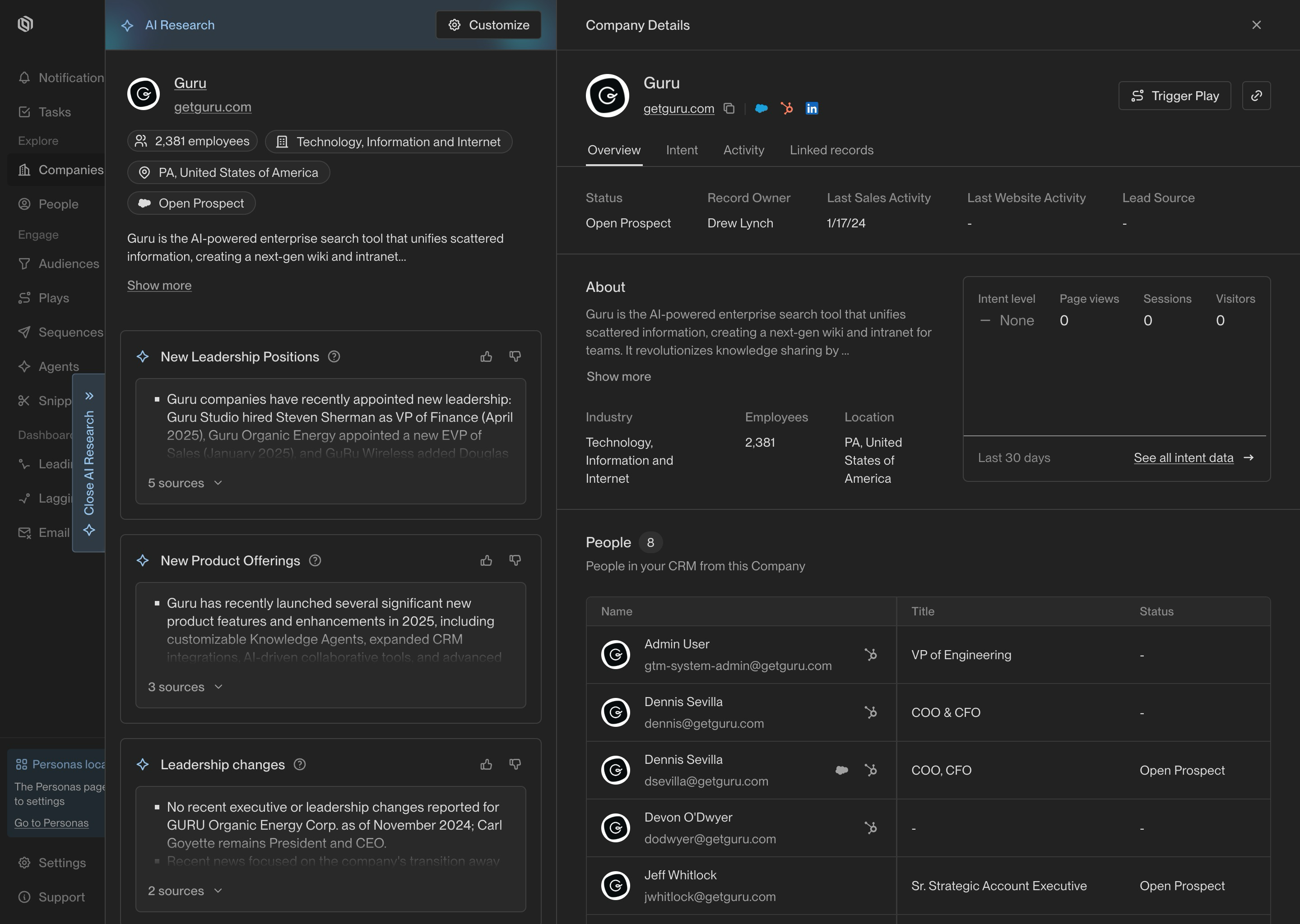 Given a set of Observations, Unify Agents will generate AI Research reports for
your team. These reports surface the most relevant insights for reference when
engaging with prospects.
Given a set of Observations, Unify Agents will generate AI Research reports for
your team. These reports surface the most relevant insights for reference when
engaging with prospects.
 ## Accessing AI research
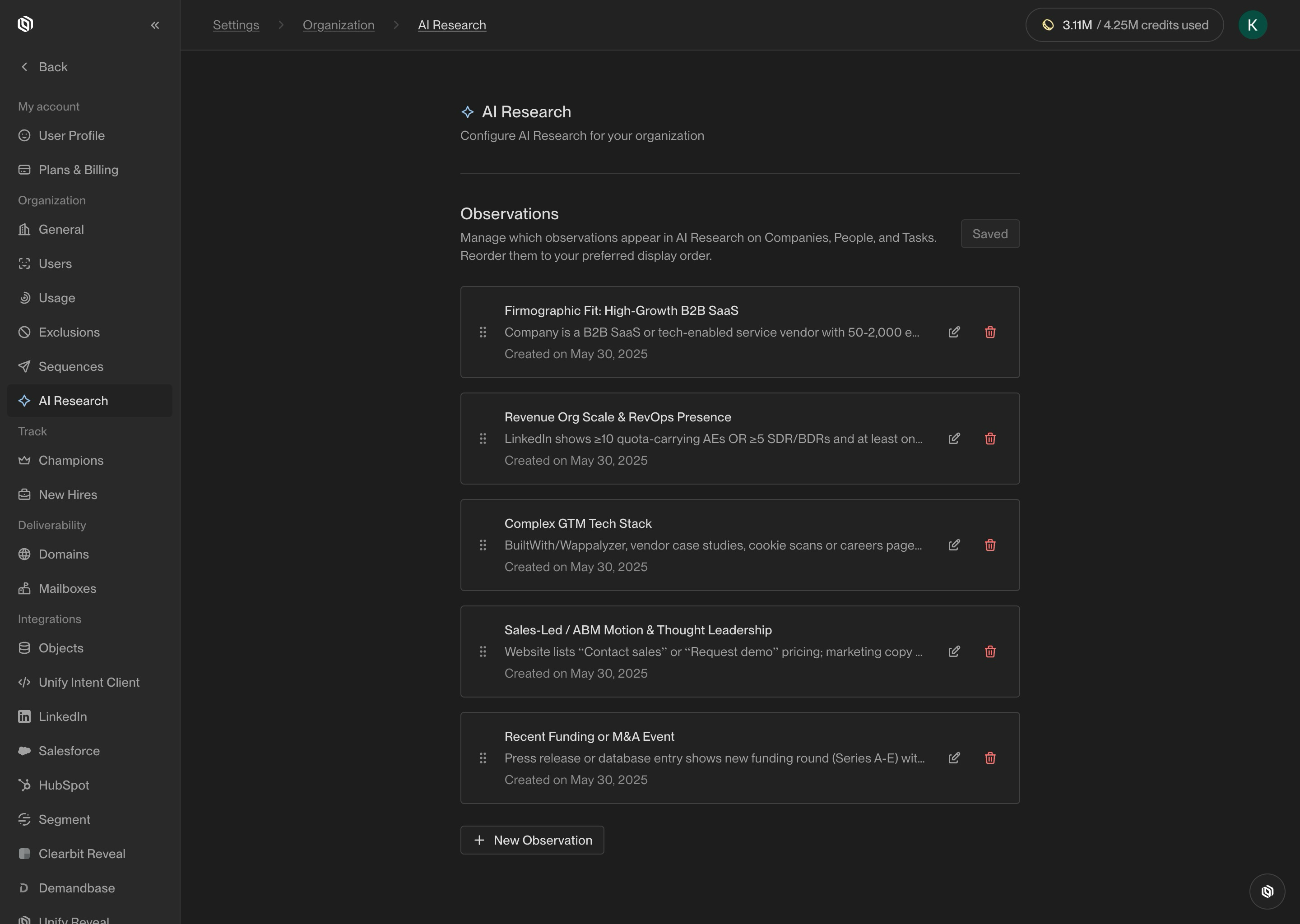
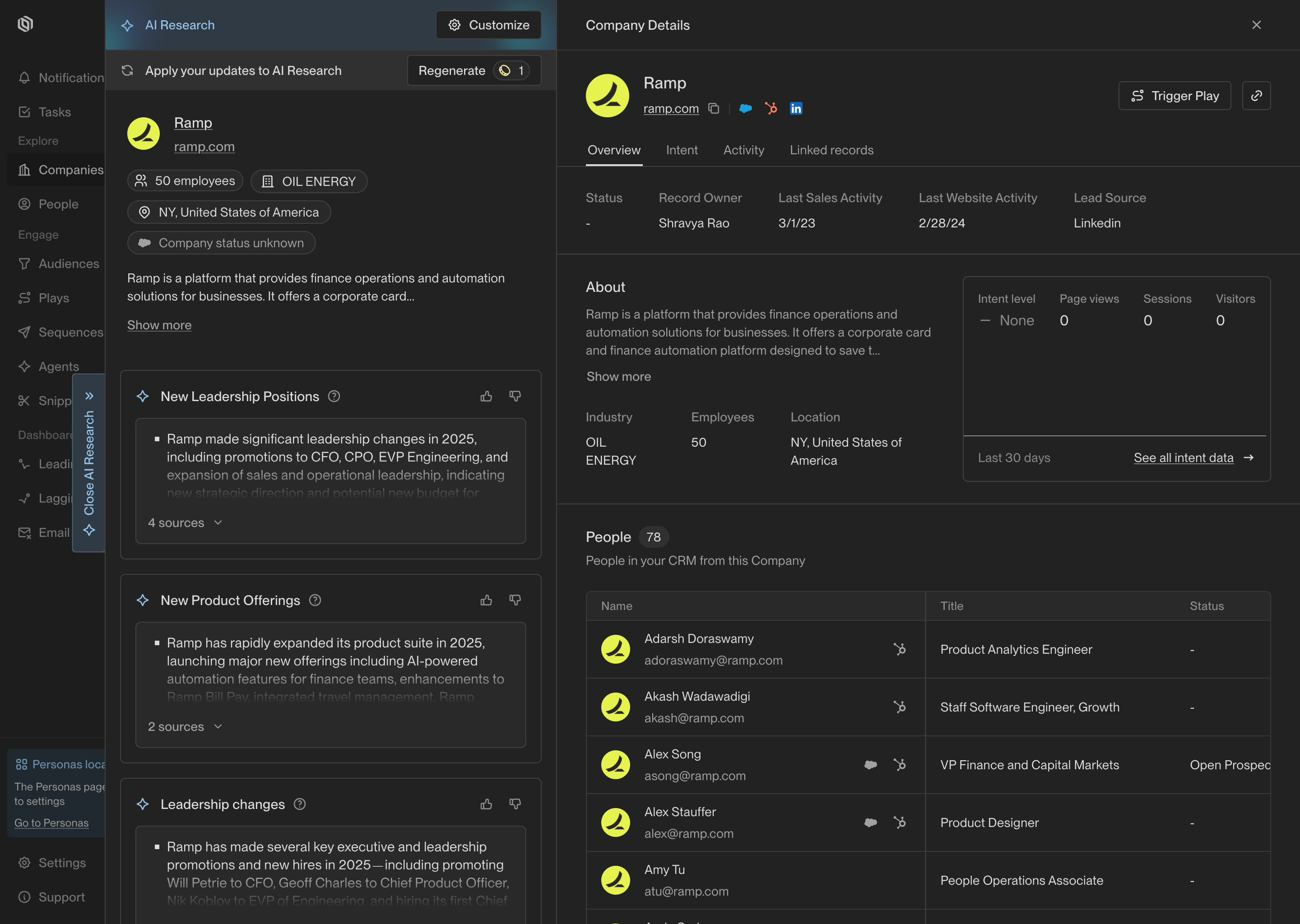
Reports can be accessed by clicking on the **AI Research** tab on any Task,
Company, or Person details page. AI Research will be automatically generated for
Tasks, and reports for Companies and People can be generated on demand.
## Accessing AI research
Reports can be accessed by clicking on the **AI Research** tab on any Task,
Company, or Person details page. AI Research will be automatically generated for
Tasks, and reports for Companies and People can be generated on demand.
 ## Modifying your observations
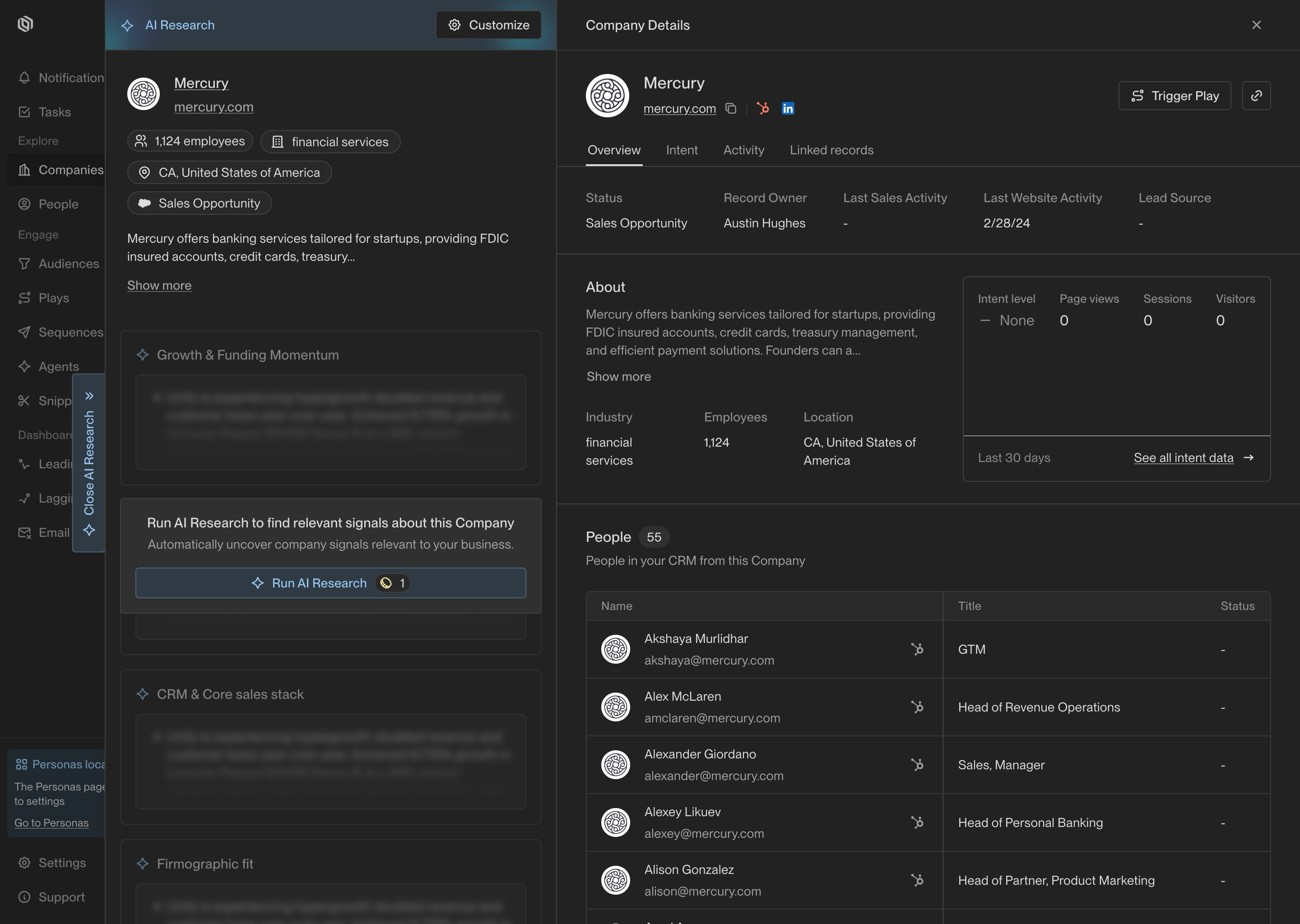
Admins have the ability to add, modify, and delete Observations (up to a maximum
of 8). Observations in the **AI Research** settings page can be reordered to
adjust the order in which they appear in reports.
Modifications to the set of Observations will take effect for all future AI
Research reports that are generated. You can also regenerate existing reports
using the **Regenerate** button that appears on historical reports.
## Modifying your observations
Admins have the ability to add, modify, and delete Observations (up to a maximum
of 8). Observations in the **AI Research** settings page can be reordered to
adjust the order in which they appear in reports.
Modifications to the set of Observations will take effect for all future AI
Research reports that are generated. You can also regenerate existing reports
using the **Regenerate** button that appears on historical reports.
 ## Testing your observations
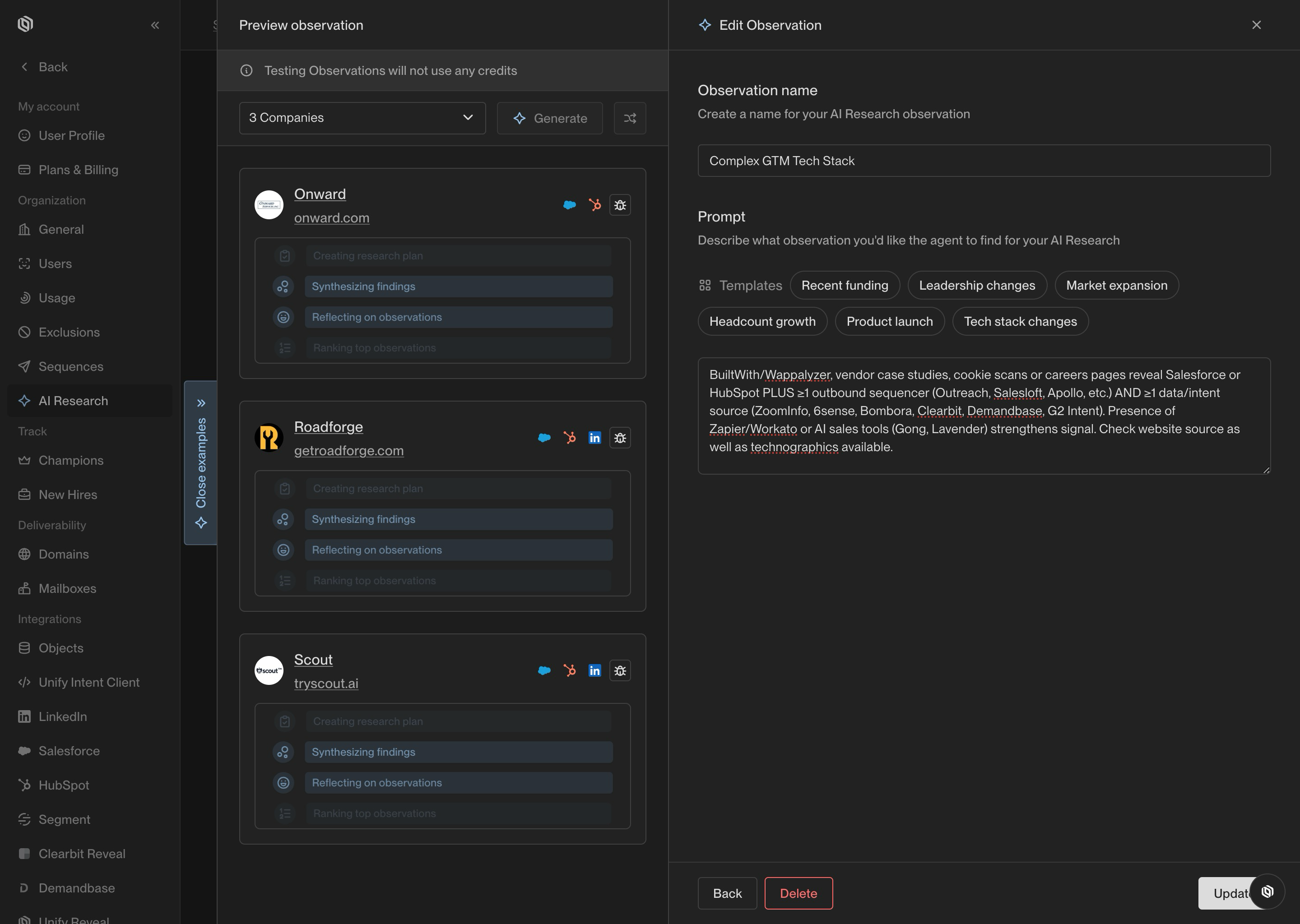
After configuring Observations, you can run a test to see if the AI Research
Agent retrieves what you are looking for. You can either generate Observations
for specific companies or select a random sample of companies to test on. Use
this to experiment and iterate on the Observation prompts until you are
satisfied with the results.
To get effective Observations, ensure that your prompt explains all of the context that is needed to retrieve the information that you are looking for.
## Testing your observations
After configuring Observations, you can run a test to see if the AI Research
Agent retrieves what you are looking for. You can either generate Observations
for specific companies or select a random sample of companies to test on. Use
this to experiment and iterate on the Observation prompts until you are
satisfied with the results.
To get effective Observations, ensure that your prompt explains all of the context that is needed to retrieve the information that you are looking for.