> ## Documentation Index
> Fetch the complete documentation index at: https://docs.unifygtm.com/llms.txt
> Use this file to discover all available pages before exploring further.
# Sync data from Fivetran
> Learn how to connect upstream data sources to Unify via Fivetran.
## Overview
This guide assumes that you already have a Fivetran account. If you don't, you
can sign up for a free plan [here](https://www.fivetran.com/).
Unify provides a Fivetran destination which allows you to sync data from any
Fivetran data source into Unify objects. Fivetran supports a range of data
sources, including data warehouses, databases, and more.
## Connect Fivetran to Unify
Within Fivetran, navigate to **Destinations** and select **Add a destination**.
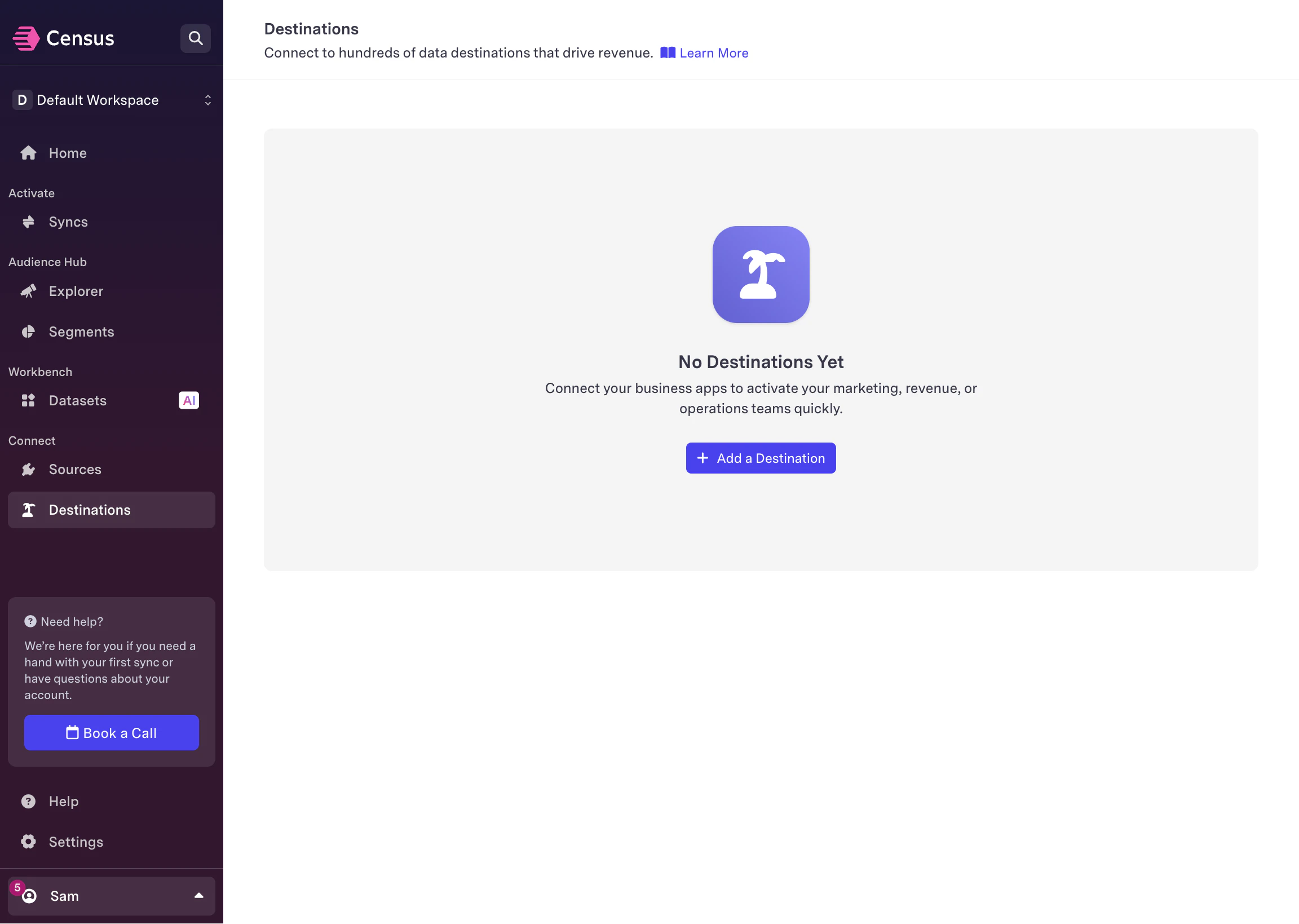 Look for the **Unify** destination type and select it.
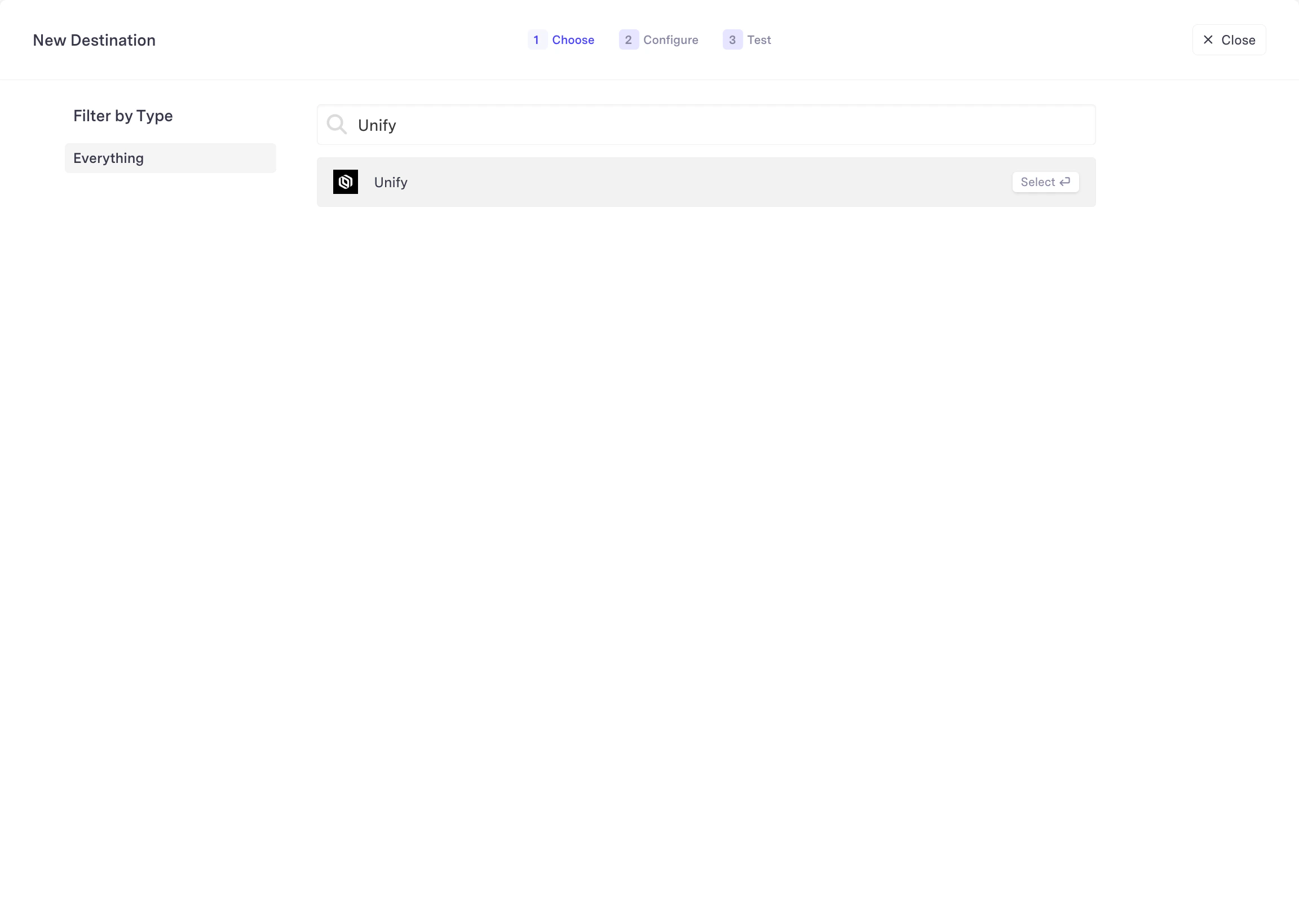 Fill in a name for your destination and provide an API key. You can generate
an API key within Unify by navigating to [Settings → API
Keys](https://app.unifygtm.com/dashboard/settings/integrations/api-keys).
Fill in a name for your destination and provide an API key. You can generate
an API key within Unify by navigating to [Settings → API
Keys](https://app.unifygtm.com/dashboard/settings/integrations/api-keys).
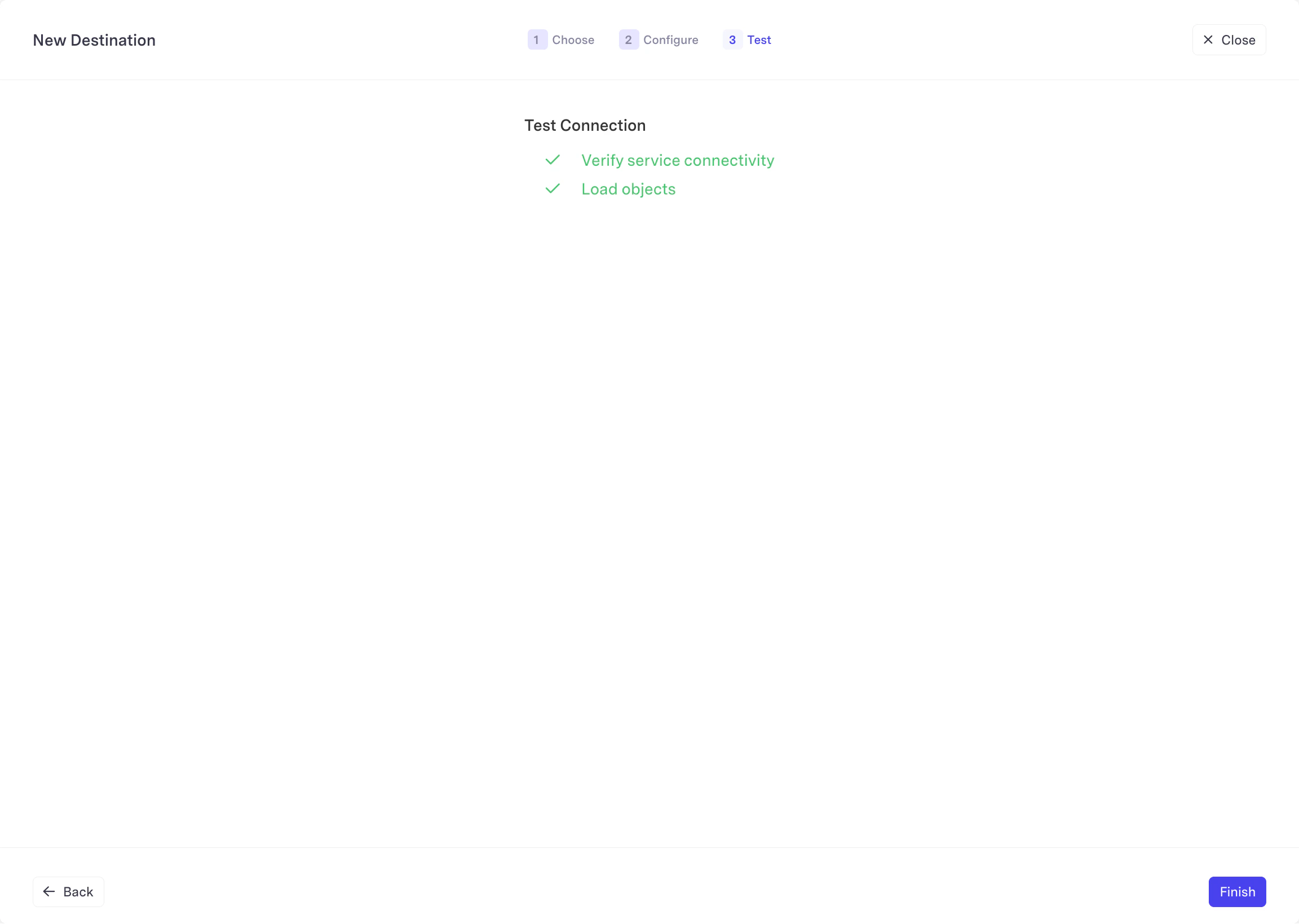
 Wait for the test to complete and then choose **Finish** to save the new
destination.
Wait for the test to complete and then choose **Finish** to save the new
destination.
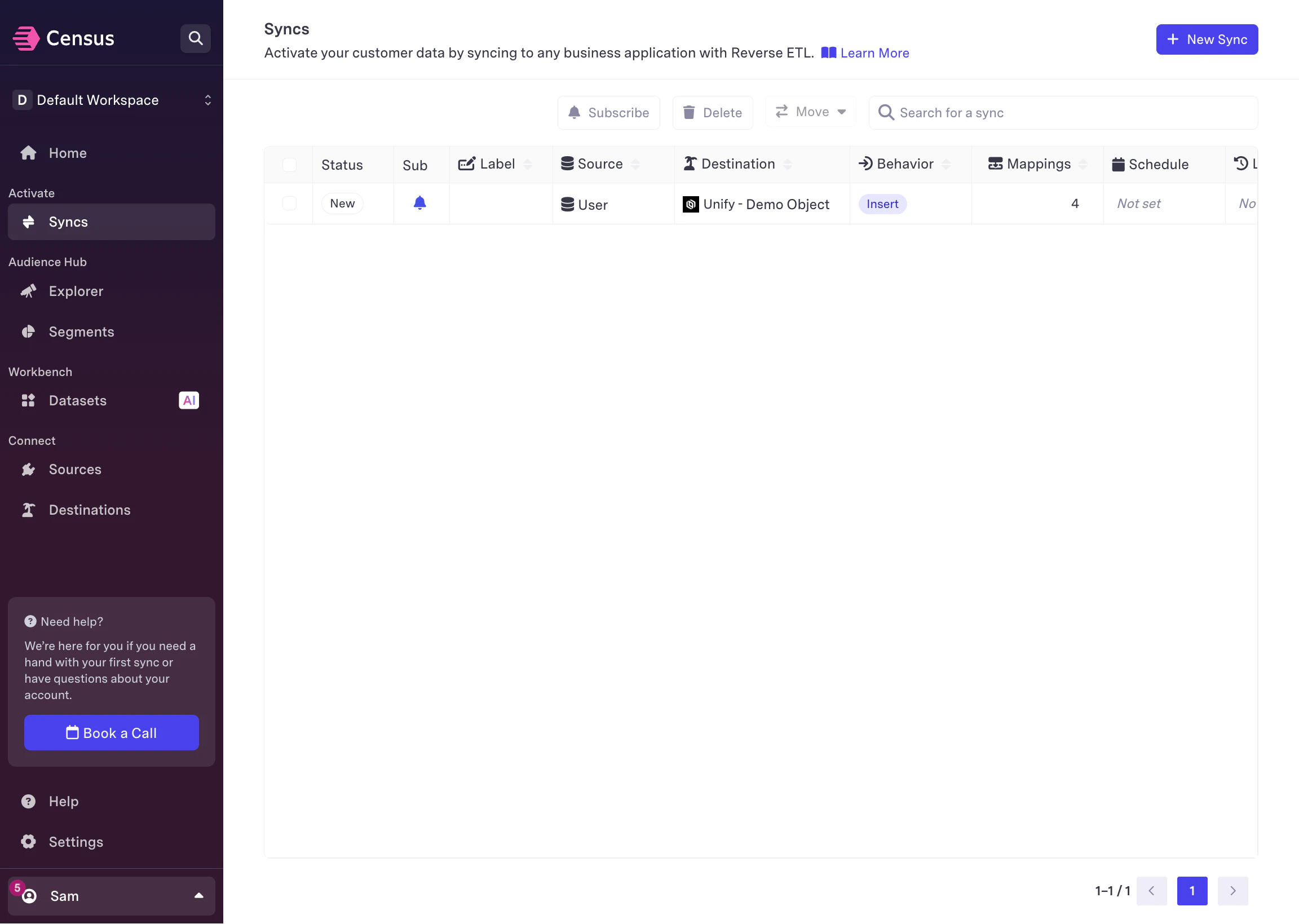
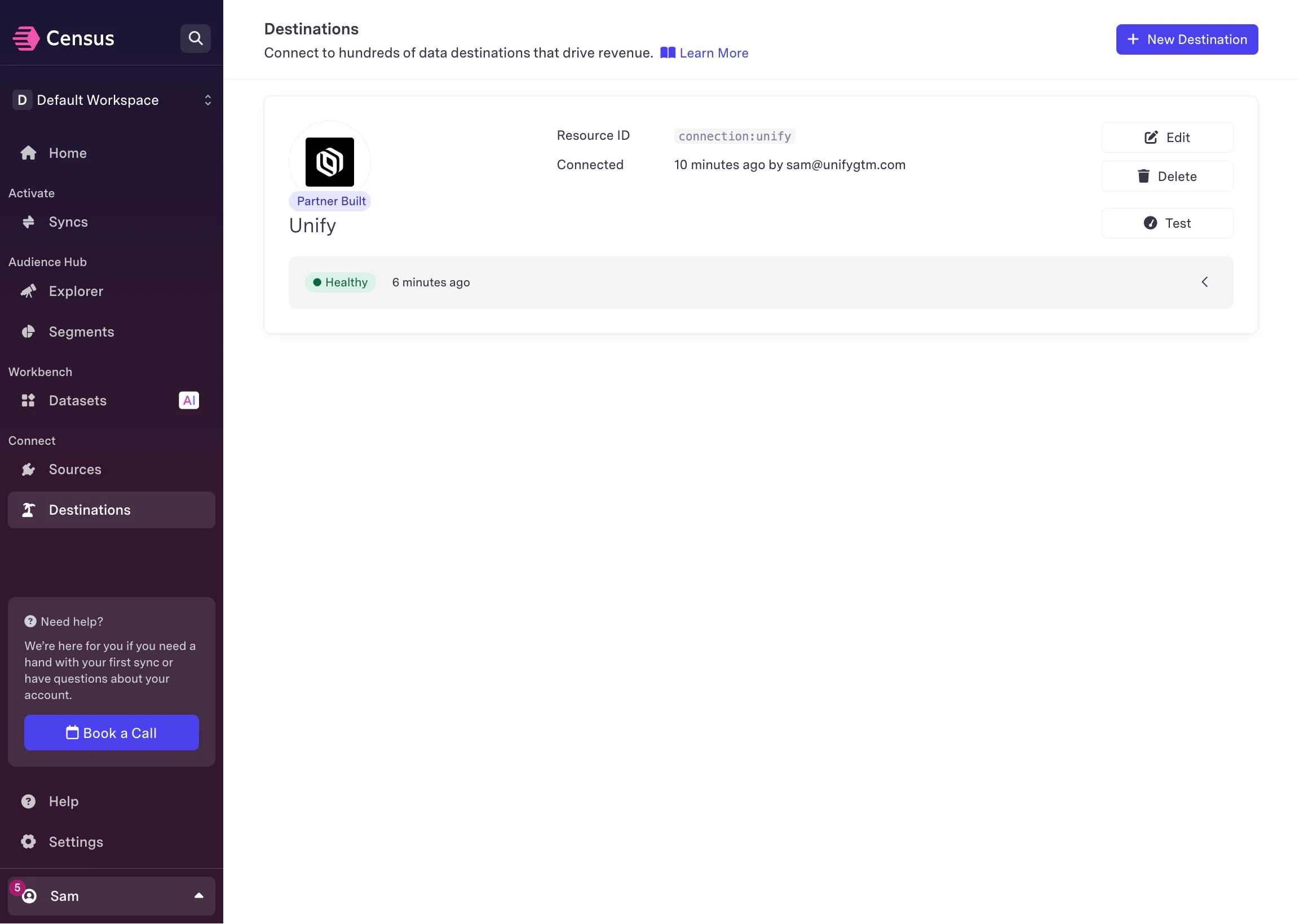
 Once saved, you will see this destination listed in the **Destinations** tab.
 ## Sync to an object
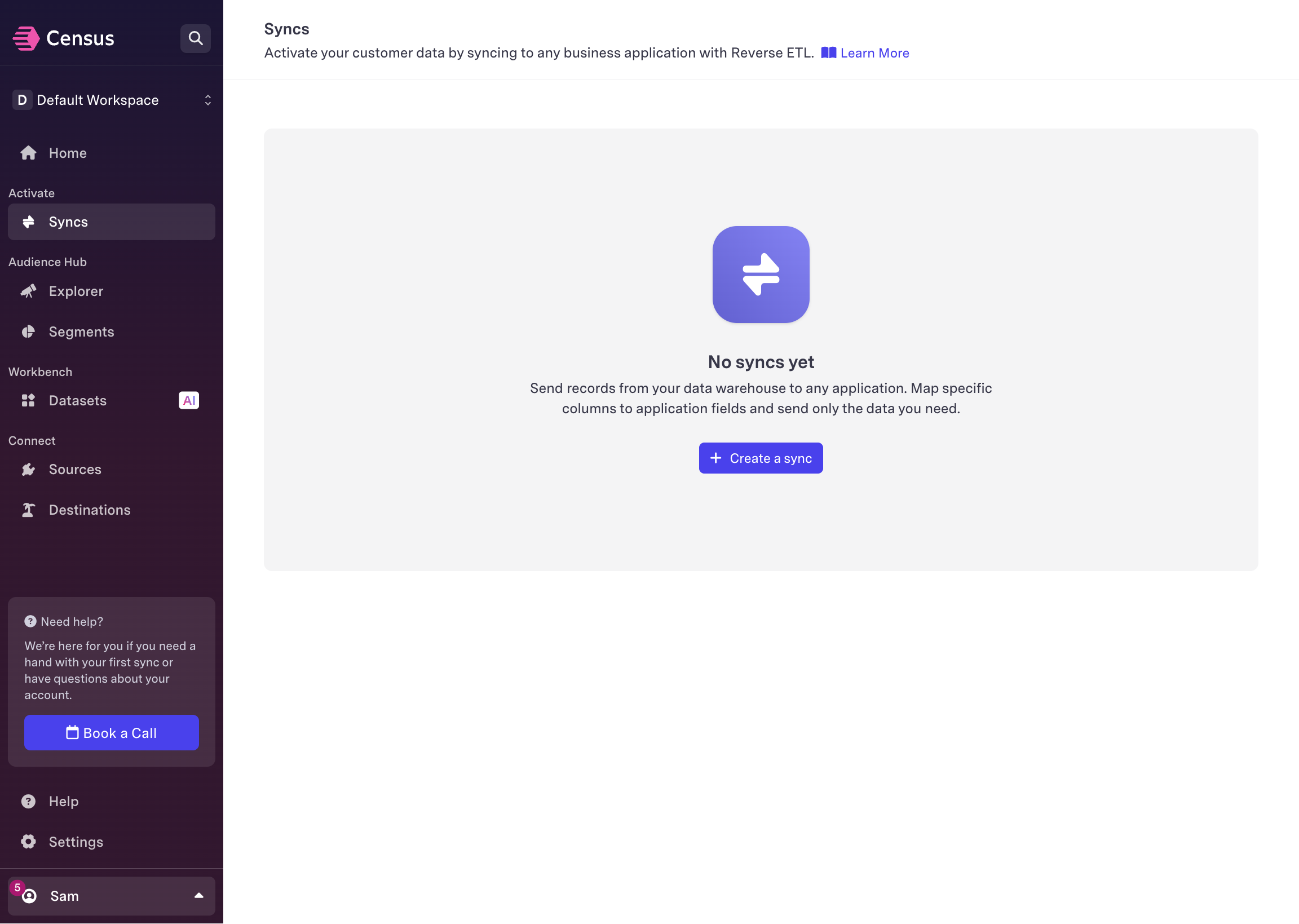
Within Fivetran, navigate to **Syncs** and select **Create a sync**.
## Sync to an object
Within Fivetran, navigate to **Syncs** and select **Create a sync**.
 Select the data source you want to sync from. This can be a table in a data
warehouse, database, or any other supported data source.
Select the data source you want to sync from. This can be a table in a data
warehouse, database, or any other supported data source.
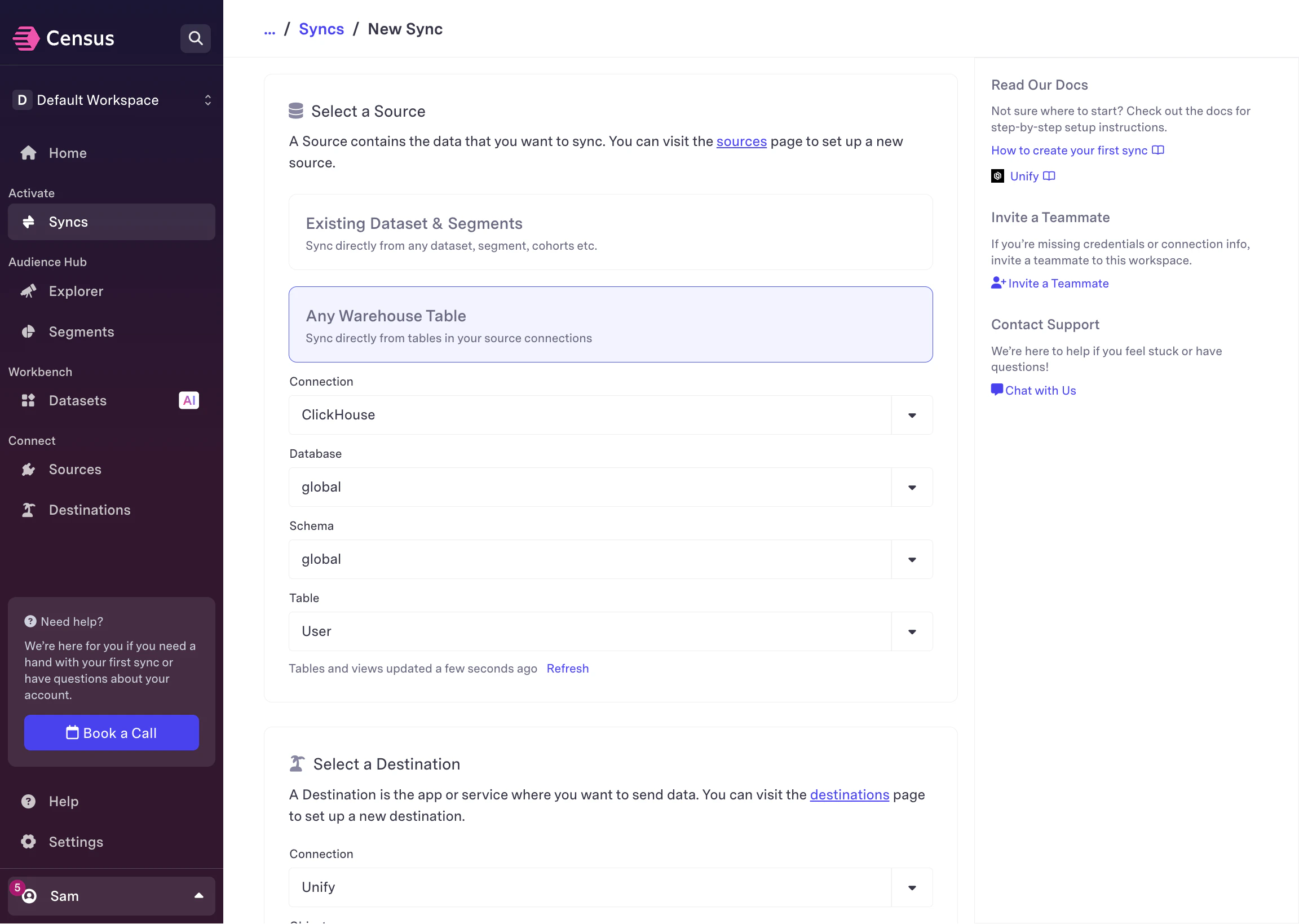 Select the Unify destination you created previously.
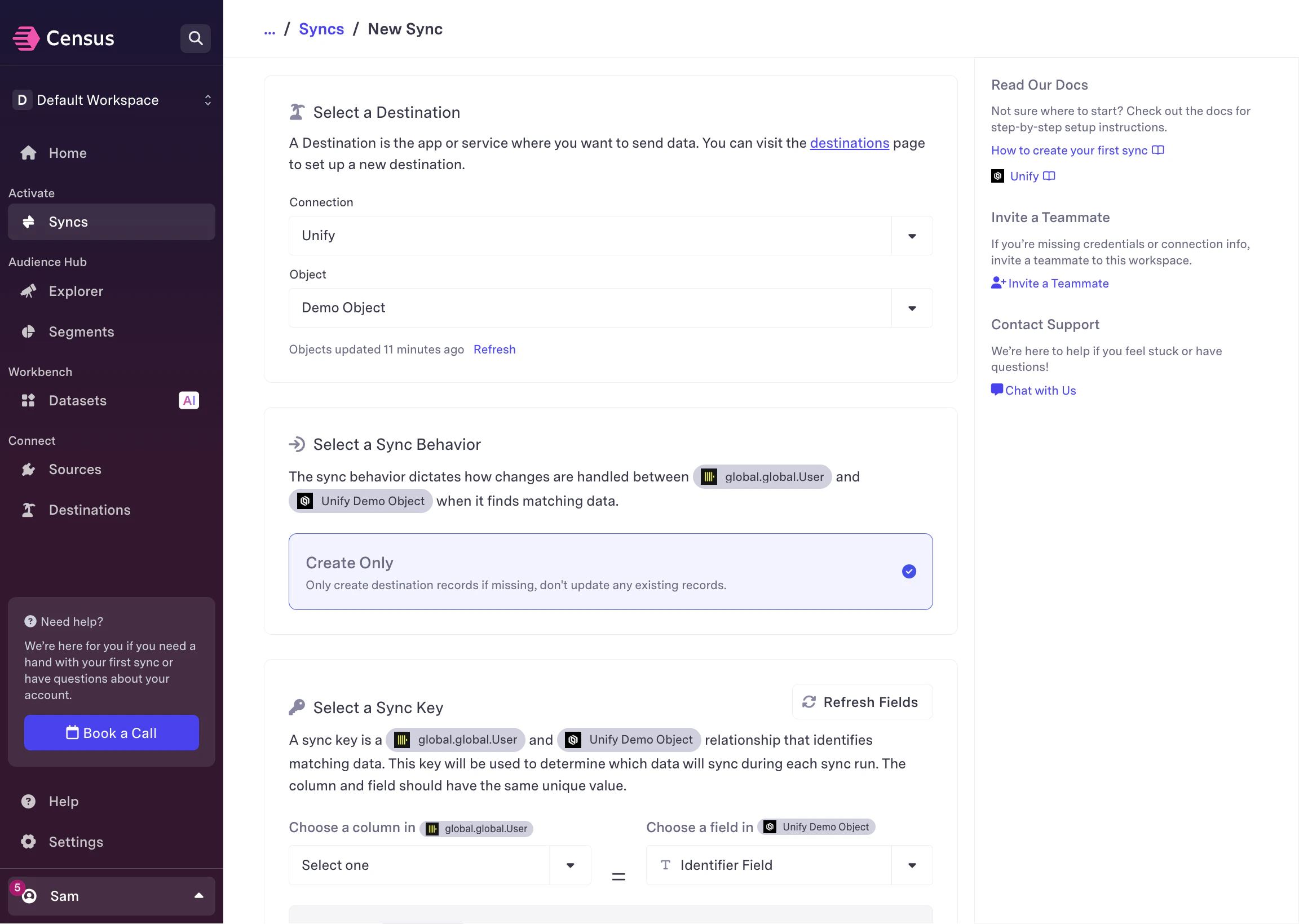 Choose the sync behavior. You can choose to either **Insert** or **Upsert**
records into Unify. Inserting records will only add new records, while
upserting will sync changes to existing records as well.
Choose the sync behavior. You can choose to either **Insert** or **Upsert**
records into Unify. Inserting records will only add new records, while
upserting will sync changes to existing records as well.
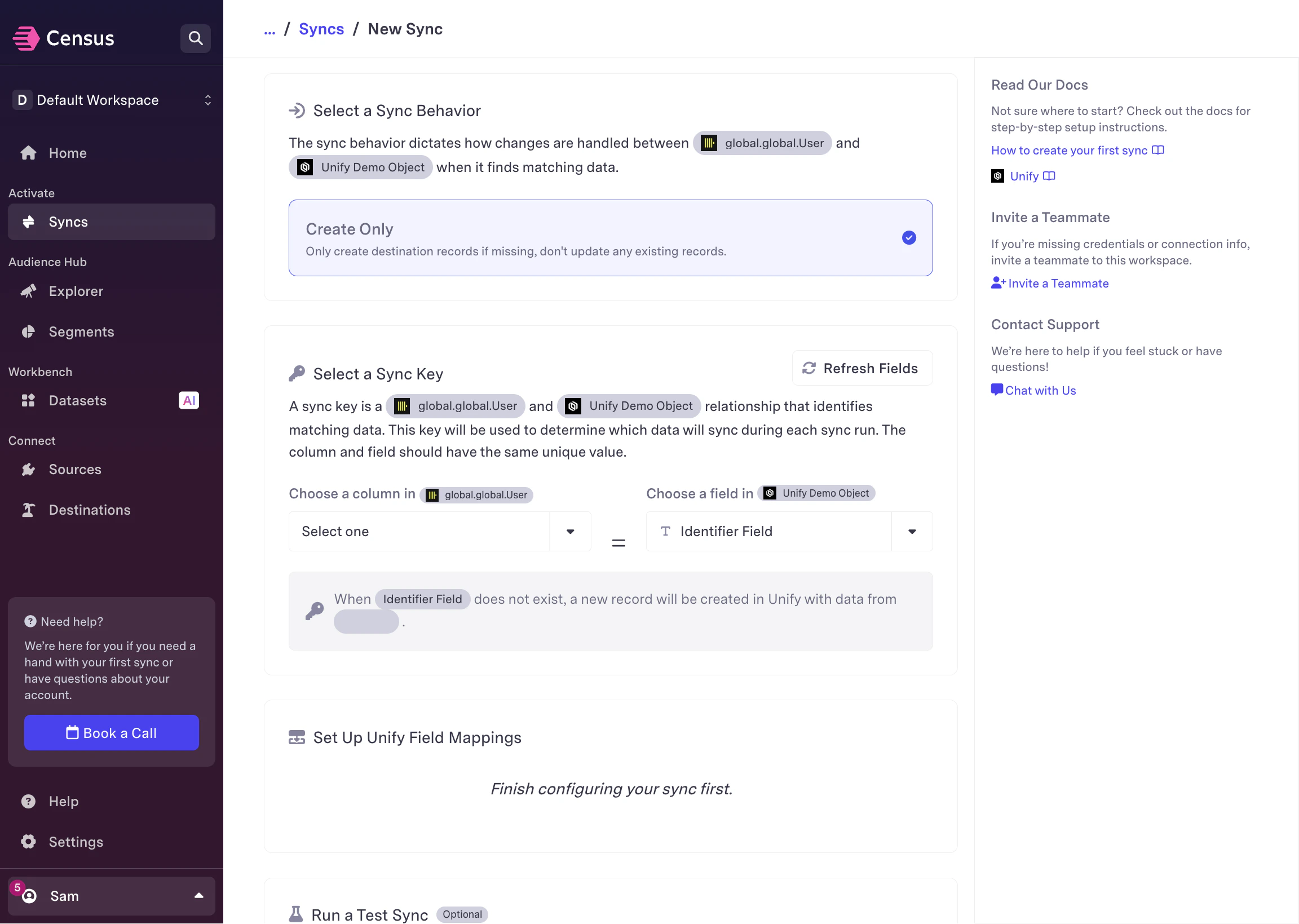 Choose which unique key to use for the sync. This is the key that will be
used to identify records in Unify to avoid creating duplicates and to update
existing records (if applicable).
Choose which unique key to use for the sync. This is the key that will be
used to identify records in Unify to avoid creating duplicates and to update
existing records (if applicable).
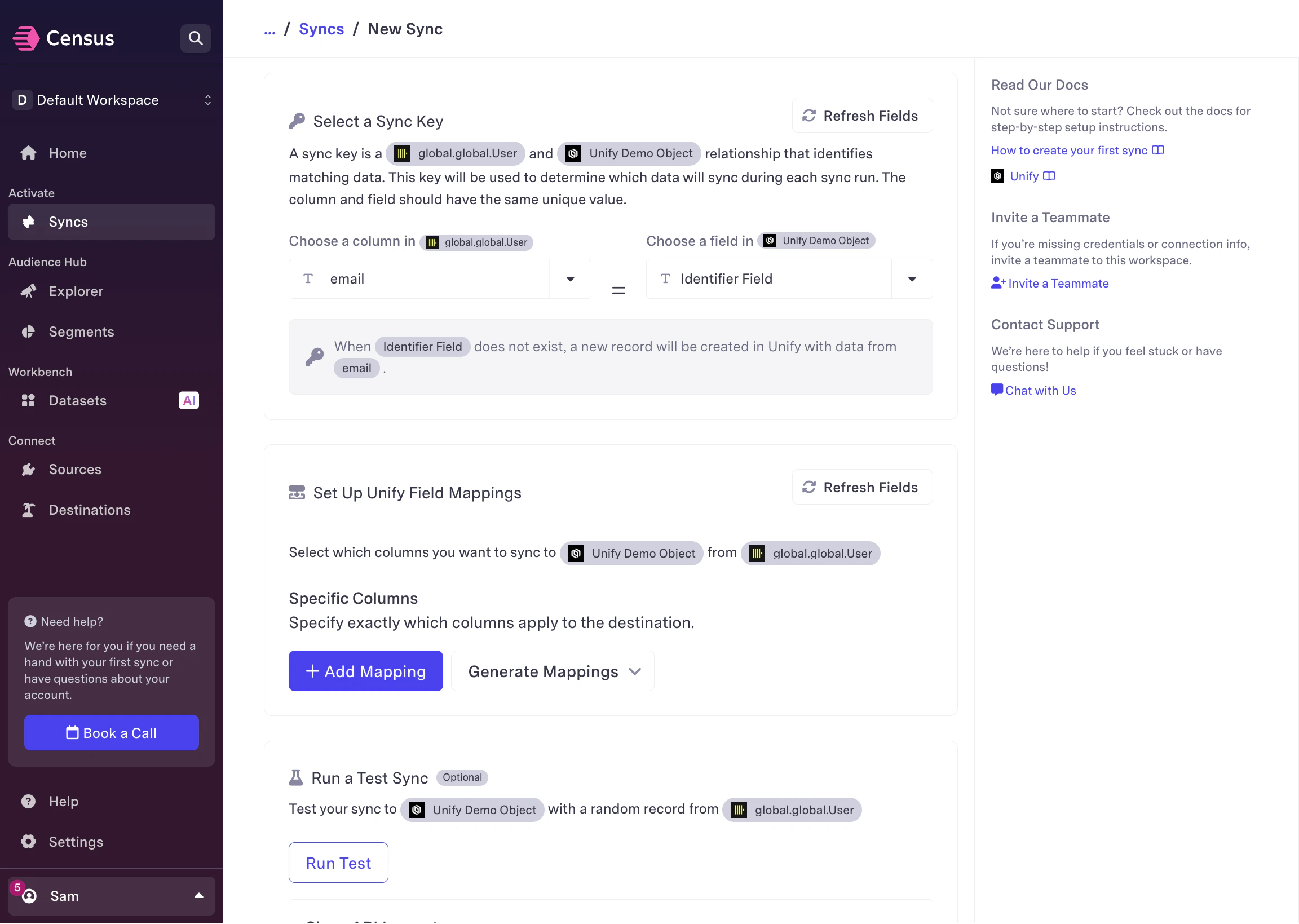 Fill in the mapping between the fields in your data source and the
attributes on the Unify object. This is how you tell Fivetran which fields
in your data source should be synced to which attributes in Unify.
Fill in the mapping between the fields in your data source and the
attributes on the Unify object. This is how you tell Fivetran which fields
in your data source should be synced to which attributes in Unify.
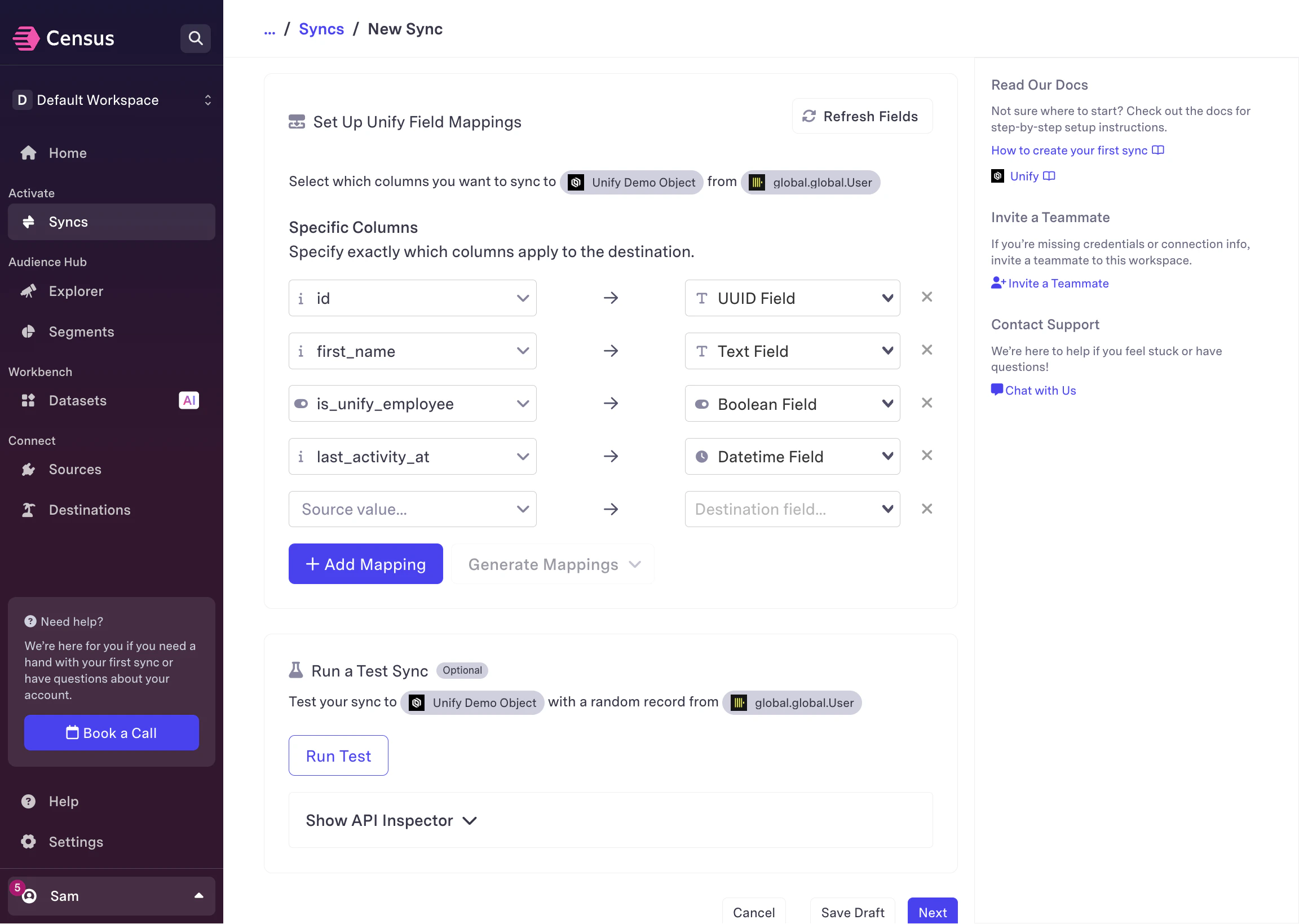 In Unify, each object attribute has a value type which determines what kind
of data it can hold. For example, **Text** attributes can hold any string
value, while **Integer** and **Decimal** attributes can only hold numbers.
You will only be able to map fields from your data source to attributes in
Unify that support an equivalent value type.
One special value type is the **Reference** type, which is used to link to
other objects. When mapping fields in Fivetran, you will see the unique
attributes for each object that is referenced by the object you are
syncing to.
This allows you to link records in this object to other objects based on
the data available in your data source, which is important in order to use
the data in Unify. A common example is linking rows in a data warehouse
table to company or person records in Unify so that they can be used for
pesonalization or segmentation.
Click **Run test** to send a single record from your data source to the
object in Unify.
In Unify, each object attribute has a value type which determines what kind
of data it can hold. For example, **Text** attributes can hold any string
value, while **Integer** and **Decimal** attributes can only hold numbers.
You will only be able to map fields from your data source to attributes in
Unify that support an equivalent value type.
One special value type is the **Reference** type, which is used to link to
other objects. When mapping fields in Fivetran, you will see the unique
attributes for each object that is referenced by the object you are
syncing to.
This allows you to link records in this object to other objects based on
the data available in your data source, which is important in order to use
the data in Unify. A common example is linking rows in a data warehouse
table to company or person records in Unify so that they can be used for
pesonalization or segmentation.
Click **Run test** to send a single record from your data source to the
object in Unify.
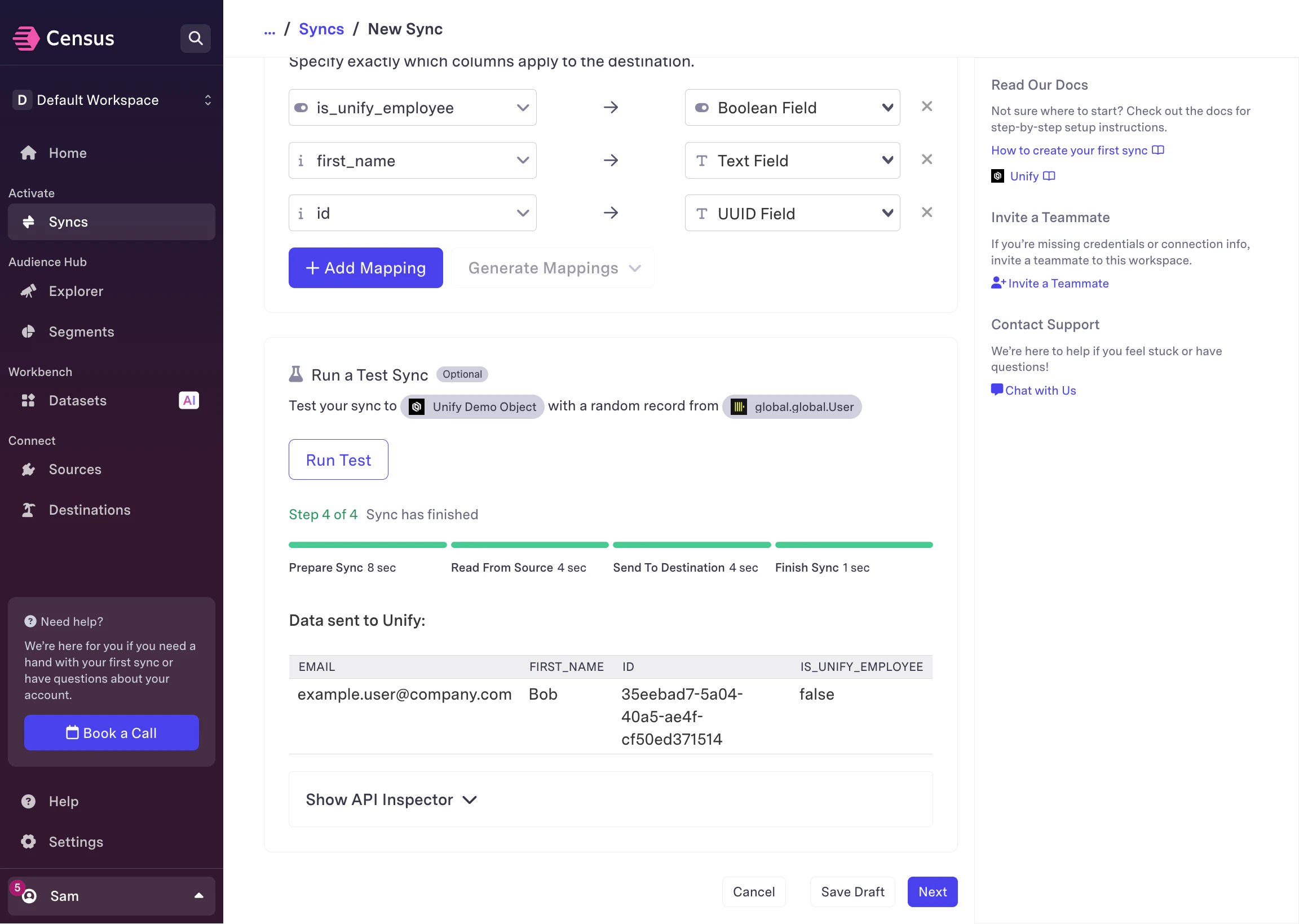 Choose **Next** and verify the sync configuration. You can also choose to
run the sync manually, on a trigger, or on a schedule.
Choose **Next** and verify the sync configuration. You can also choose to
run the sync manually, on a trigger, or on a schedule.
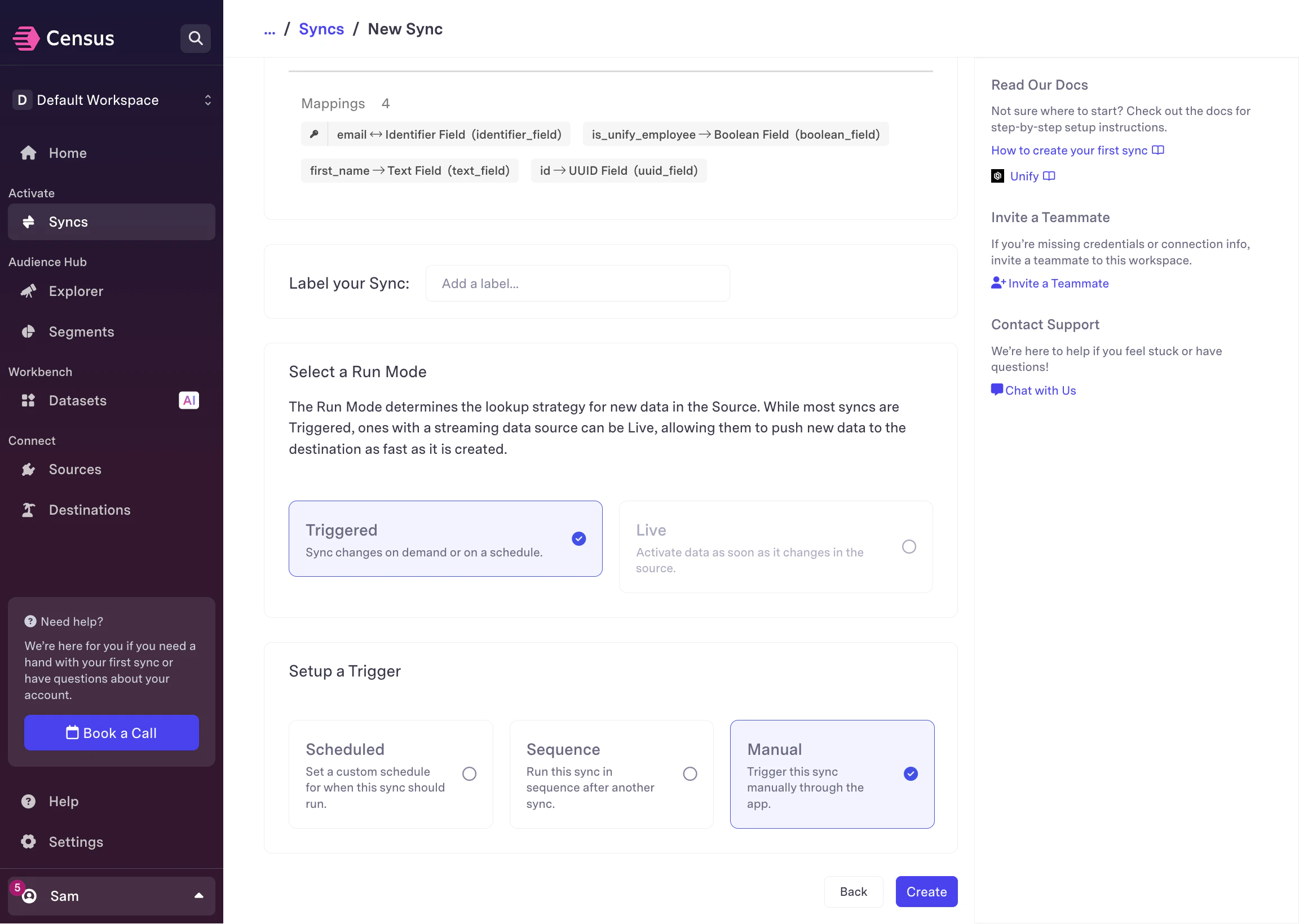 Once you are happy with the configuration, choose **Create** to save the
sync. You will then be able to see it in the **Syncs** tab.
Once you are happy with the configuration, choose **Create** to save the
sync. You will then be able to see it in the **Syncs** tab.